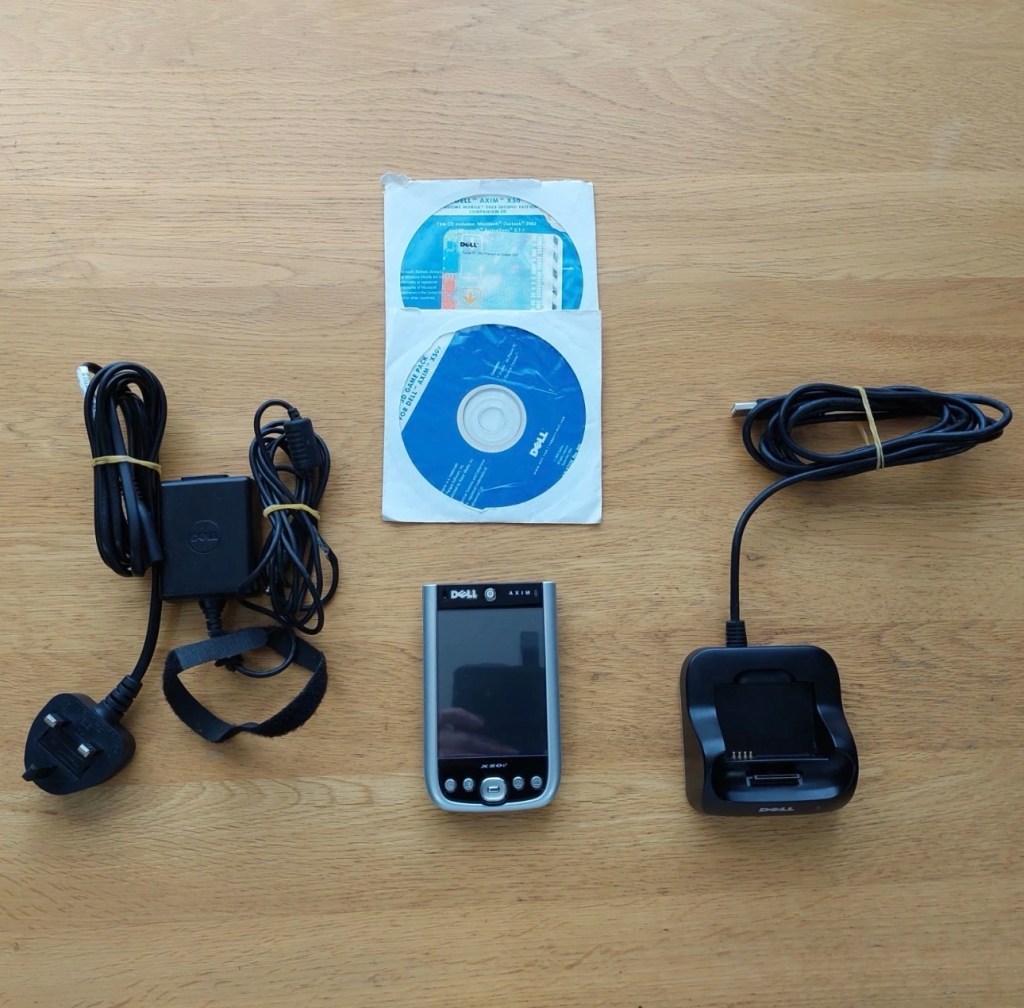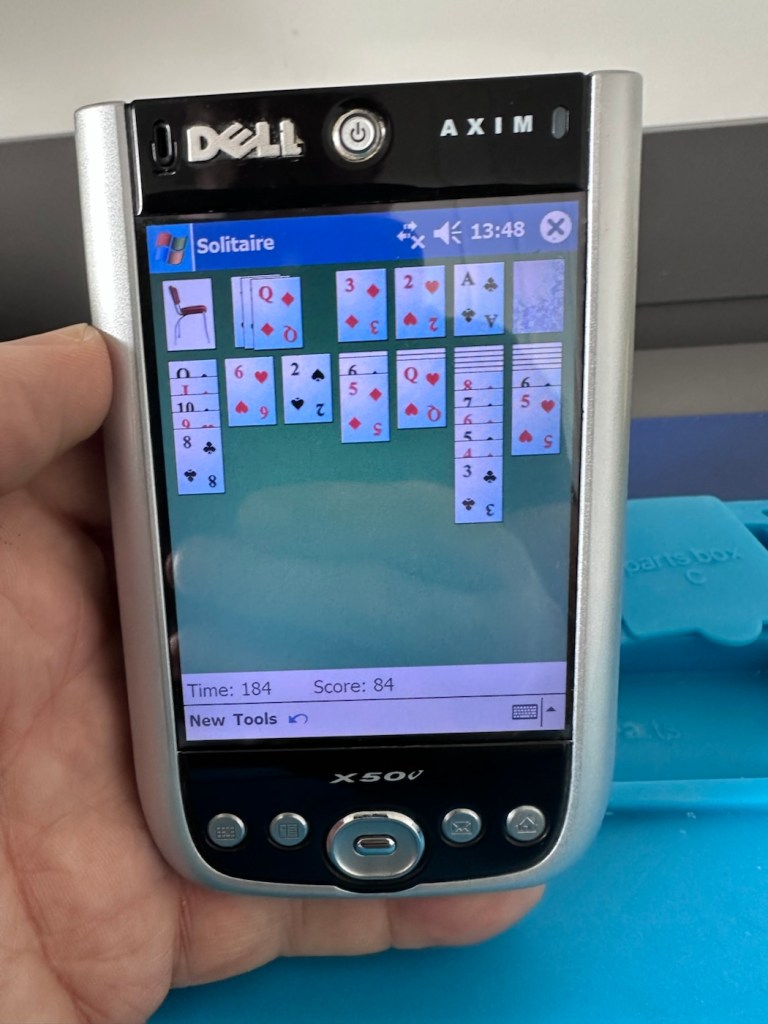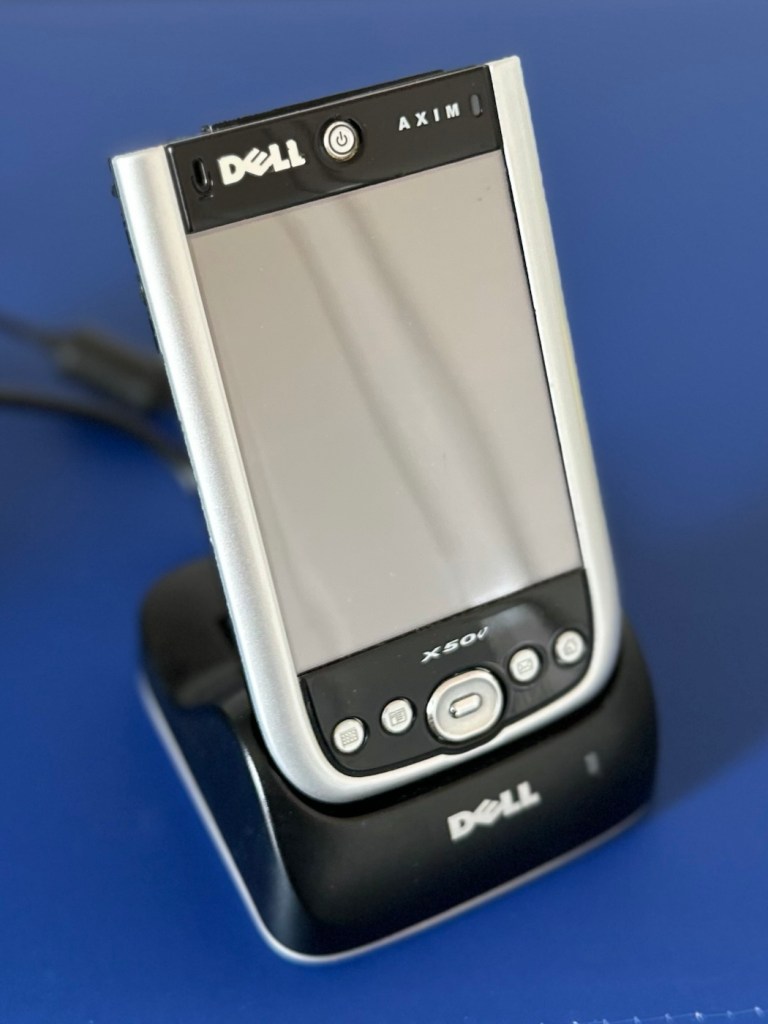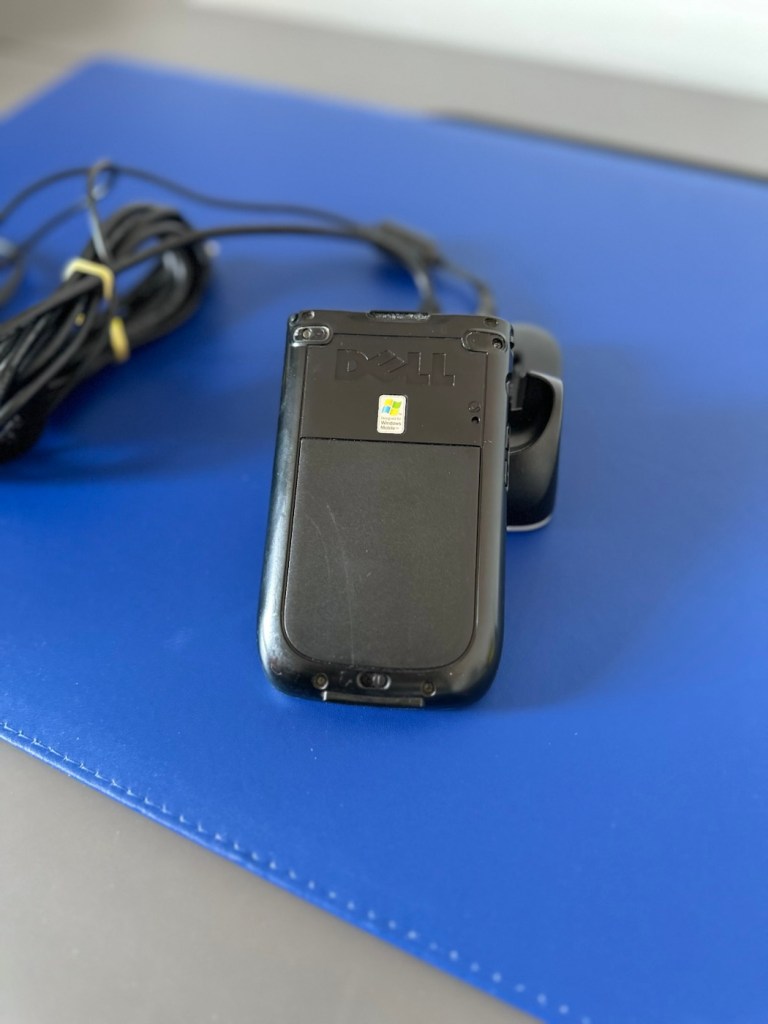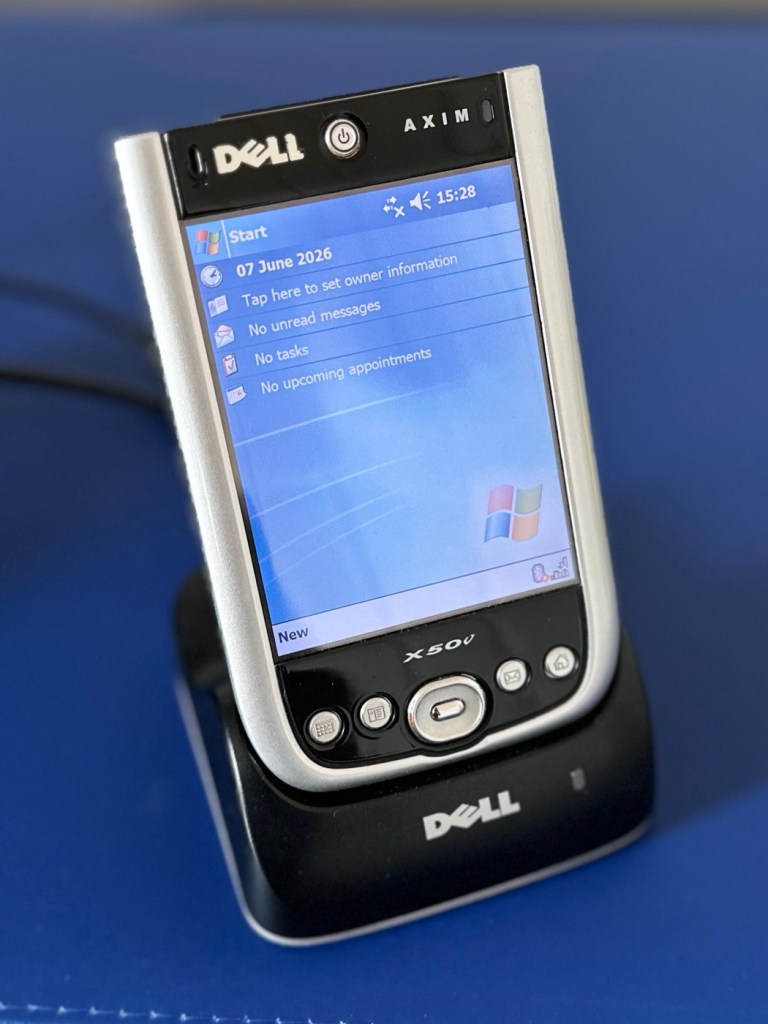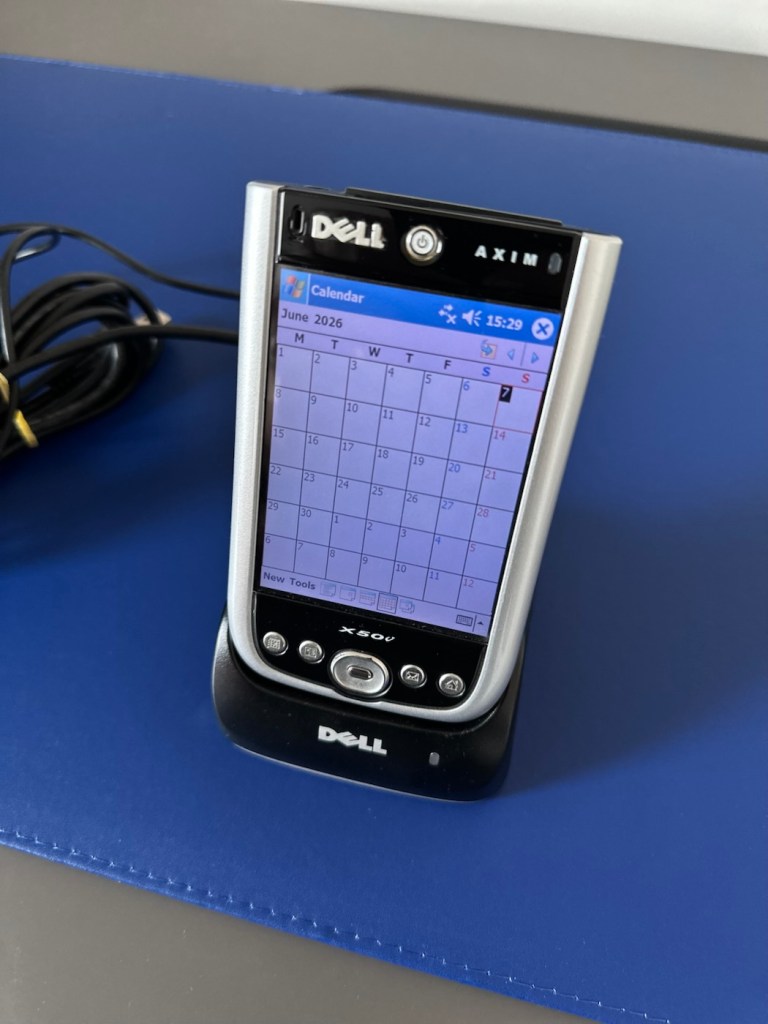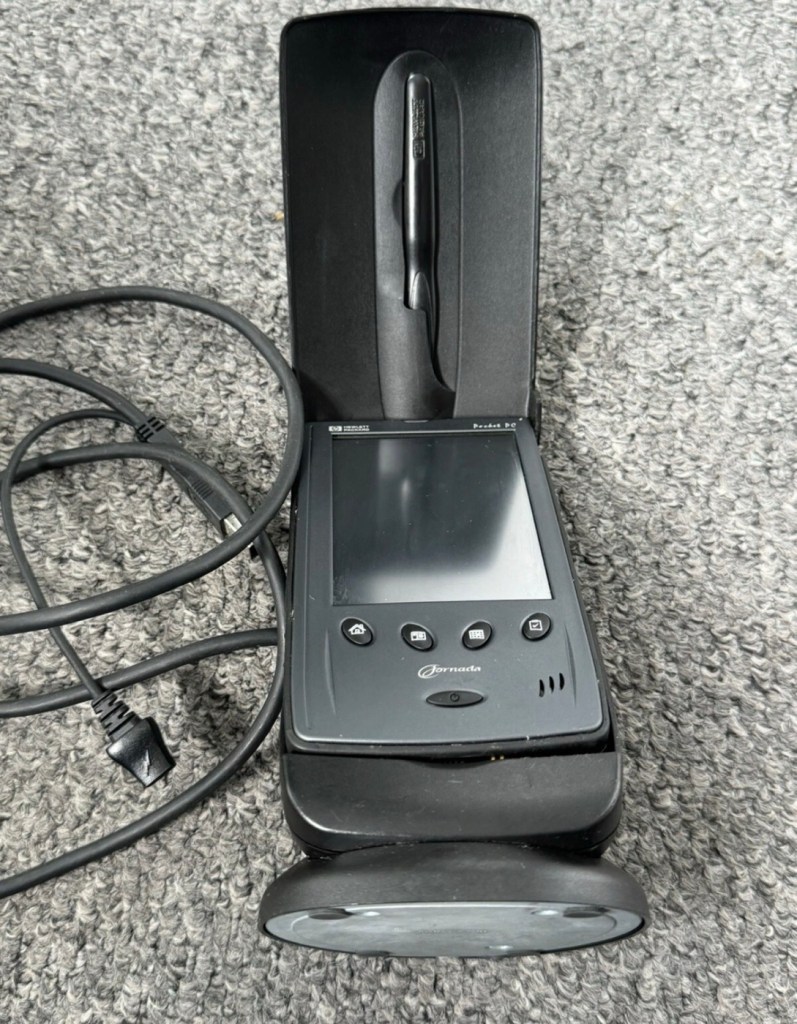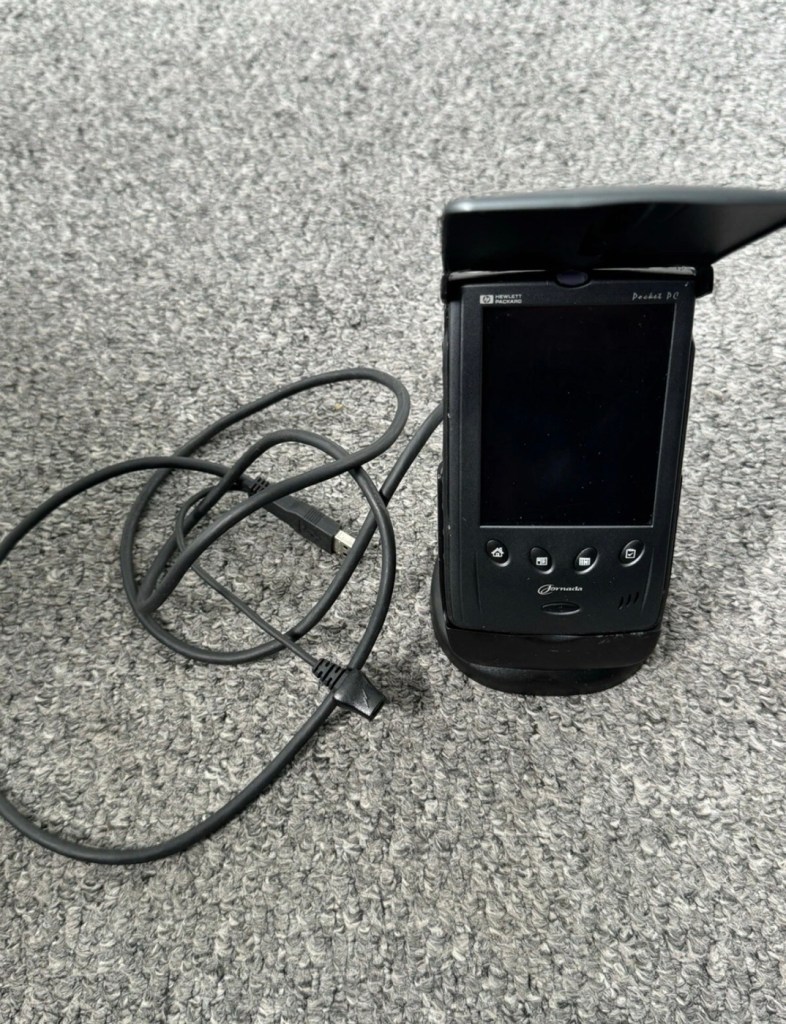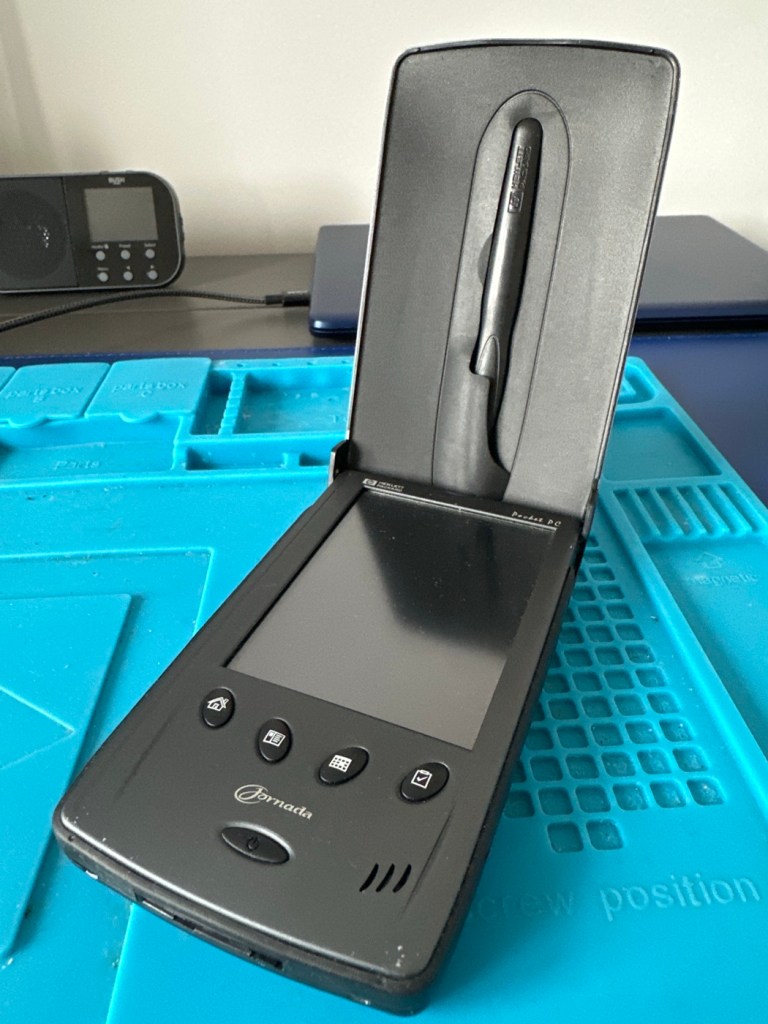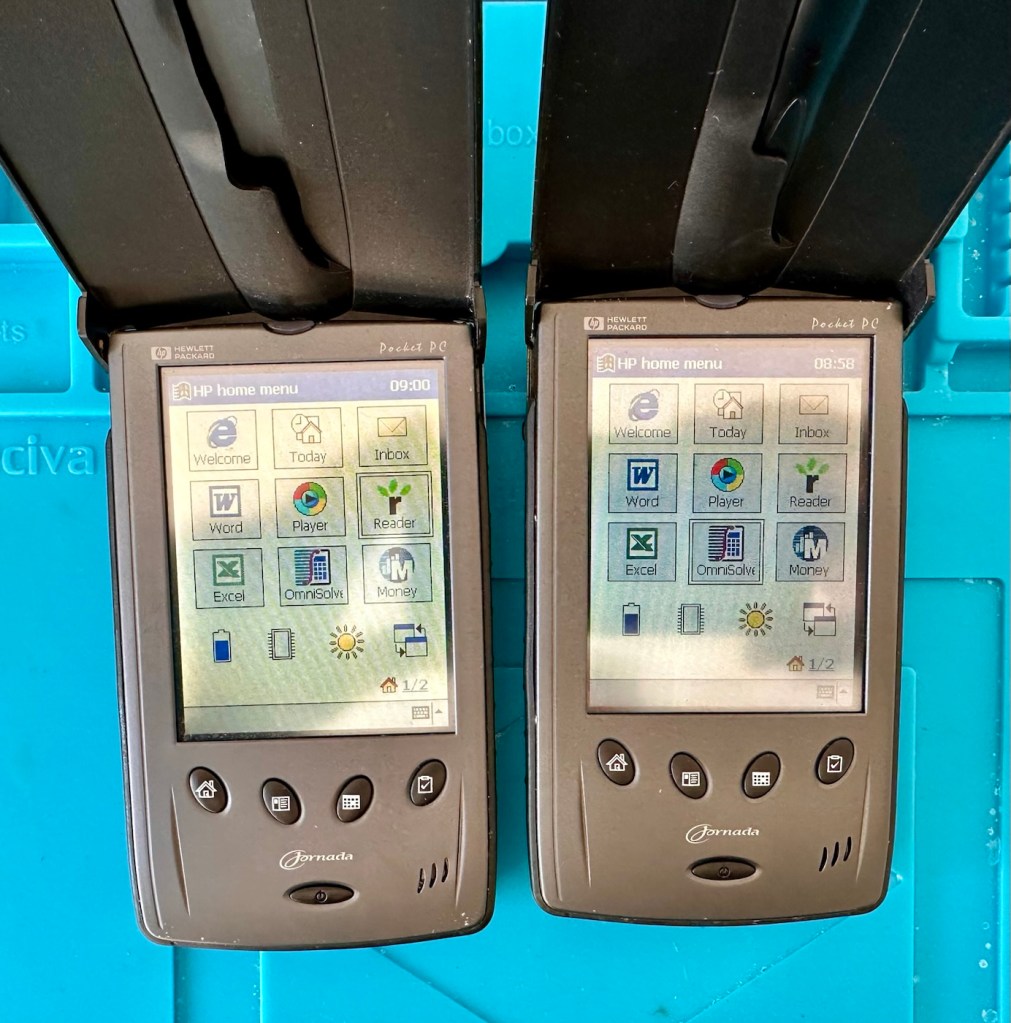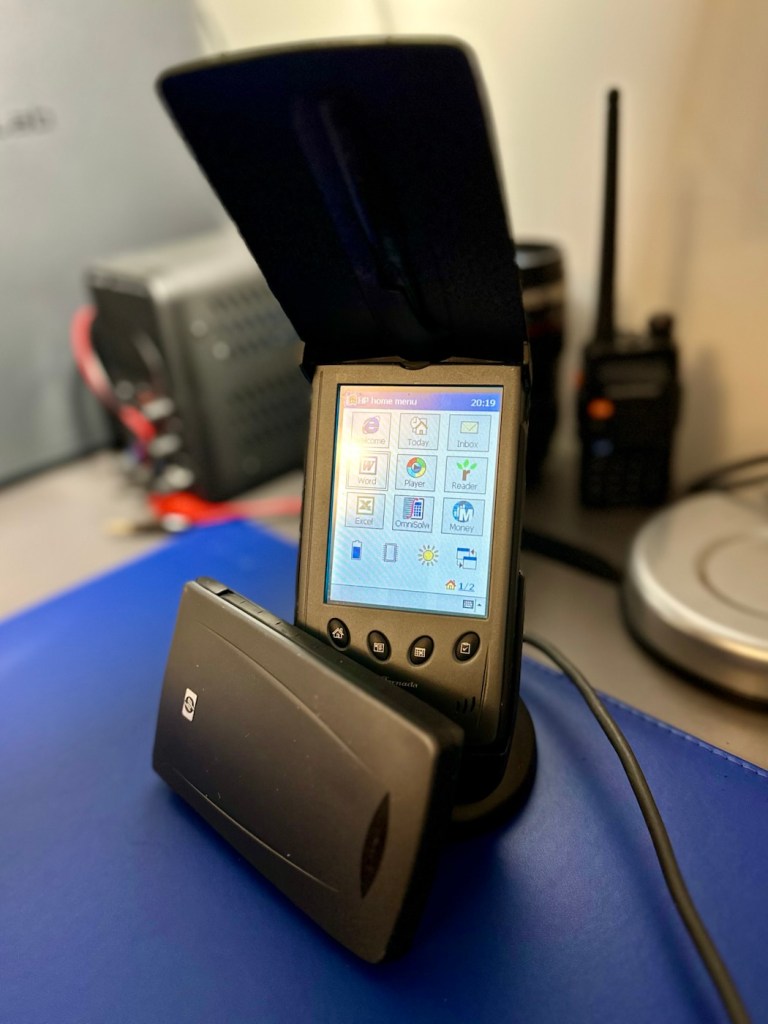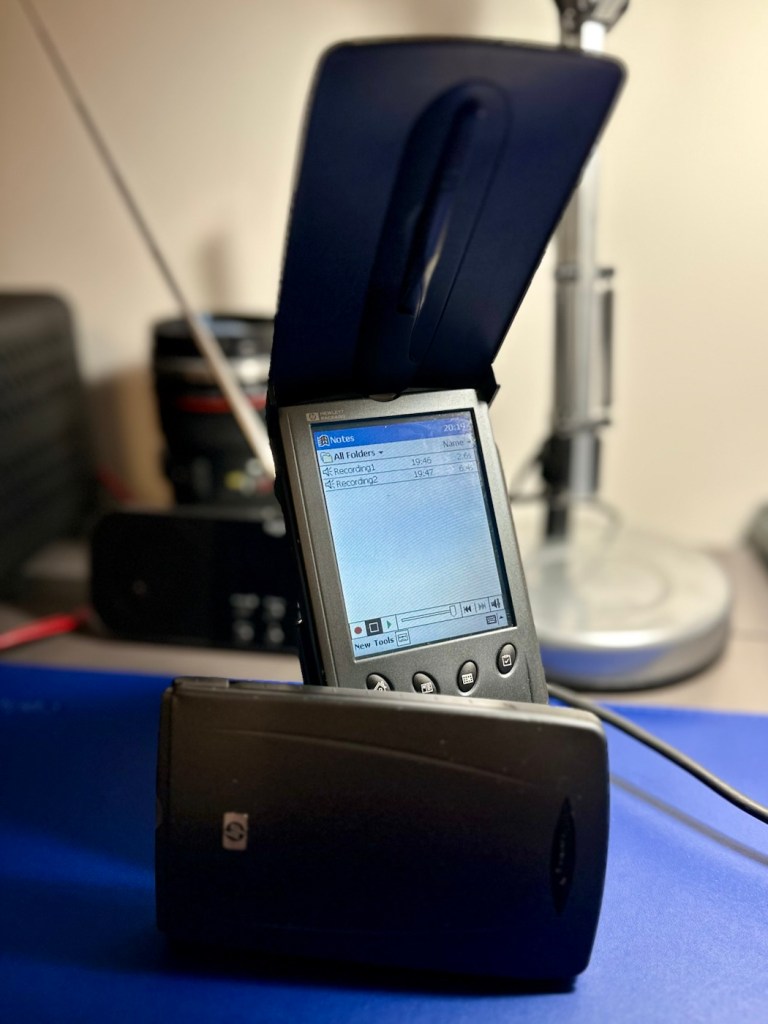

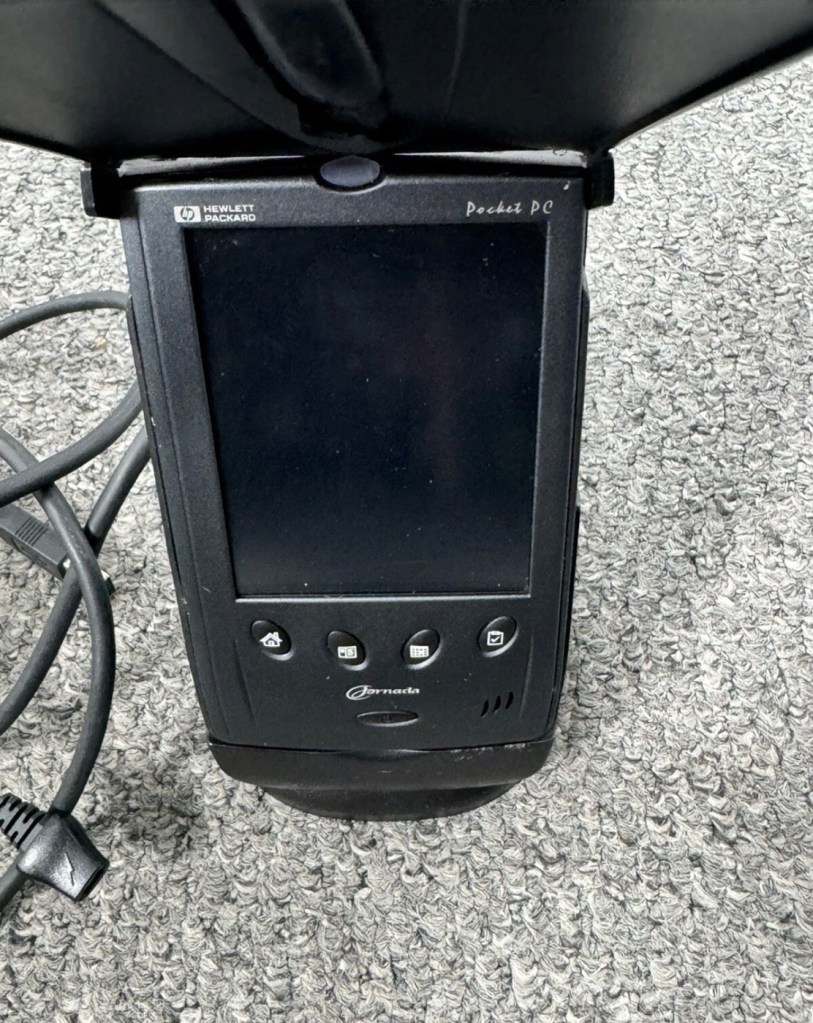
HP Jornada 540 Series PDA Pocket PC

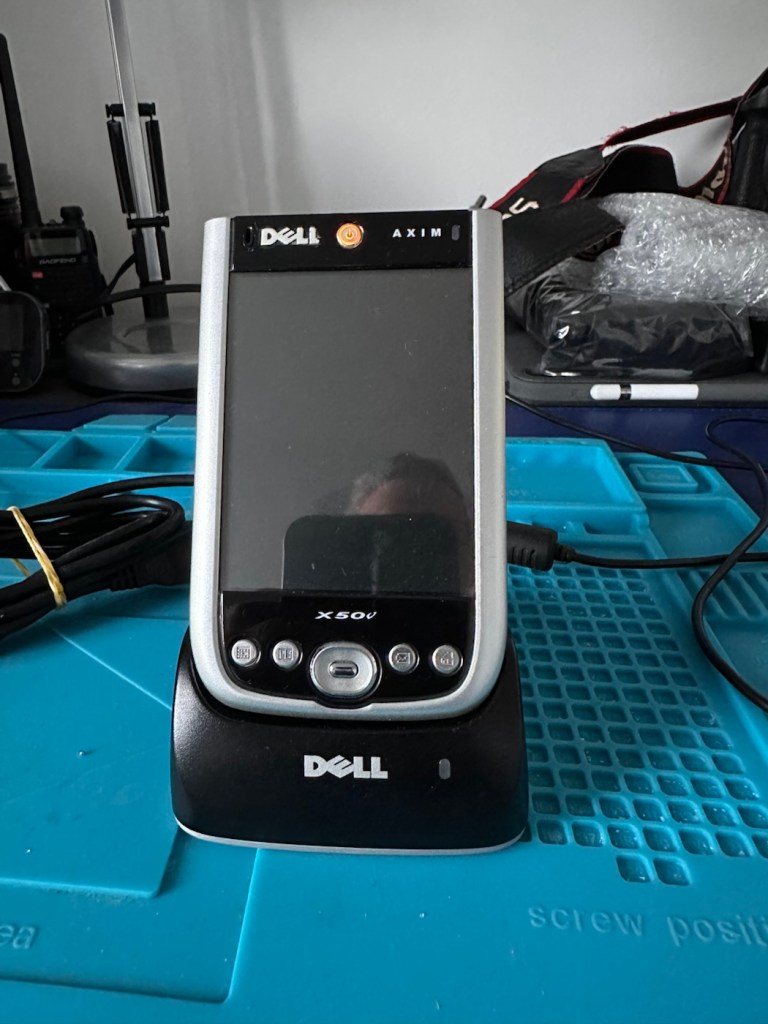
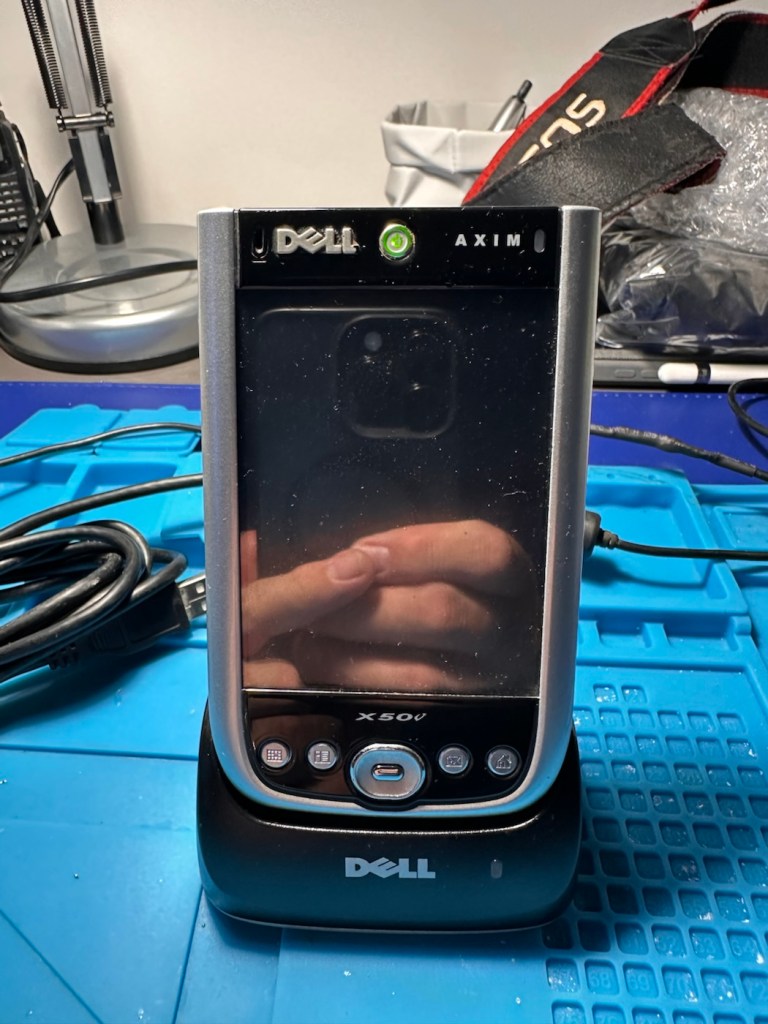
I have two faulty pocket PC units that I can hopefully combine into a “Frankenstein” unit. Can we get at least one of them working again?

What the listing stated….mostly AI produced I guess?

Untested, no charger, docking station only by Hewlett Packard

32MB Jornada PDA 540 Series Pocket PC Windows & Docking is a highly functional device that comes with some amazing features. This device is perfect for individuals who desire a highly efficient PDA Series. The device is sold as untested and is compatible with the Windows operating system. The brand of this device is HP, which is a well-known brand in the tech industry. The PDA Series is HP Jornada and it comes with an installed memory (RAM) of 16 MB. The display size (pixels) and screen type are unknown, but it has a model number of 540. This device comes with a docking station that allows ease of use for individuals.

EBay

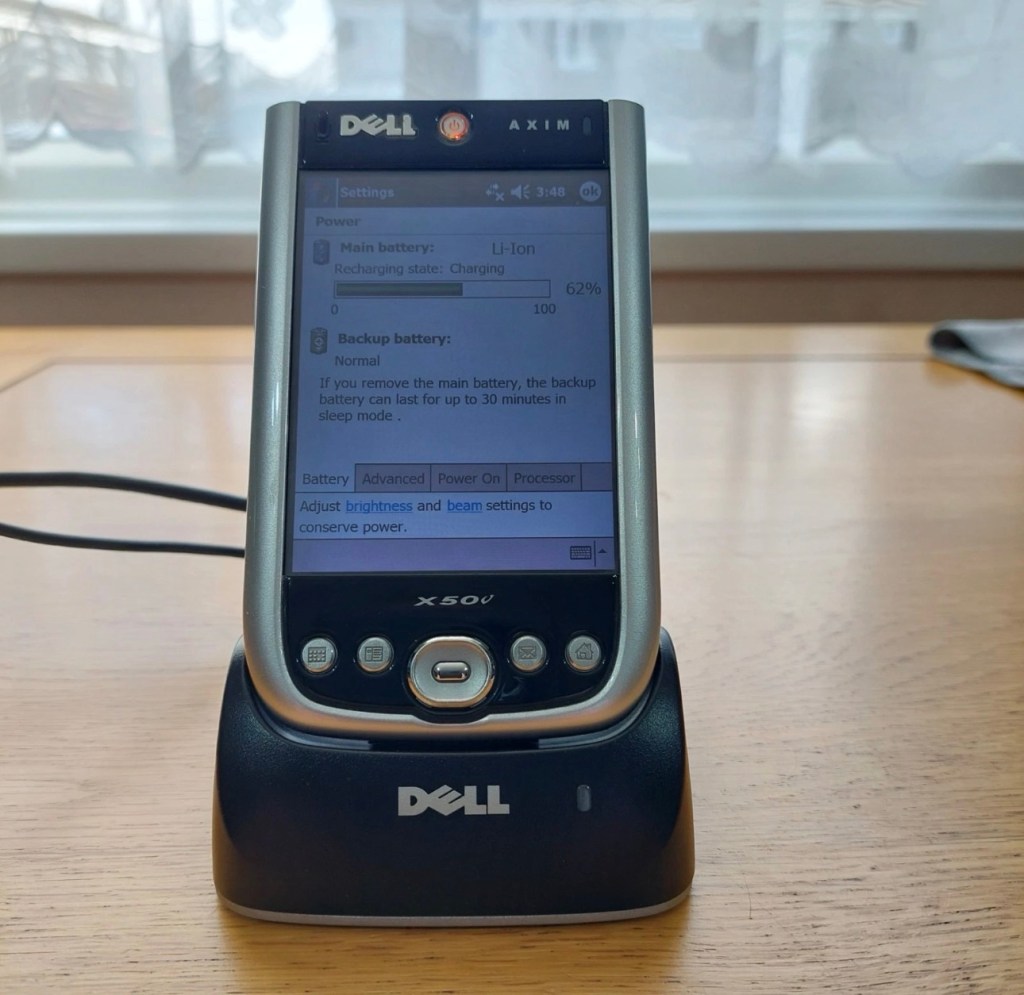
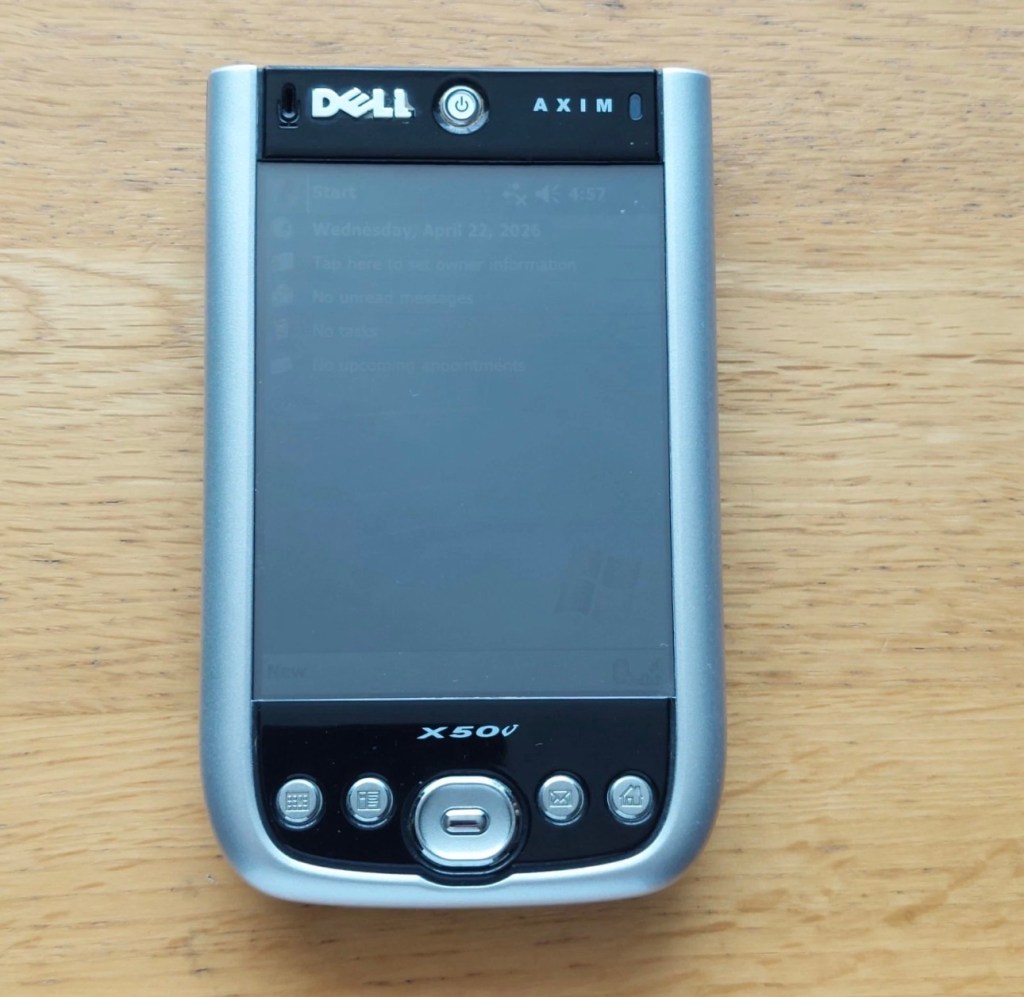
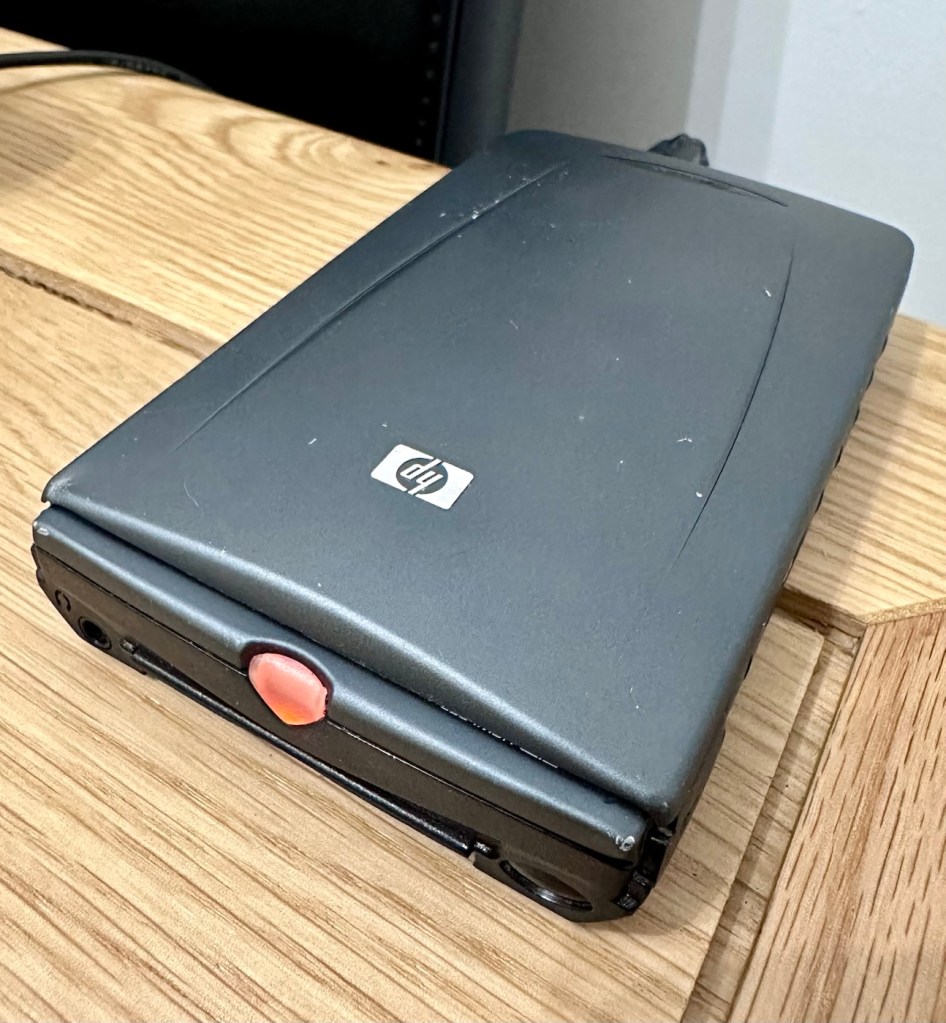
And this is my original old 540 (548) Jornada.

I just know this is going to be a challenge, and to be honest i will have two of these when this one arrives. This is the 16 mb version, released in Mid 2000, currently aged at around 26 years old. I’ve had a dead one sitting in one of my junk drawers for a couple of years now and I though it would be a good challenge to get at least one of them working again, another one of my Frankenstein projects if you must. I have no charger for these, the chargers are priced at a premium with the online pirate community, (Robbing swines!) so I will just have to make do. At least with the docking station that this unit has I have somewhere to start from. I suspect both batteries will be dead so I may have to use some jiggery pokery to get some power into their circuits to see if we can get any signs of life.

But whilst we await the arrival of this unit, here is a little bit about this PDA:

The Jornada was a line of personal digital assistants or PDAs manufactured by Hewlett-Packard. The Jornada was a broad product line that included Palm-Size PCs, Handheld PCs, and Pocket PCs. The first model was the 820, released in 1998, and the last was the 928 model in 2002 when Compaq and HP merged. The Jornada line was then succeeded by the more popular iPAQ model PDAs. All Jornada models ran Microsoft Operating Systems that were based on Windows CE.

Jornada 540 series

The HP Jornada 540 series, including models 545, 547, and 548, was released in July 2000. As one of the original Pocket PC platforms, it featured a 12-bit color display, 32MB RAM, and USB connectivity running Windows CE 3.0.

The Jornada 540 series was one of the original models of Pocket PC, when the platform was first announced. Sharing the Operating System, CPU and memory card slot of the 520 series, it featured a 12-bit display (originally advertised as 16-bit display) and USB connectivity. Two models were made available that were identical except for the amount of RAM. The 545 had 16 MB RAM and the 548 had 32 MB RAM.

Wikipedia

Assessment:

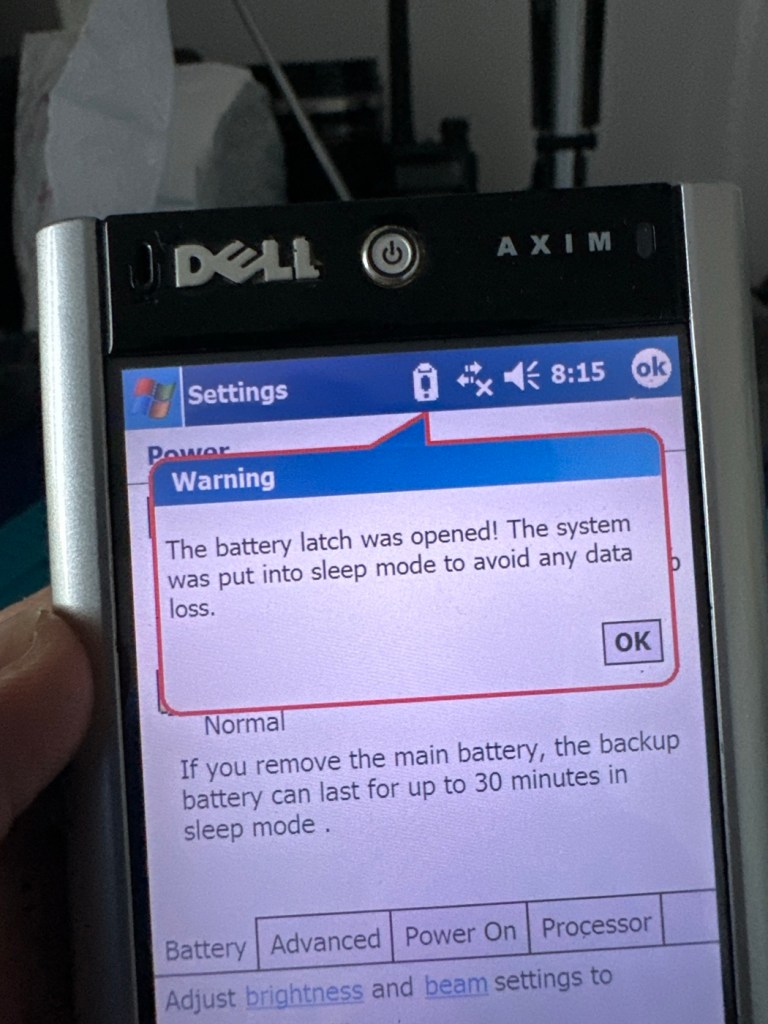
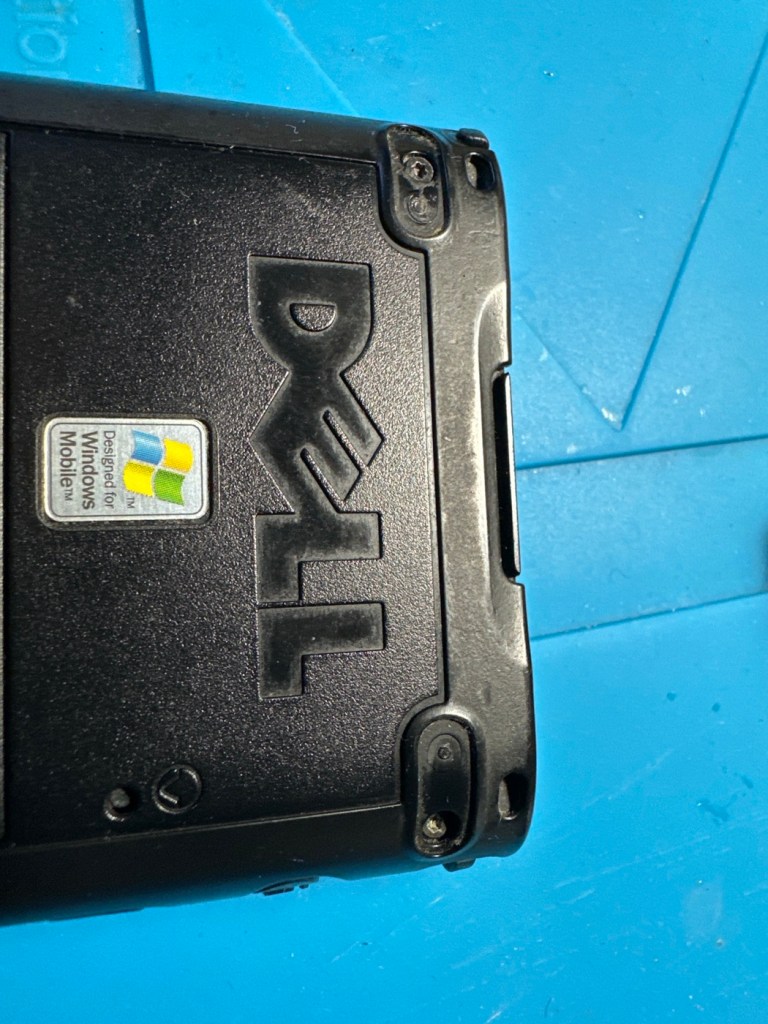
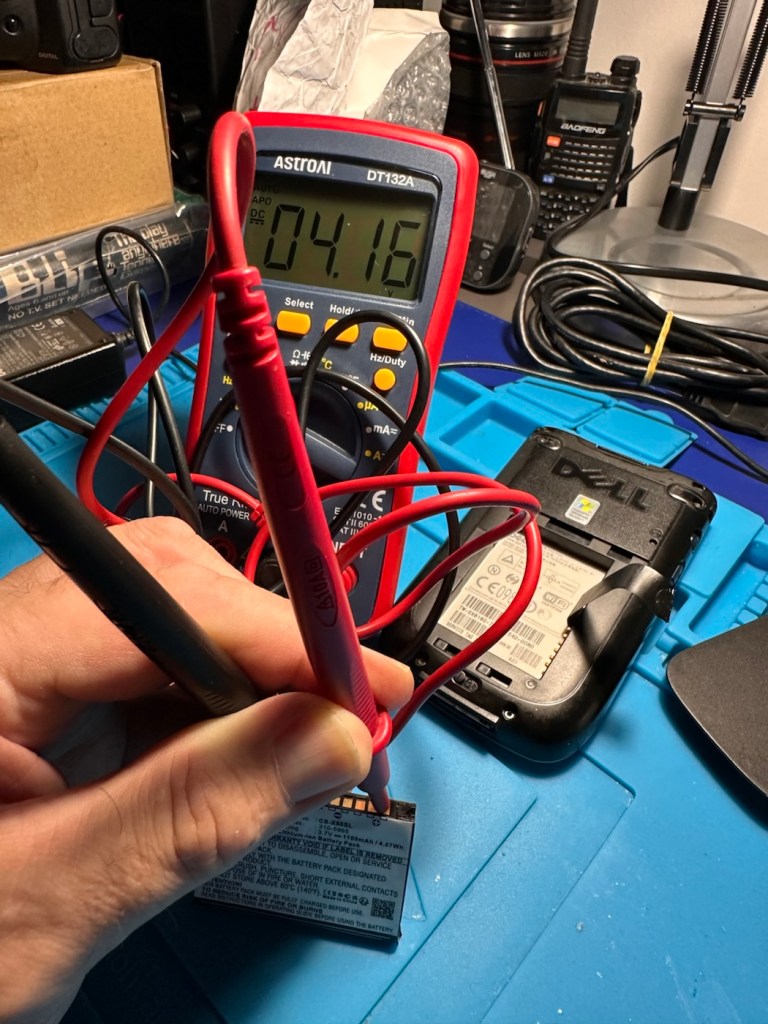
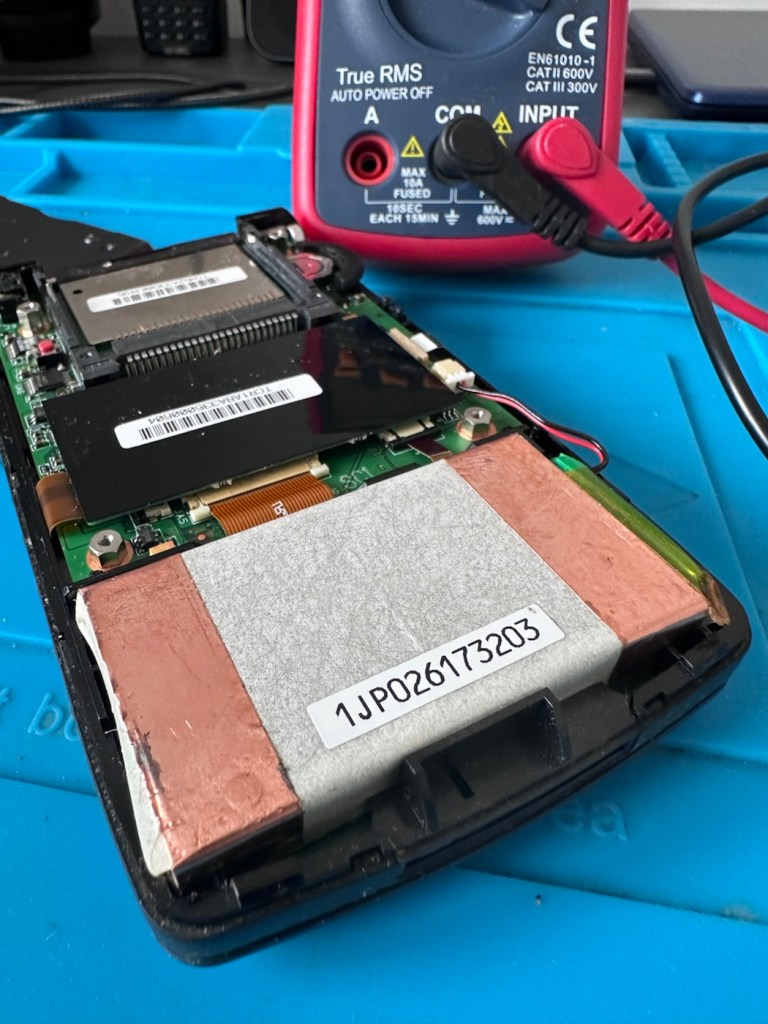
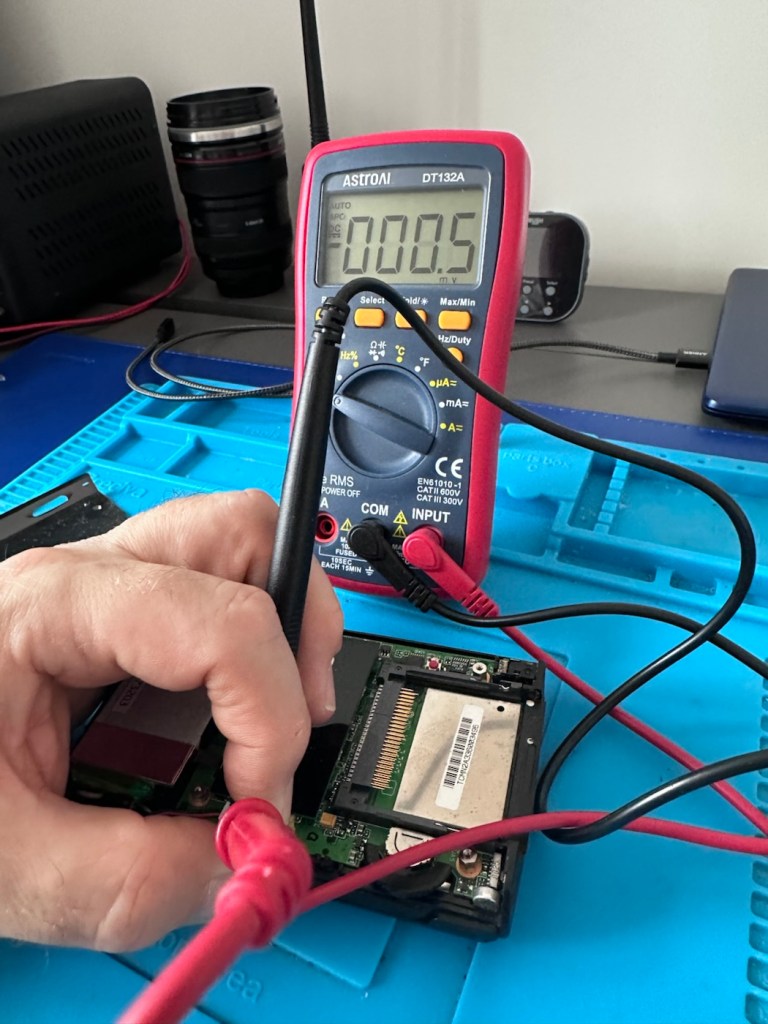
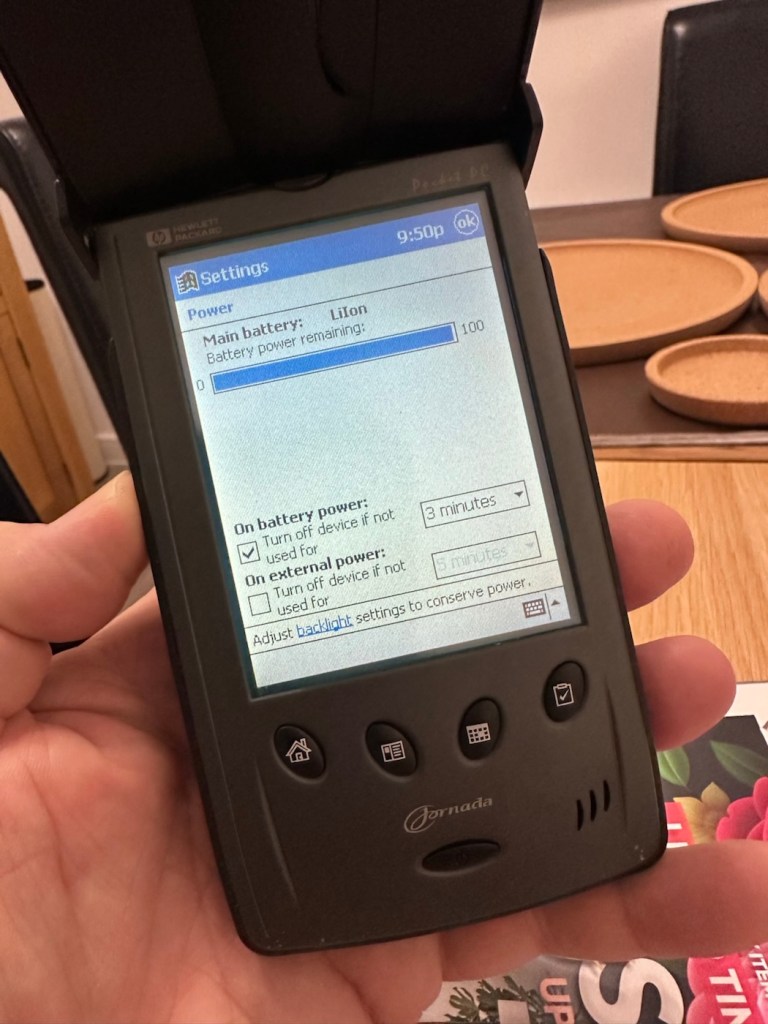
The old one I originally had is in fairly good condition, only displaying age related wear and tear. It has its original touch pencil, and is pretty much all there. Its battery (a 3.7v Li-ion) is very dead though (see pictures above) I have no means at present to see if I can charge the battery.

My original old unit

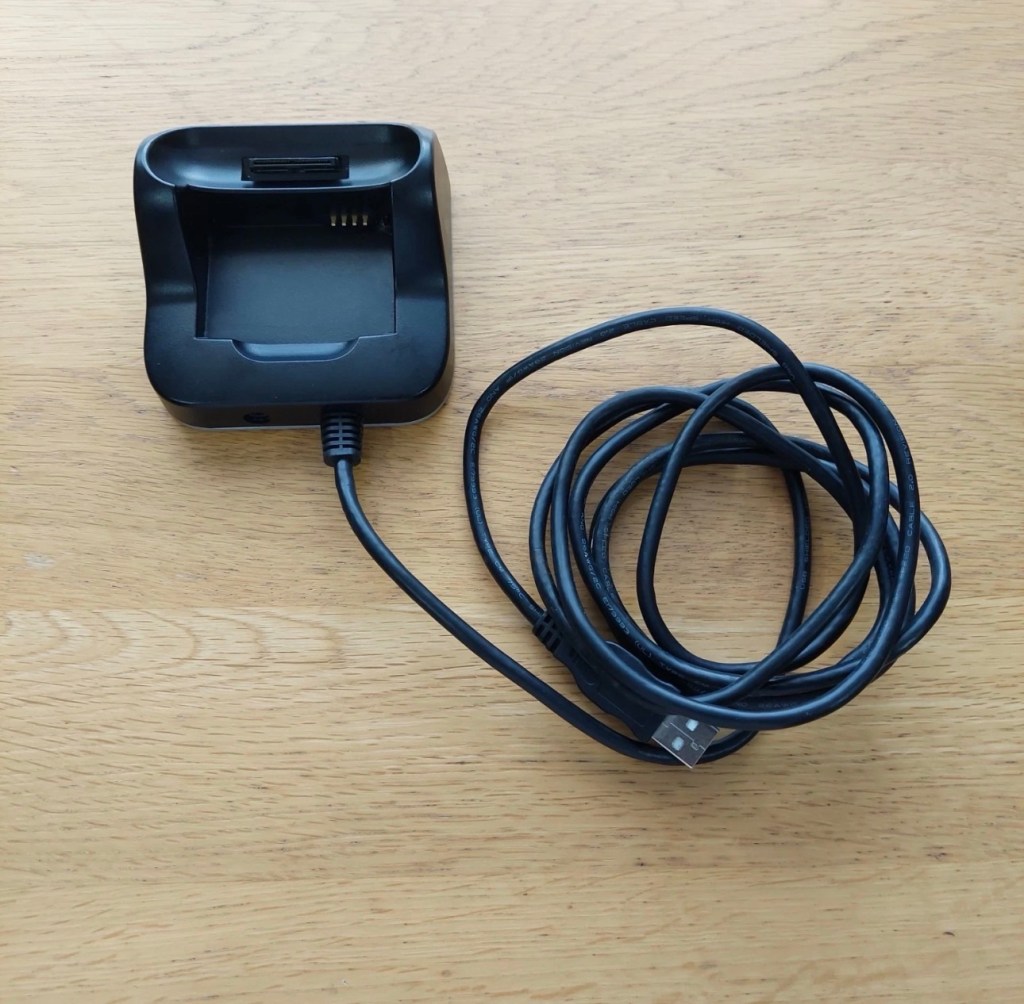
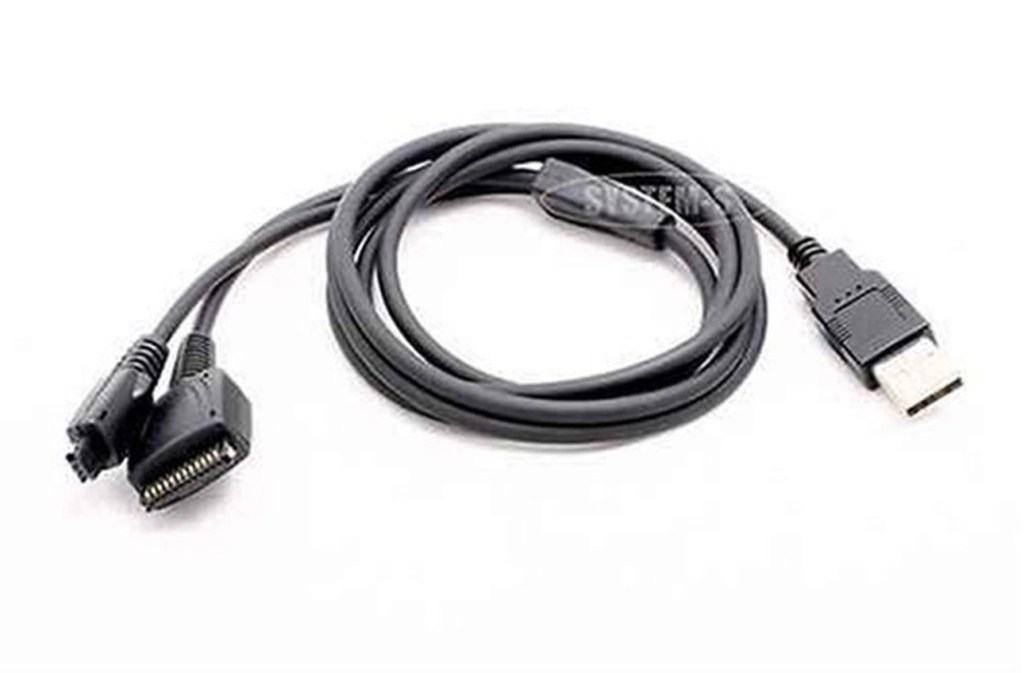
I have however found a charging alternative that will not break the bank. I have found a chap in Germany called Edgar, that runs a business selling cables and peripherals for older units, as well as more up to date systems, his shop is in Hannover and his company is: systemhauszakaria.com. I have managed to get a USB charging unit called a System-S USB Charging cable, that has the connectors required for this unit, and being a USB cable I can use a suitable plug for the mains supply , if required.

The System-S USB charger cable

The cable includes a data transfer cable that also fits the unit, however my main task is to try and get some power into these units.

Let’s give it a go.

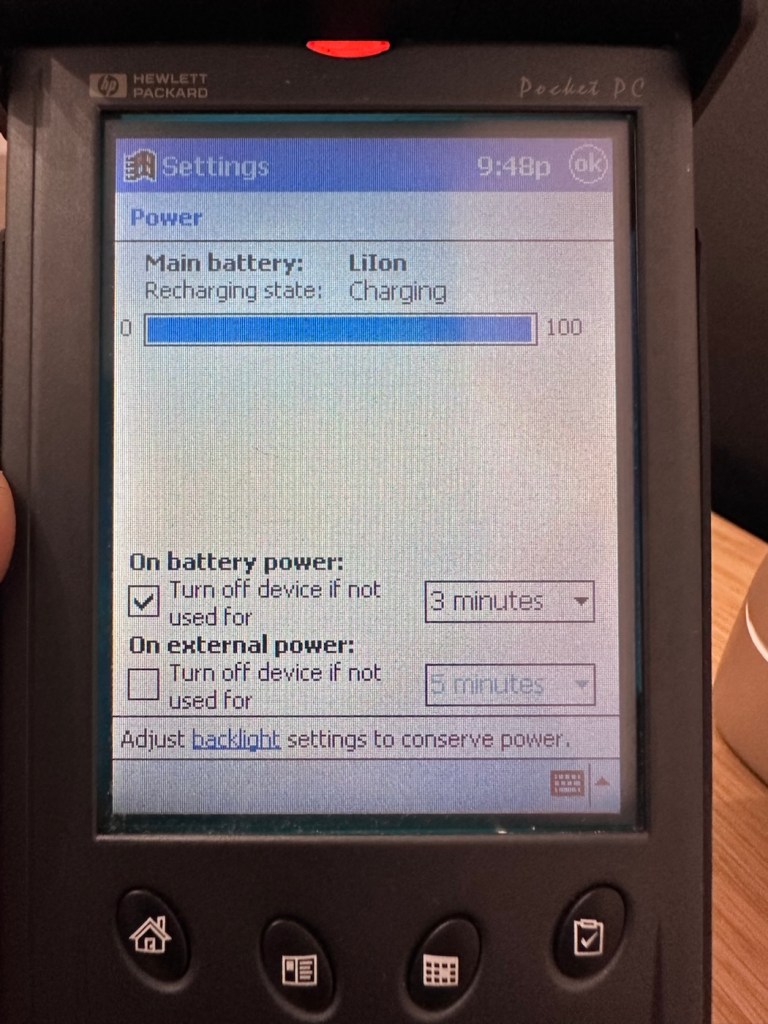
I’ve used the new lead, left the unit on and monitored it for about 90mins, and it does appear to be taking a charge. An Orange light indicates that charging is taking place.

Charging unit

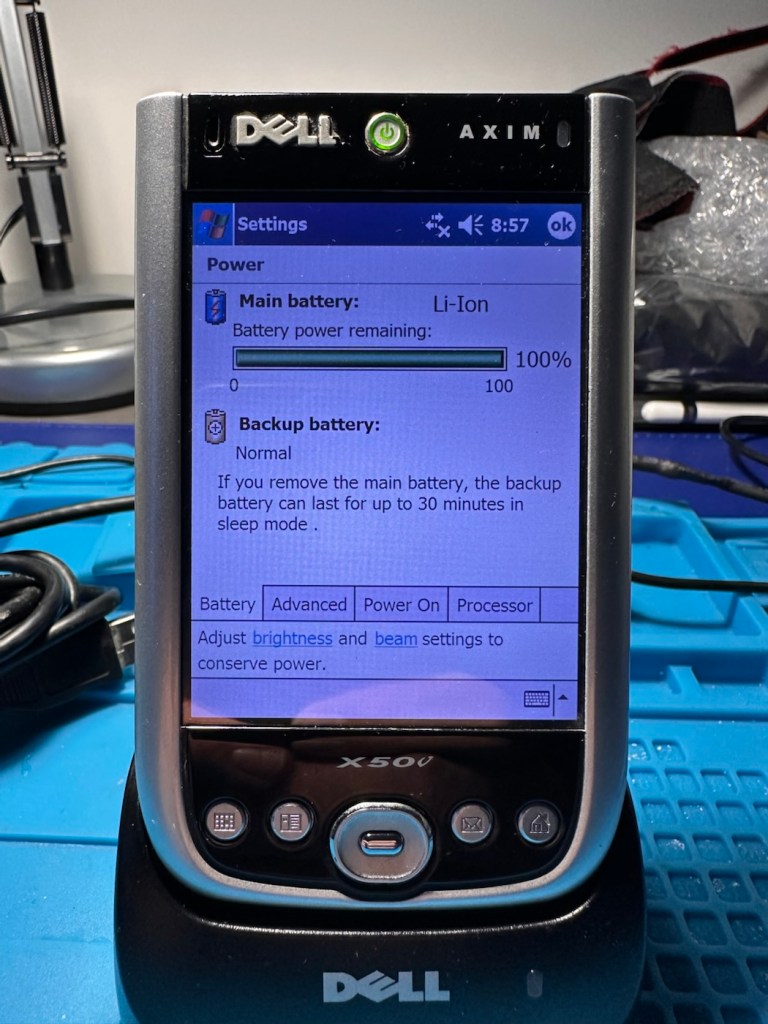
The unit displays as 100% charged with the charging lead in. when disconnected it drops to about 50% but within a couple of seconds it shows as 100% again, this could be a time delay of some sort whilst switching to the battery circuit.

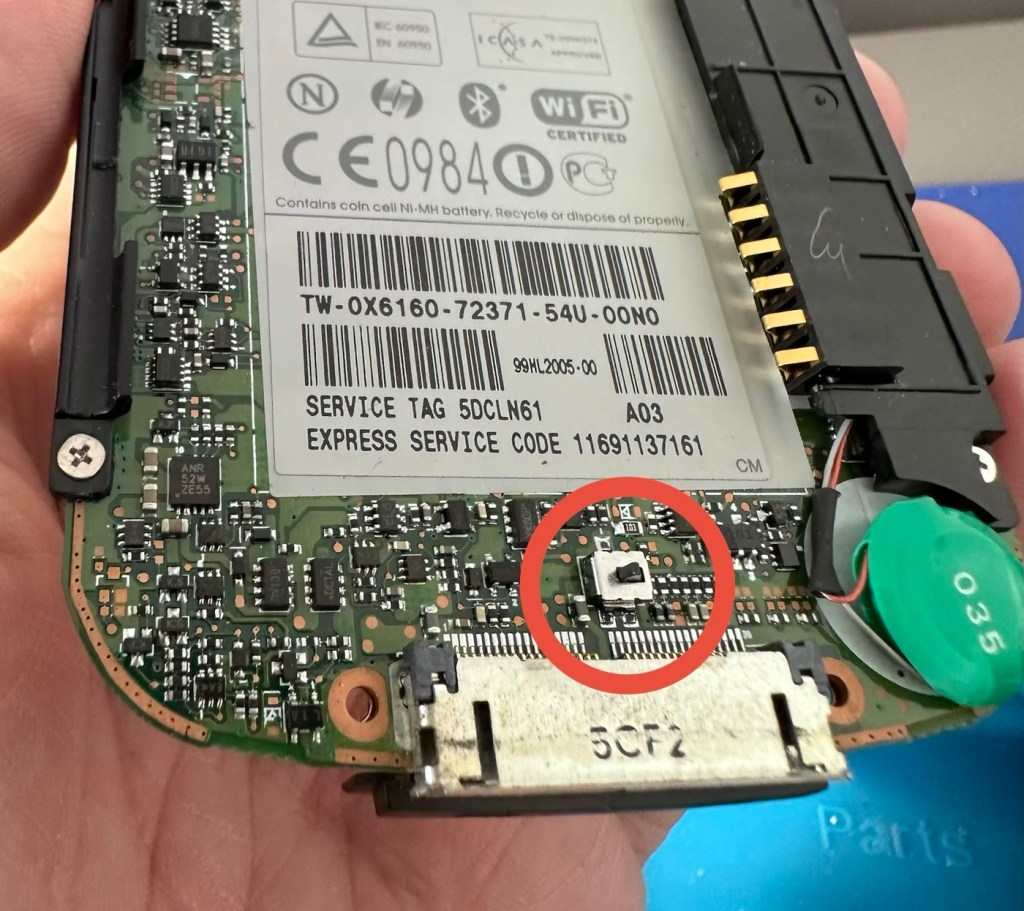
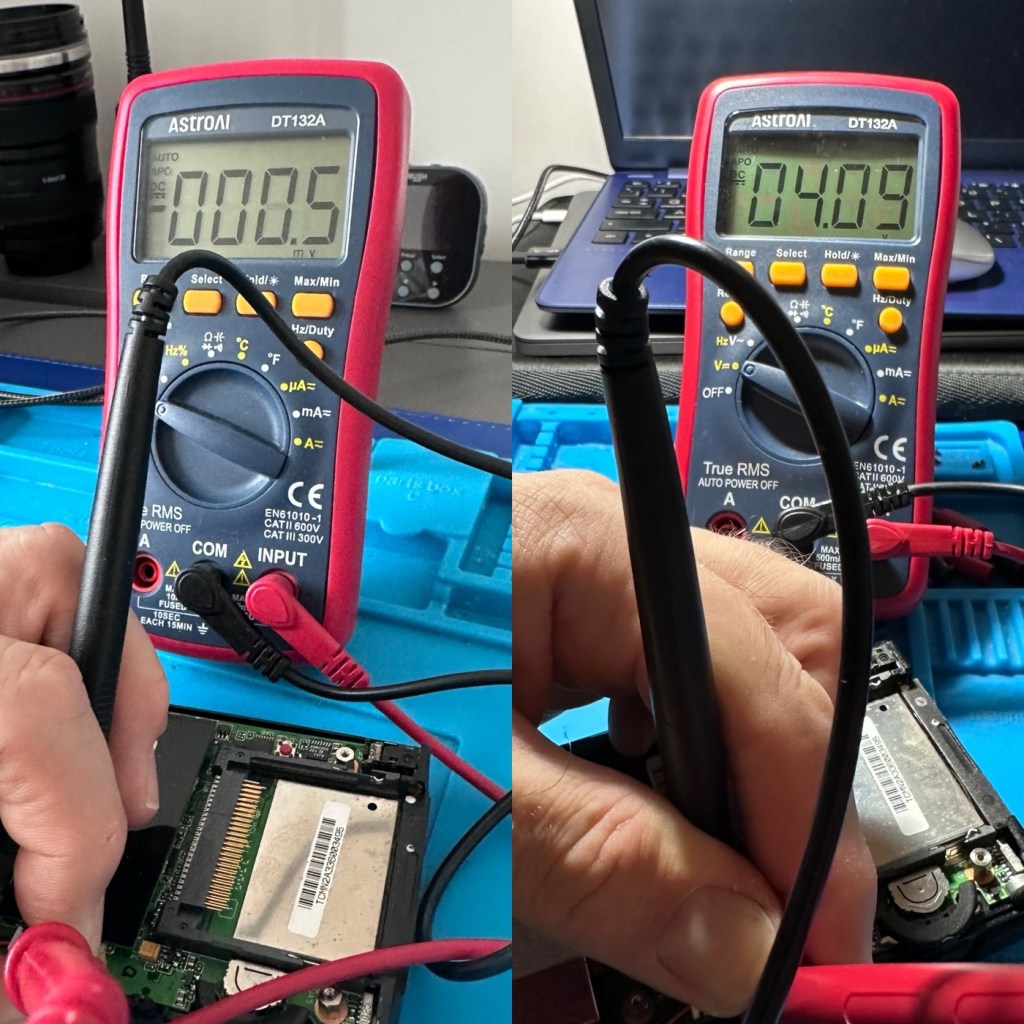
At this point I thought it would be worth getting the back off again, to check the battery charge. If you remember earlier in this post, this old unit that had sat unused in my desk for the last couple of years and when last tested the battery was dead at about 0.5mA. However this is a transformation, as when the battery was now tested its voltage was 4.09v. Now, a 3.7v Li-ion battery such as this should have a max charge voltage of 4.2v, so in theory this battery is in quite good condition considering its age. There may be a little deterioration, however considering this battery is possibly 26 years old it’s held up very well.

Before charge, and after

The unit will be left for a while to see how the charge holds. 10hrs later, untouched and off charge, I can confirm the power is still indicating 100%, this pleases me as it shows the battery is still good and has a good life inside of it. Very pleasing for what is potentially a 26 year old battery.

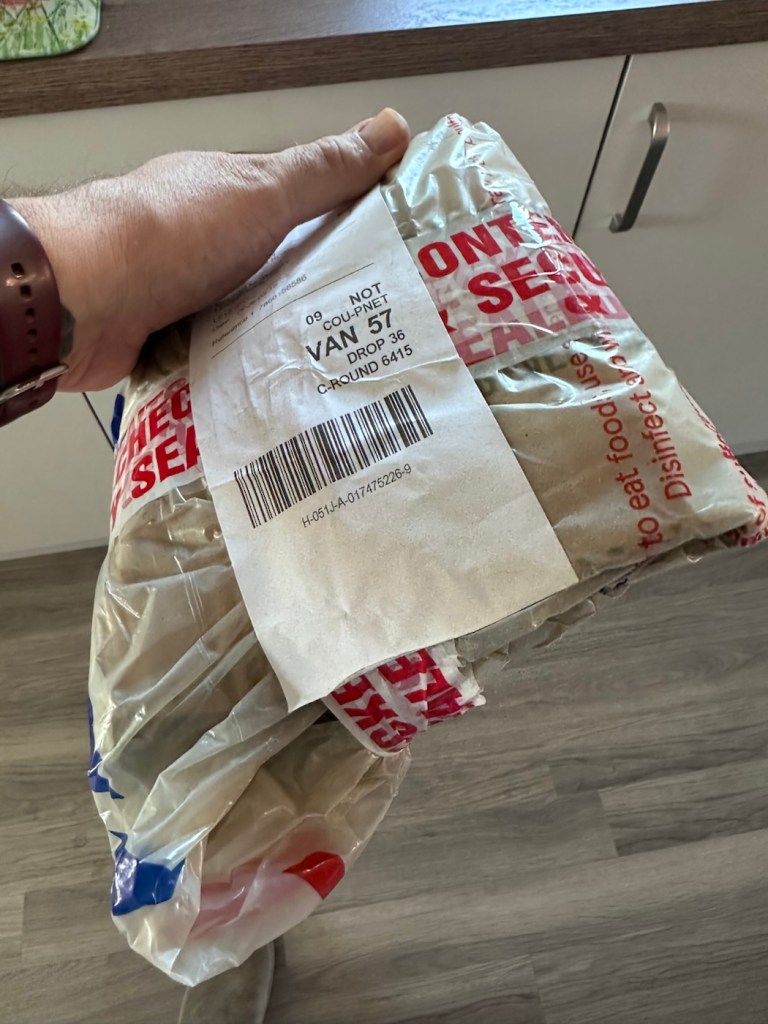
The new unit has now arrived and I’m surprised it got here after being posted in a couple of old carrier bags, no padding just a couple of old bags. I suspect the seller wanted it off his hands, they probably had little faith in it ever working again.

However, despite this, the actual unit appears to be in quite a good condition. It’s free from dinks and scratches and both the unit and the charging cable appear to be in a good order.

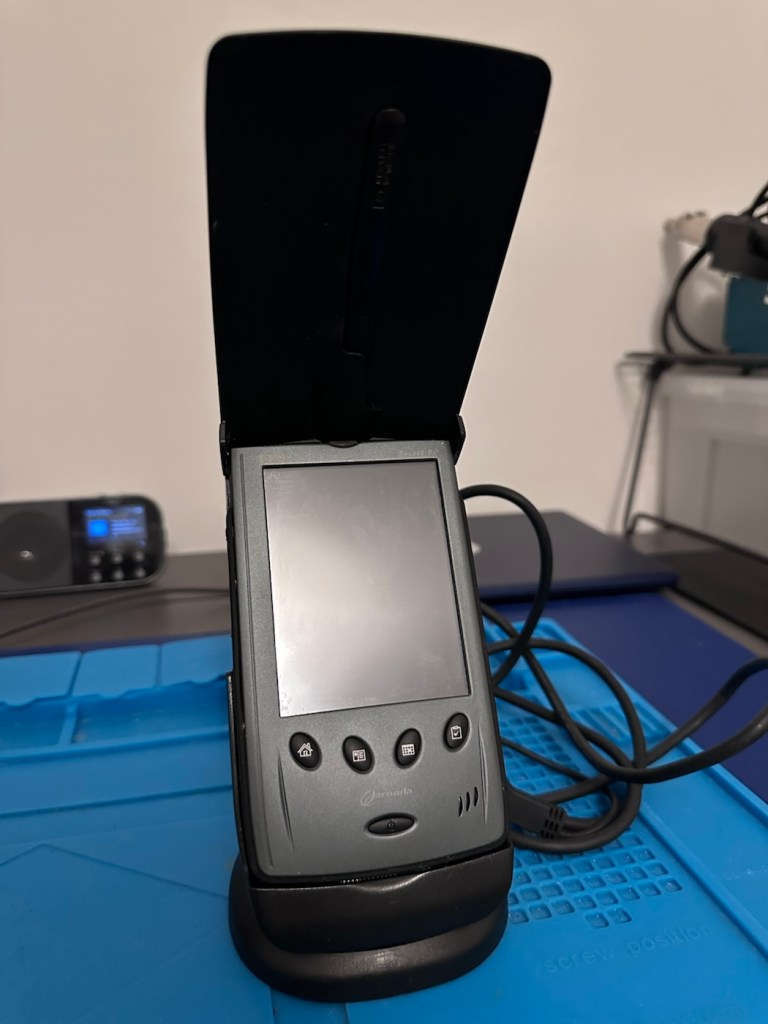
The new unit and charging cradle

Now, the good thing is that both these units have their original touch pencils. This cradle has a cable connected to it and a USB socket, however that USB socket is for data transfer and not charging. To charge, the new System-S USB cable has to be connected in line. The cradle will then charge. And it looks as if it is doing just that.

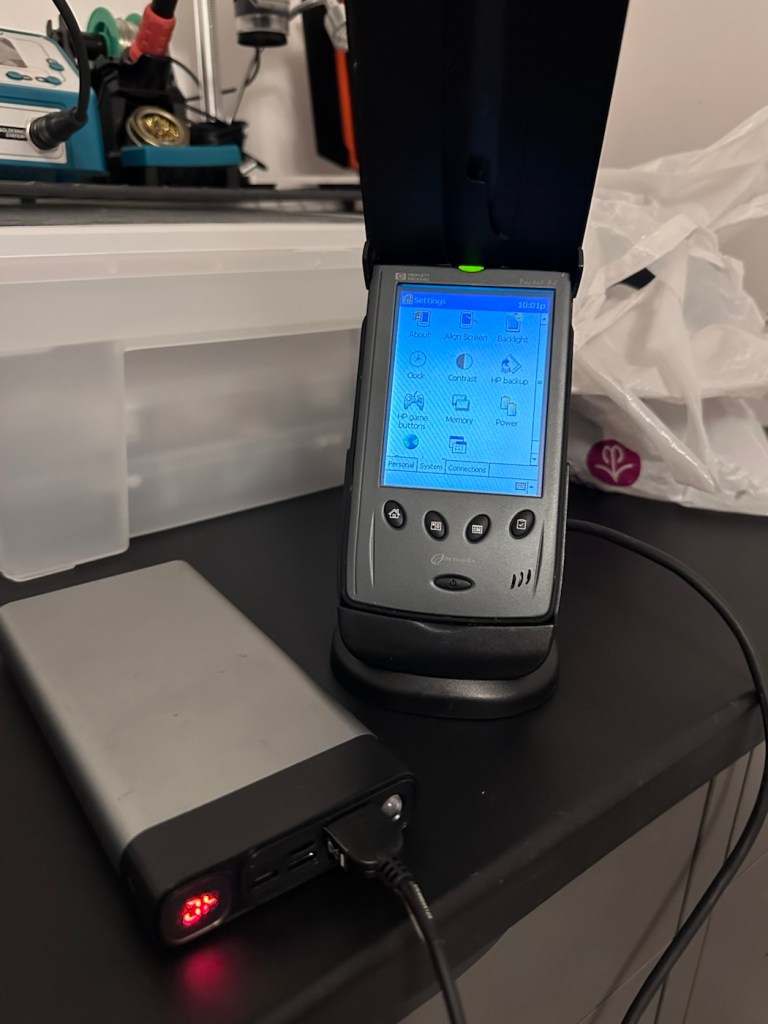
This time i have connected the new unit and cradle to a Power bank charger to see if this works, and it appears to be doing just that. It drained the power bank quite quickly, it only half charged, I’ll have to put it back on the household power tomorrow to fully charge it and check its battery capacity.

Tomorrow has arrived and the unit has been on charge for a couple of hours and it is indicating as fully charged. Back on the bench with the back off I can confirm the battery charge is reading at 4.08v so it is pretty much the same reading as the other unit.

New unit and cradle with power bank charger

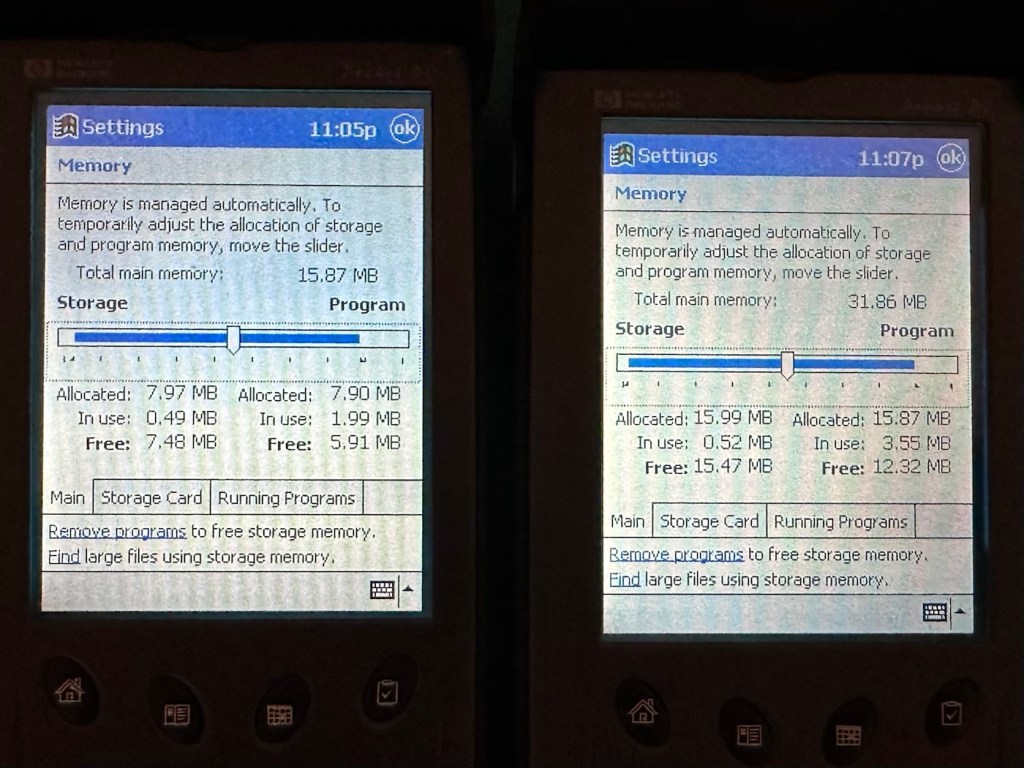
These two units are both of the 540 series however the newer one that came with the cradle has only 16MB of memory (The 545) whereas my older one (The 548) has 32MB of memory. It appears that HP created three variants in the 540 range and I now have two of them. The 545 had 16 MB RAM and the 548 had 32 MB RAM, the one that escapes me, the 547 was also a 32MB variant. (I’m going to have to get one now just to complete the set)

545 on the left, 548 on the right

Repair:

Less of a repair and more of a resurrection to be fair. I said it would be a Frankenstein project, and that’s exactly what it has been. Both units have charged well despite my concerns, they have been charged in a monitored environment and neither are showing signs of overheating, irregularities or any battery swelling or other issues. The battery management system on both batteries seems to be doing its job, and doing it very well.

I’m going to use this section to test some of the functions, to look at the installed program package and at the same time monitor battery usage along the way.

And as with all my projects, a thorough clean of the units is going to be carried out, it’s just got to be done.

But first I’m going to leave these units for a few days to see if the batteries drain.

Three days later

Three days later it’s good to see that when turned on, both units are holding a similar, slightly discharged reading that is to be expected. I’m pleased at this, and it appears that both batteries are holding out well and working very well after a long period of inactivity.

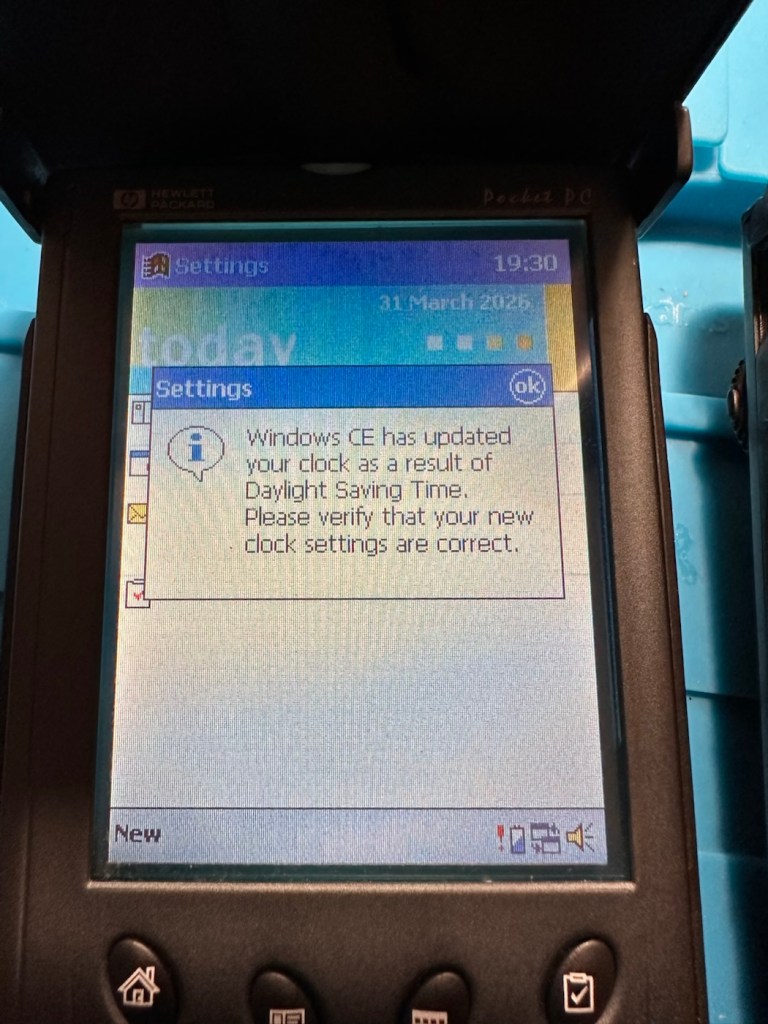
Left again for a couple of more days and both units are now prompting me to accept that the UK has now turned to daylight saving time, (as it has) and this is another good sign that shows that all is working as it should be.

What am going to do with these units? Please don’t ask me that as I just don’t know. I’m probably just going to use them for note taking, maybe for a to do list for my work room, but in reality they will probably just get stored in a sealed bag with some silica bags to keep them dry, until I either move them on or find another use for them.

Good job 👍

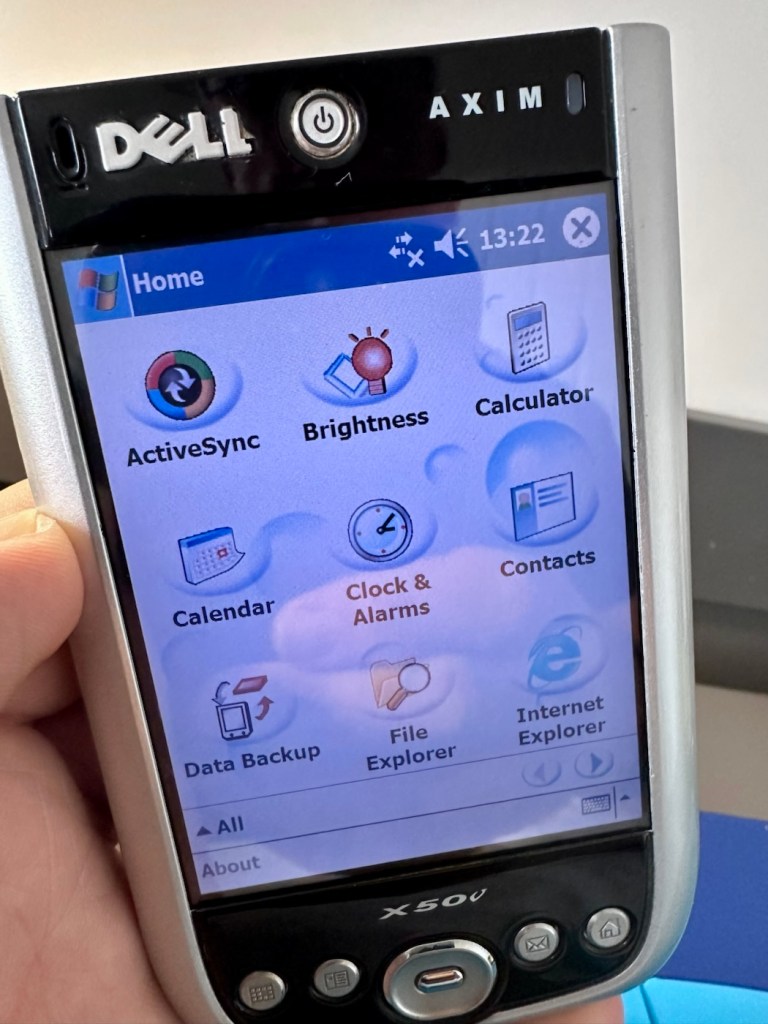
The package originally installed on these units consisted of the following:

  • Microsoft Pocket PC Suite: Pocket Outlook (Calendar, Contacts, Tasks, Inbox), Pocket Word, Pocket Excel, Windows Media Player (for audio/video), and Pocket Internet Explorer.
  • HP Productivity Tools: HP Home Menu, HP Task Switcher, HP Image Viewer, HP Backup, and HP Emergency Backup.
  • Third-Party & Utilities: LandWare OmniSolve Calculator, Developer One CodeWallet Pro (for passwords), AvantGo (for offline web browsing), and PeaceMaker (for infrared contact exchange).

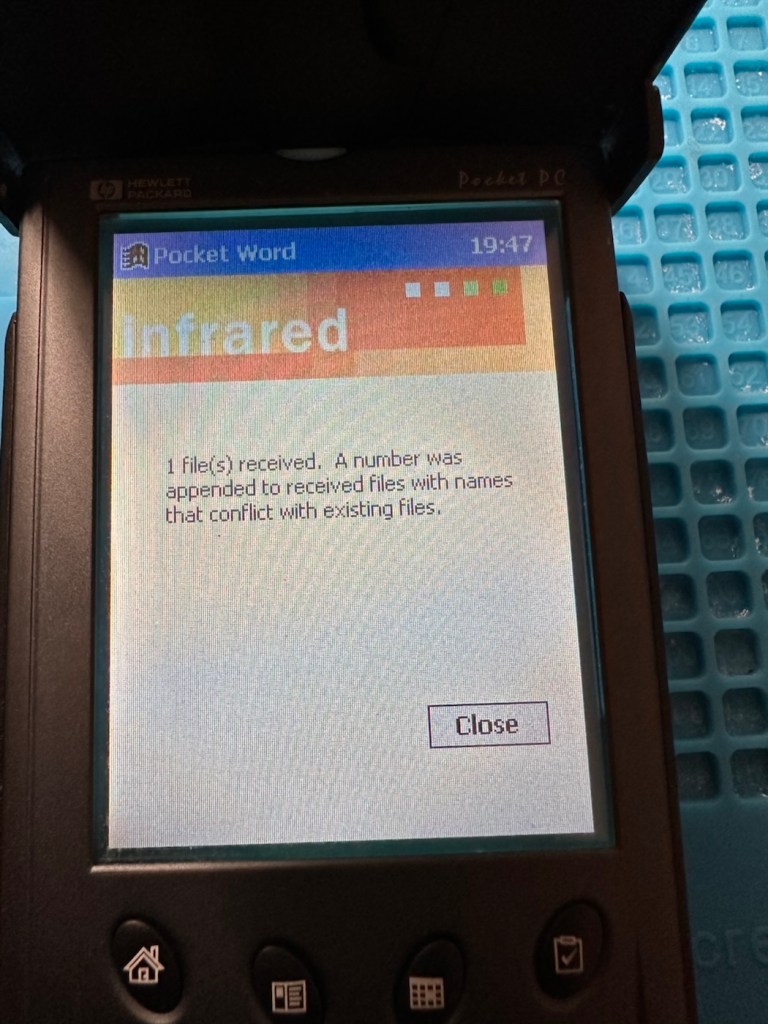
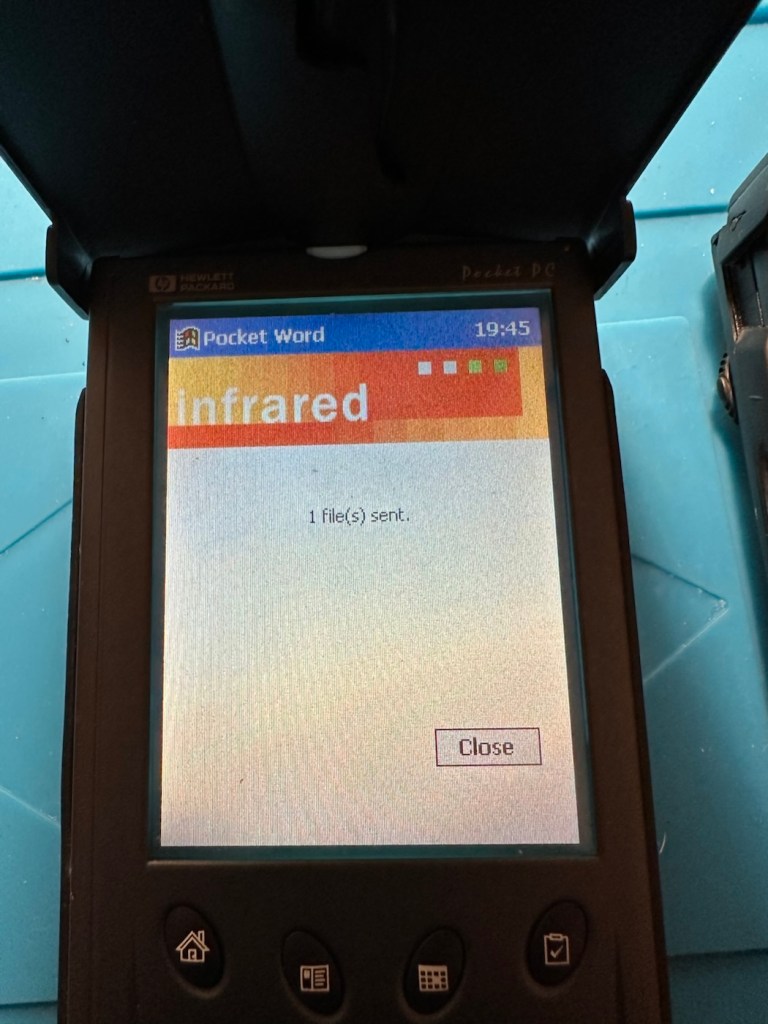
One item I wanted to test is the infrared transfer ability between units. I’ve made a small file within the word program, set one unit to transmit on infrared and the other to receive. On sending the file, this task worked fine.

The transfer worked however both units have to be within a very close line of sight to do so, it just shows how much file transferring has moved on within the last 25 years or so. We have been spoilt.

These units are both working fine.

Result:

Full Microsoft CE package
Working as they should be

There are many uses listed for these units online including MP3 players and television controls. However, I think using as a to do list for my workspace is probably the most appropriate usage for me. I need organisation in my life, so what if I’m using technology from quarter of a century ago.

Why not?

Two perfectly good items saved from landfill.

Small victory, and that’s good enough for me.

Many thanks for passing by. It’s always very much appreciated.
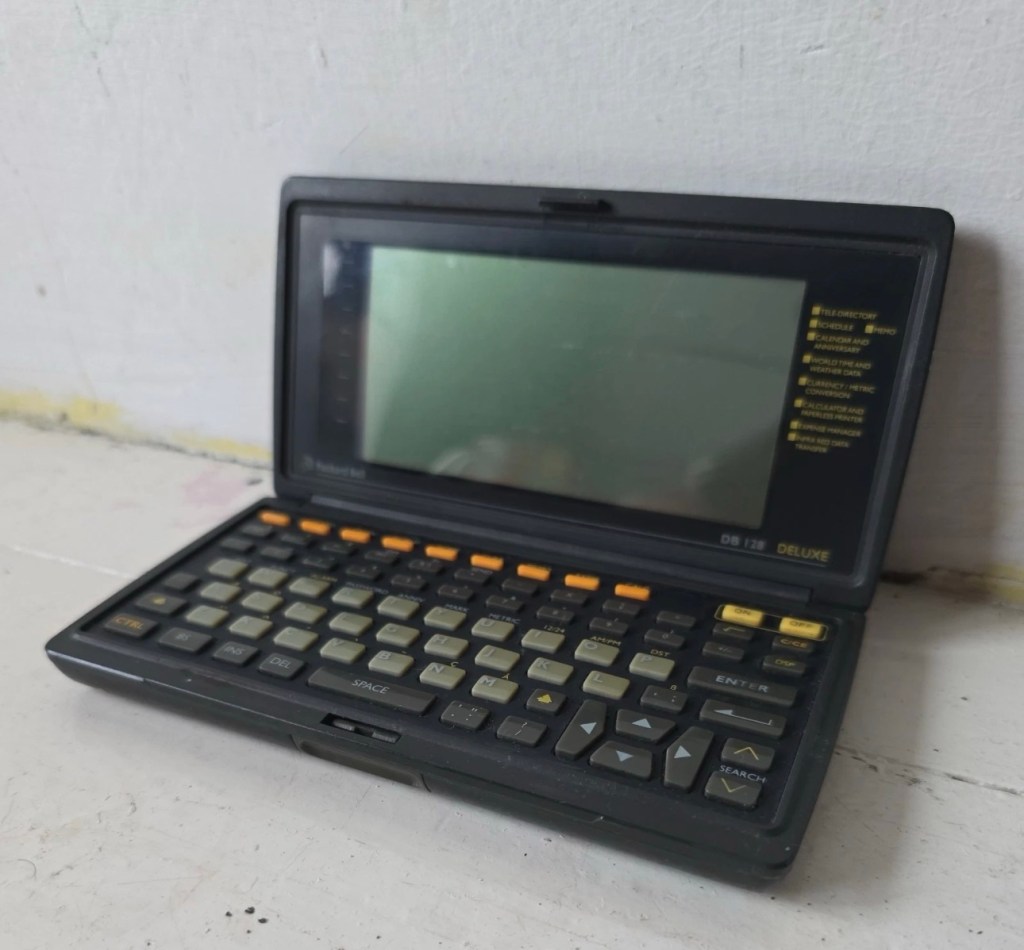
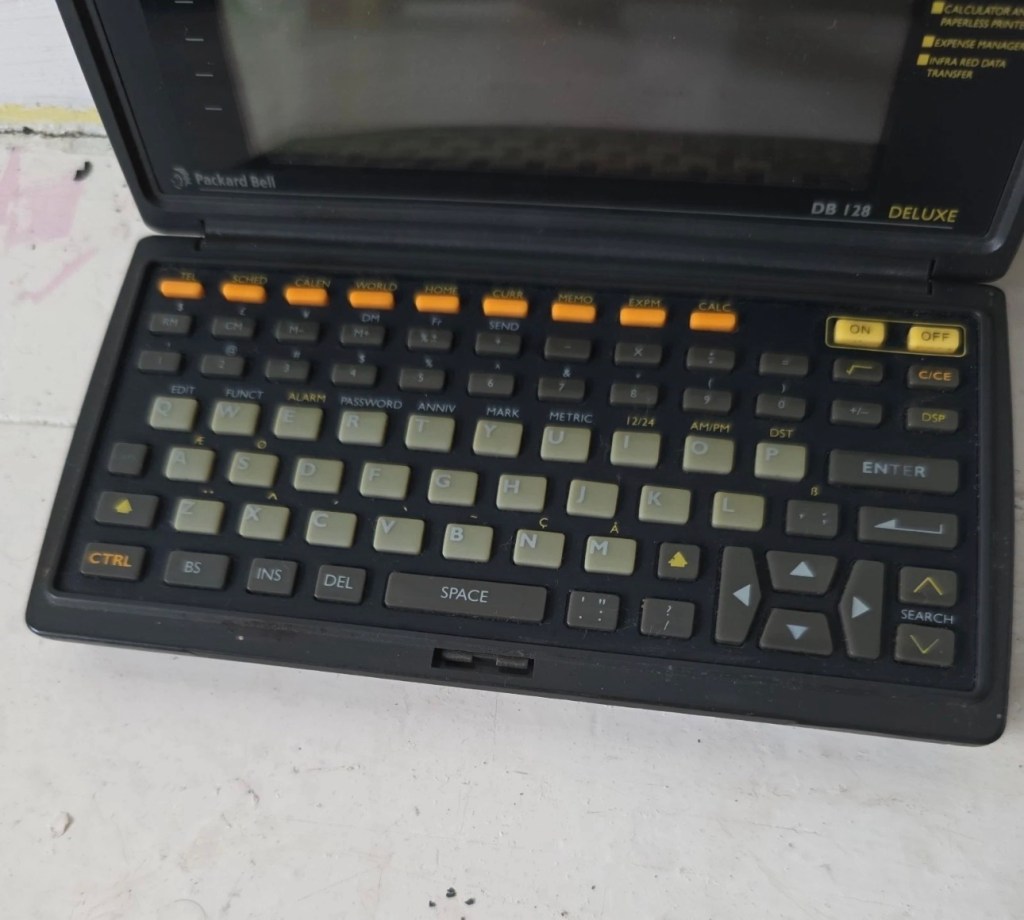
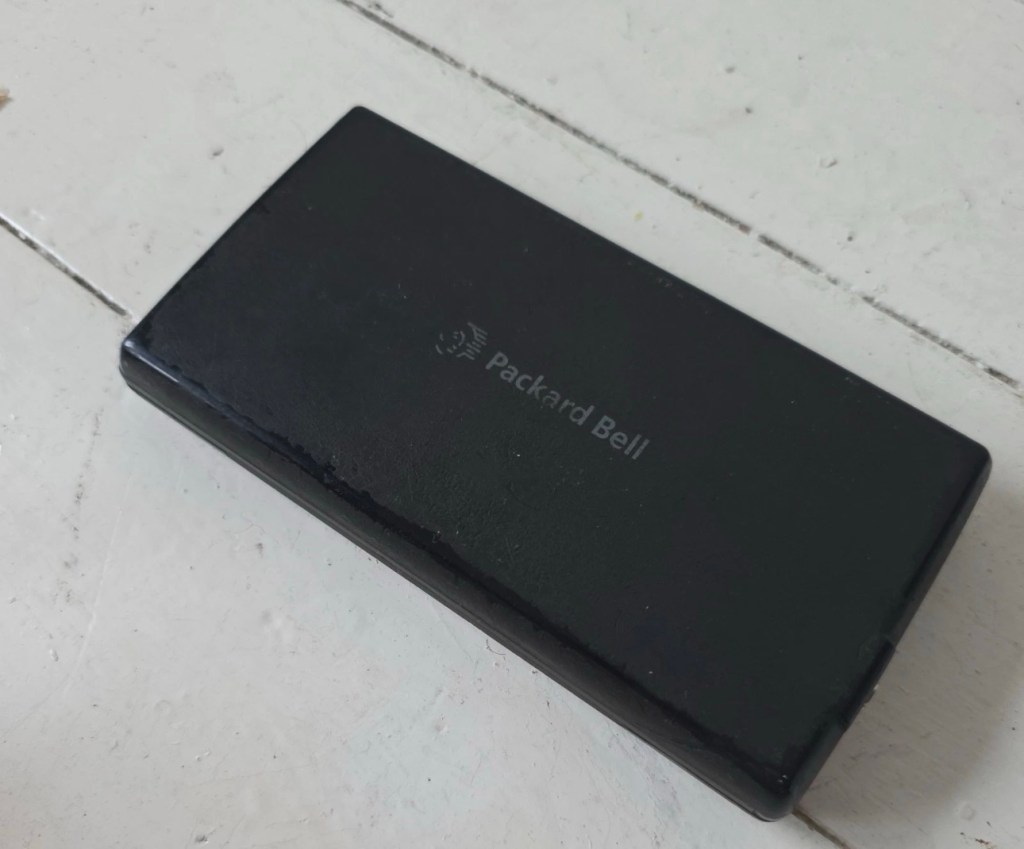
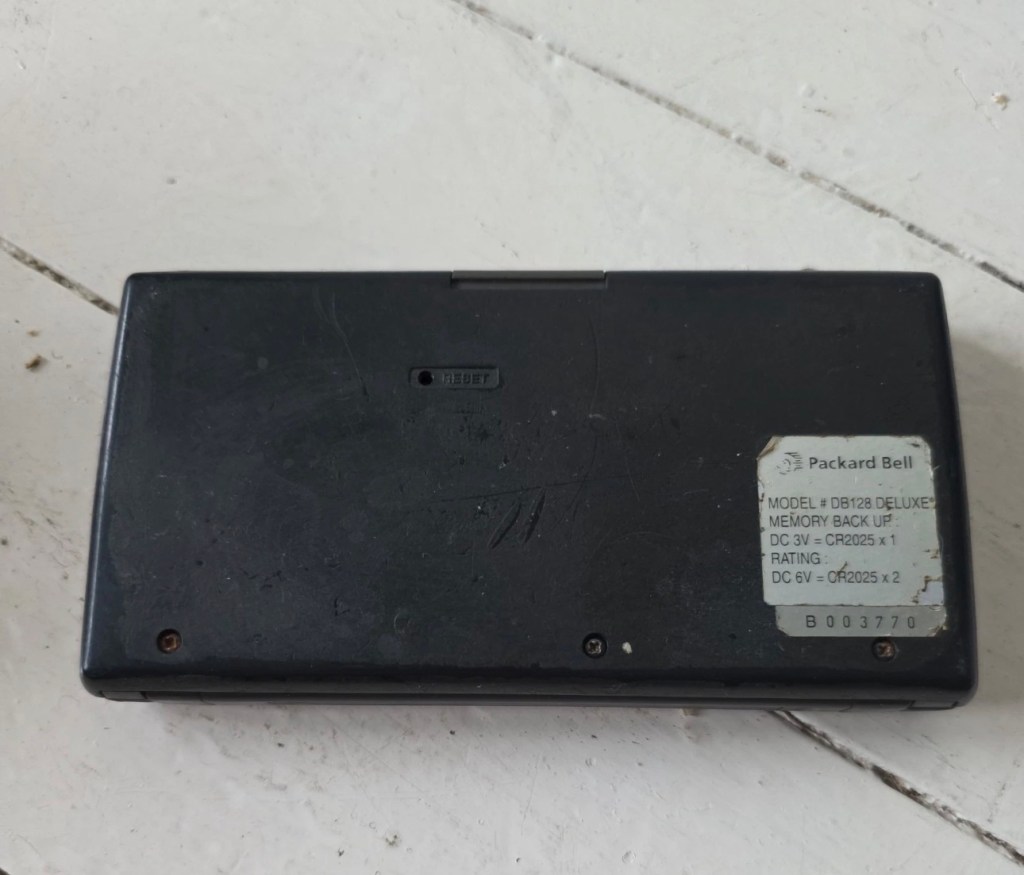
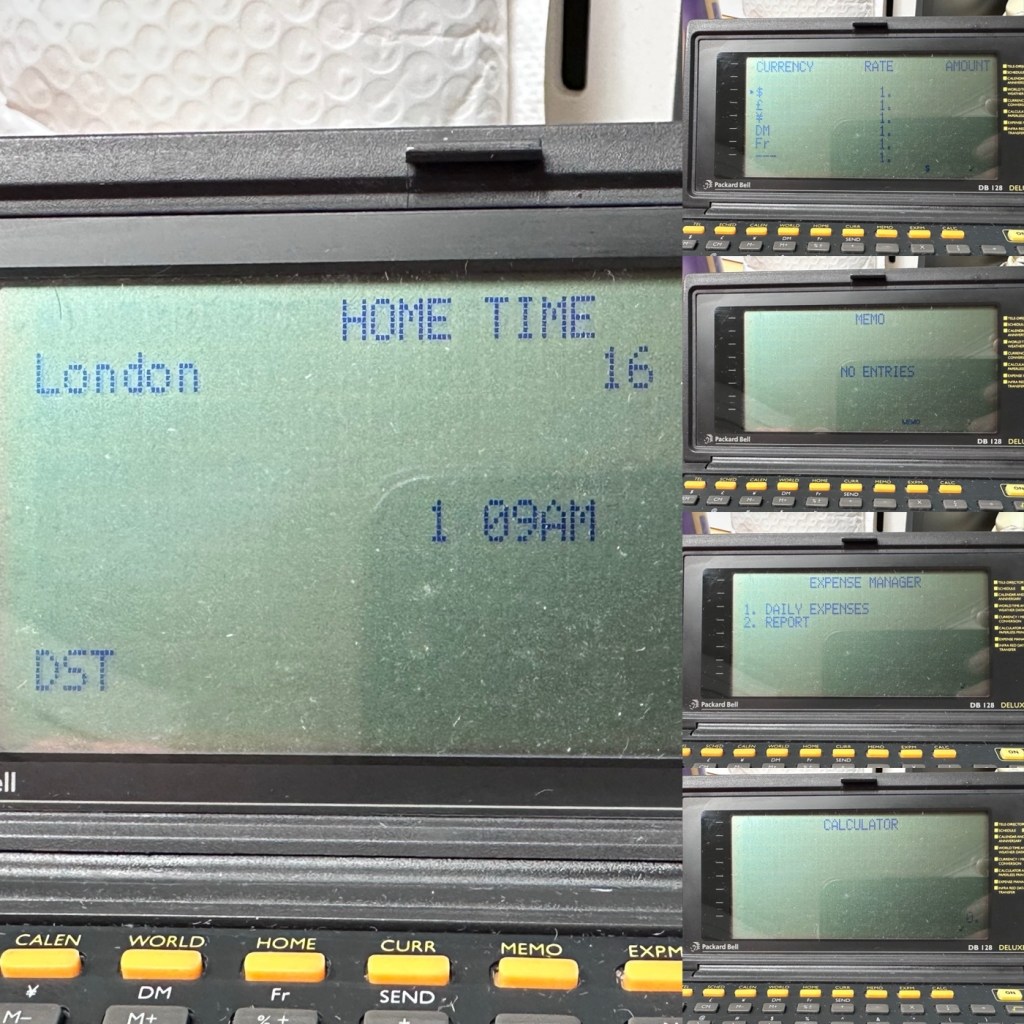
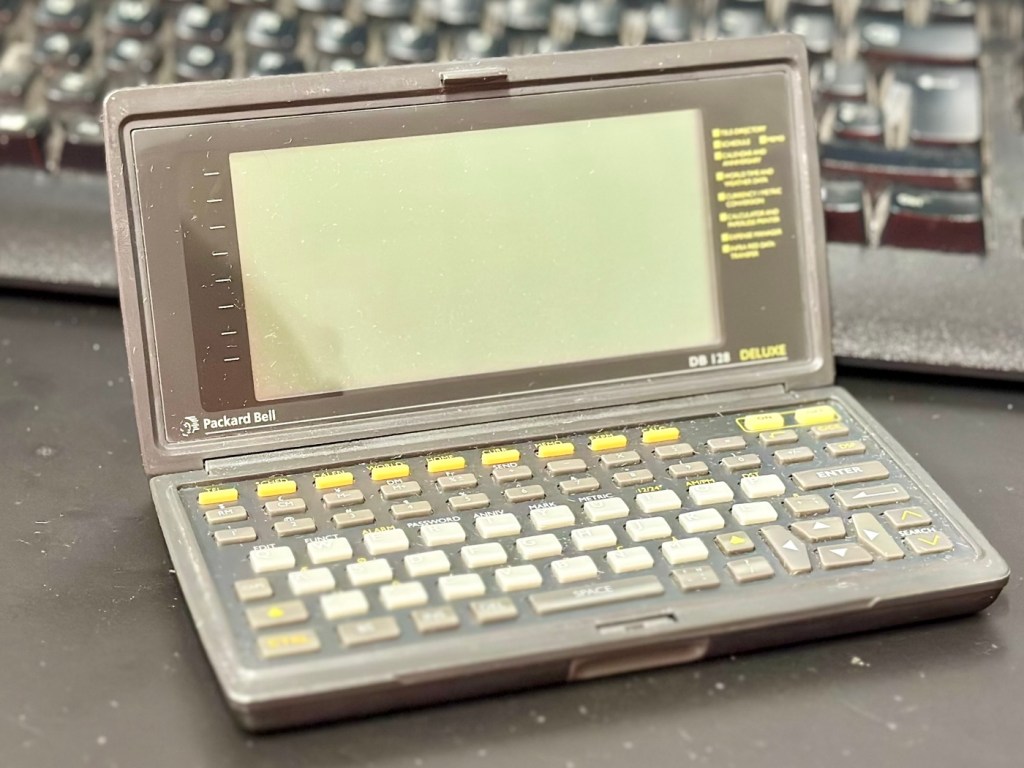
Packard Bell DB128 personal organiser

Another personal organiser / PDA from 1992. The Packard Bell DB128. Does it work? Is it just needing new batteries? Who knows? Let’s have a look.

What the listing stated:

The Vintage Packard Bell DB128 Deluxe PDA Personal Organiser from 1992 is a charming piece of retro computing history. Manufactured by Packard Bell in China, this personal organiser is a single unit that serves as a reminder of the technology of the early 90s. With its vintage appeal, this item is ideal for collectors of vintage computing devices or those who appreciate the nostalgia of older electronics. The Packard Bell DB128 Deluxe PDA is a unique and rare find for those curious about the evolution of personal digital assistants. Needs new batteries at the very least. For repair or spares only

EBay

I love these postings on the selling sites, no actual real description of the state and condition of the unit you are purchasing, only a potted history of the item with the standard EBay get out excuse of “For repairs or spares only” I know, I can hear you saying, “ Well don’t buy it then – fool” and I agree with you wholeheartedly, I am a fool and I’ve brought it. But, it only cost me £3:30GBP so I’m happy with that, a good price for a bit of retro tech from 1992.

There is a good chance that this unit does only need some power, wouldn’t that be good? However it wouldn’t make very good copy on a site that looks at fixing other peoples castoffs, but I can happily go with the odd quick fix once in a while.

I love these old PDA devices from the 90s, and lots of people do, I guess some of us are still stuck in a period where technology was so wonderfully new and interestingly different. Whereas today everything is pretty much the same and controlled by a few massive organisations, when back in the 90s there were lots of different companies for you to choose your wears from.

I’ve certainly worked on a few on this site, just check the links on the home page to see what I have worked with.

If you are interested in the 90s PDA technology, may I suggest you look at this guys YouTube site. His name is Hugh and his channel is called Handheld Computing and he is a very interesting chap, and the technology is superb. Give him a visit.

Ok. Let’s read a little bit more about this unit:

The Packard Bell DB128 (also known as the DB-128 or DB 1280 IR) is a vintage handheld personal organiser released in 1992. Also known as the Oregon Scientific DB-388P. It was designed as a compact digital databank to store contacts, manage schedules, and perform basic calculations. 

Technical Specifications

The device features the following hardware details:

  • Memory: 128 KB total memory, with a user-available area of 131,070 bytes.
  • Display: An 8-line by 32-character dot-matrix screen.
  • Power: Operates on two or three CR-2025 or CR2032 button cell batteries, often with an additional battery for memory backup.
  • Physical Dimensions: Approximately 15.8 x 8.2 x 2.3 cm, weighing about 252g.
  • Connectivity: Data can be synchronised with a PC via a serial cable or infrared (IR) LEDs. 

Core Functions

The DB128 includes several built-in applications for daily organisation: 

  • Phone Book: Stores multiple contact categories including names, fax, mobile, and email addresses.
  • Scheduler: Features a calendar and appointment system with start/end times and audible or silent alarms.
  • Utility Tools: Includes a 12-digit calculator, home and world clocks, currency/metric converters, and a memo/expense tracker.
  • Security: Offers a password protection feature for sensitive data. 

Google

I just have to wait for its arrival now and I’m looking forward to that, I won’t speculate anymore about what might be, I best just wait for its arrival to carry out a suitable assessment.

Assessment:

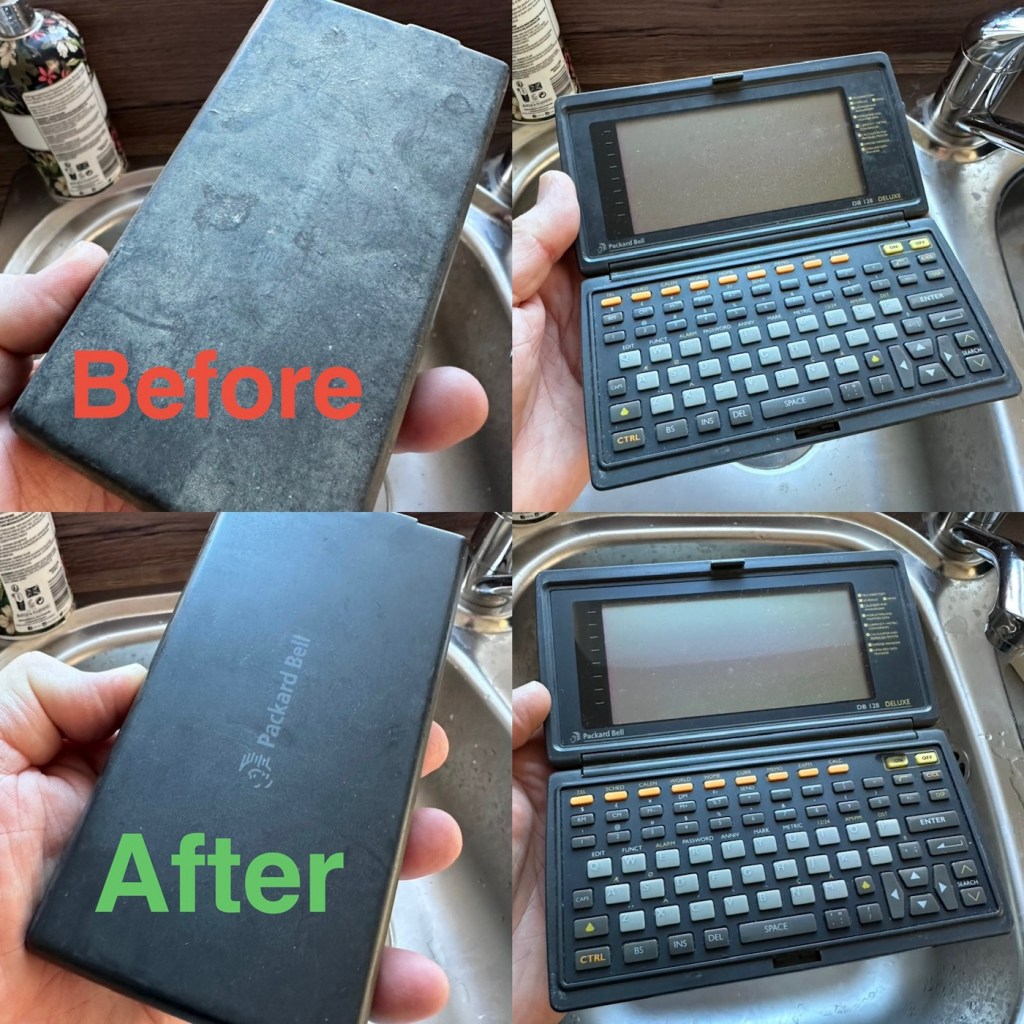
It’s arrived and good god, it looks as if it’s been stored in a vacuum cleaner bag 🤦‍♂️ it’s utterly filthy, funny how none of the original photos showed this isn’t it? I don’t believe this is the same unit as was in the original posting.

If I’d have taken this into the house with the wife present, i think she’d have murdered me, or at least severely injured me one way or another… So that is why you will see that these pictures were taken at the kitchen sink, the first thing this unit received was a clean with a cloth and warm water. After that it’s had a good polish and it is now nice and clean. Now it can come further into the house, into my domain!

Before and after over the kitchen sink

Now the unit is tidy, everything is as it should be, and the screen is in a good condition barring a few minor age related scuffs. It’s dead, and that’s to be expected, I’m just hoping there are no major surprises awaiting me when I get the back off to have a check inside.

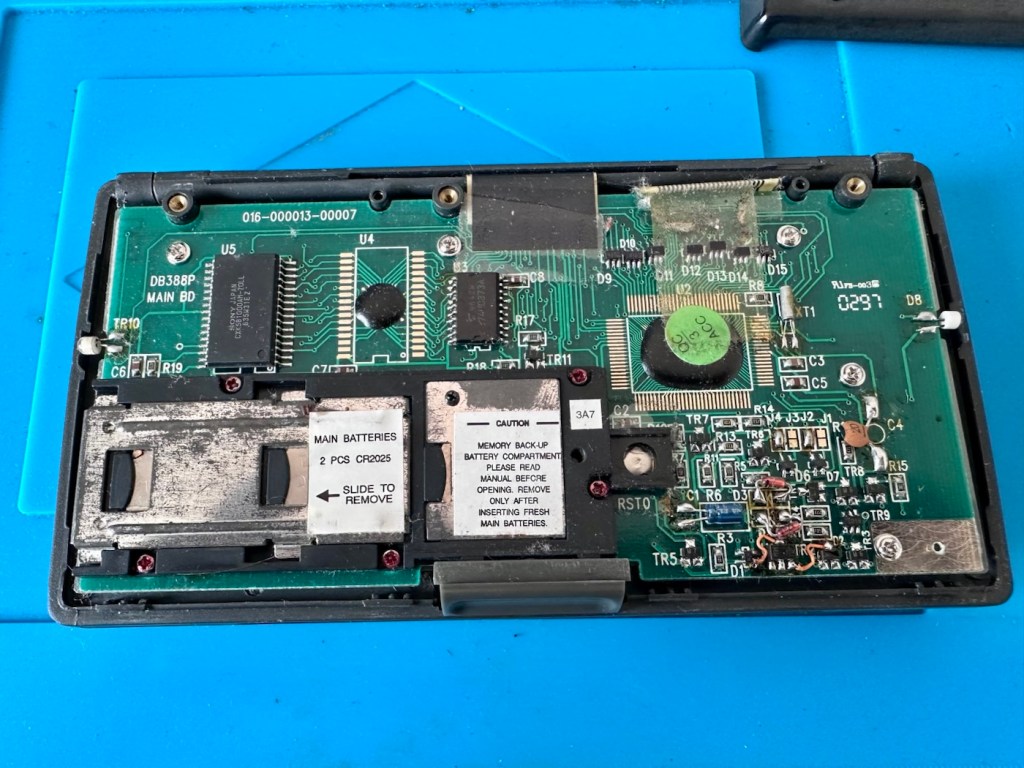
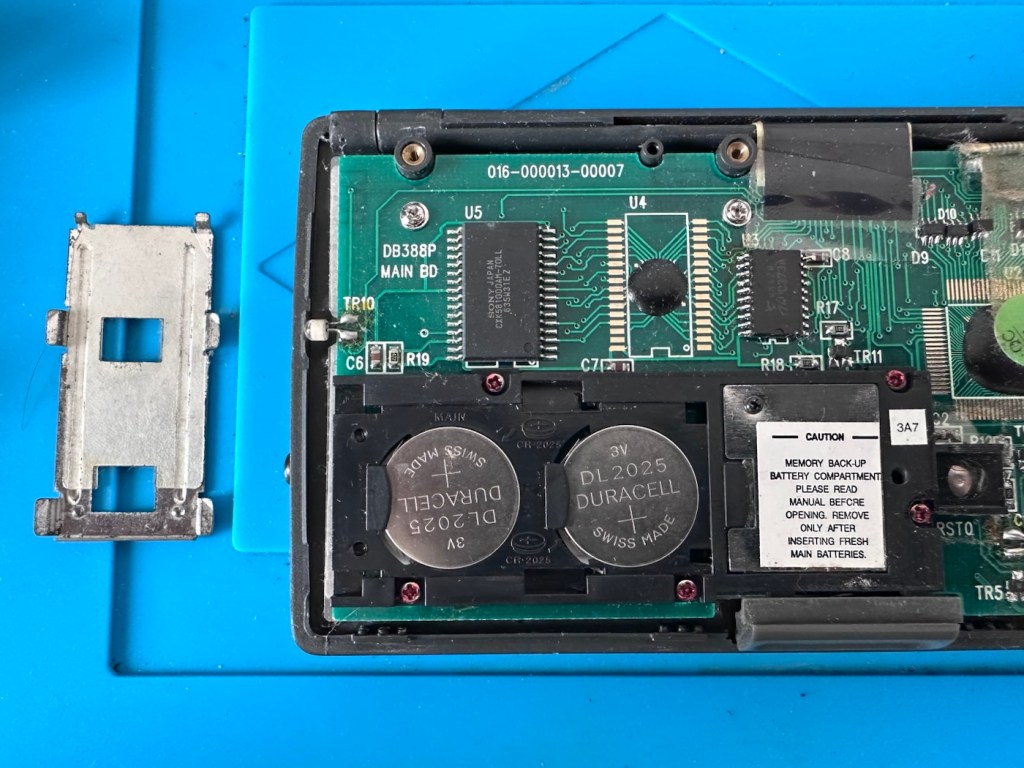
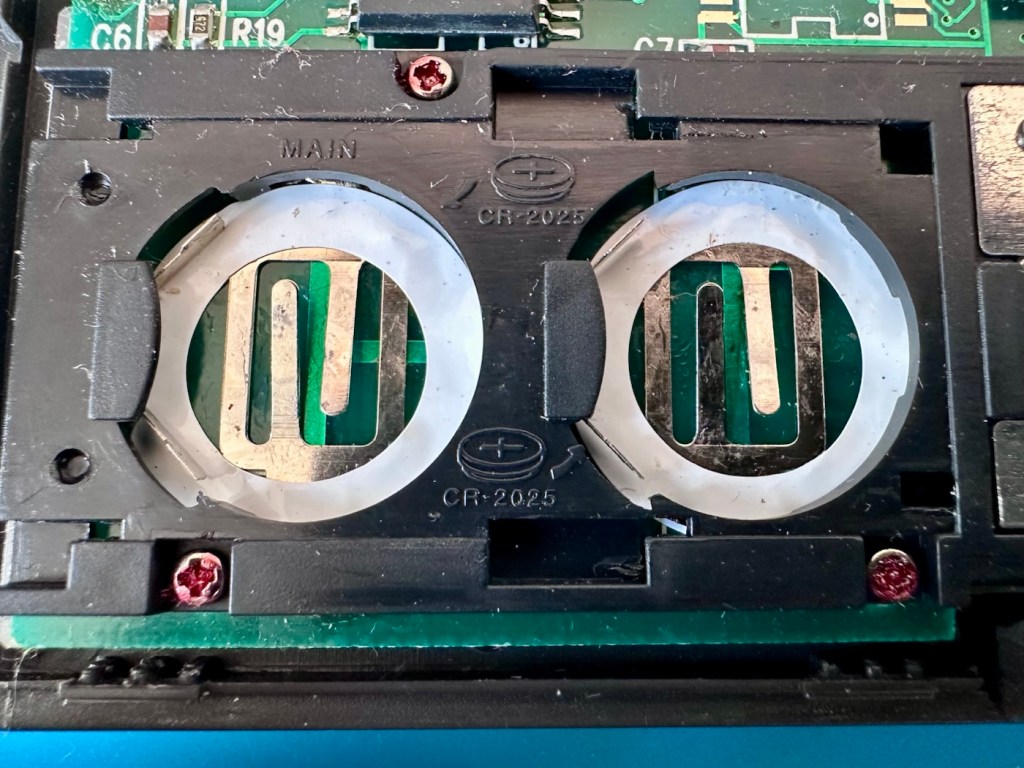
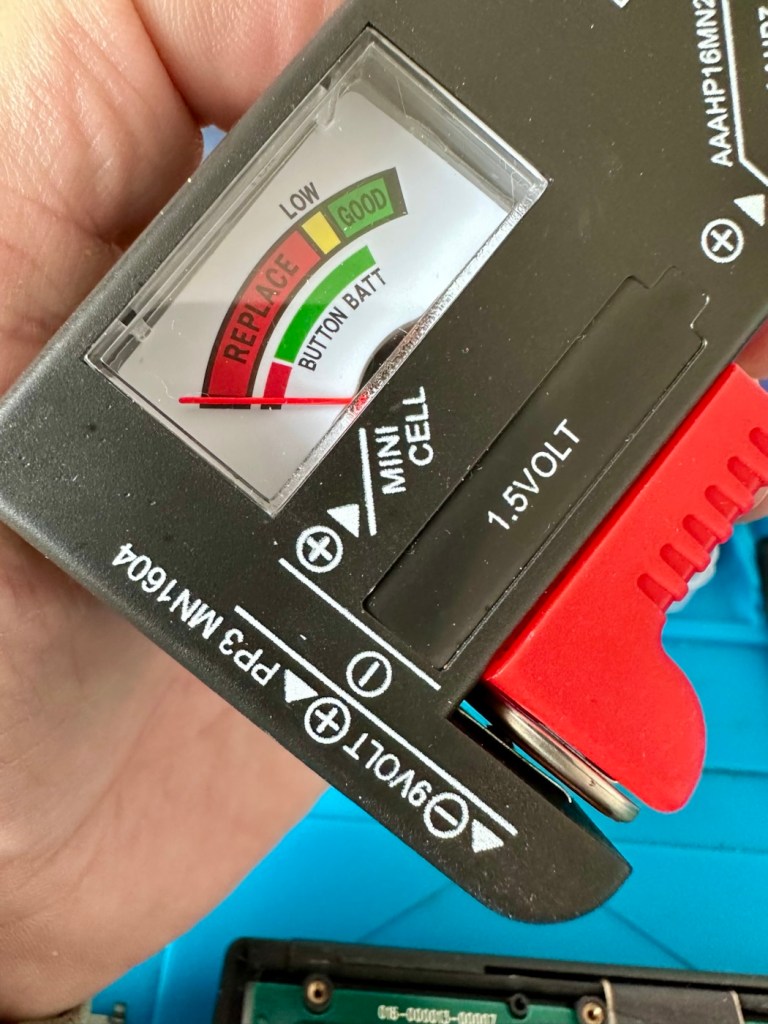
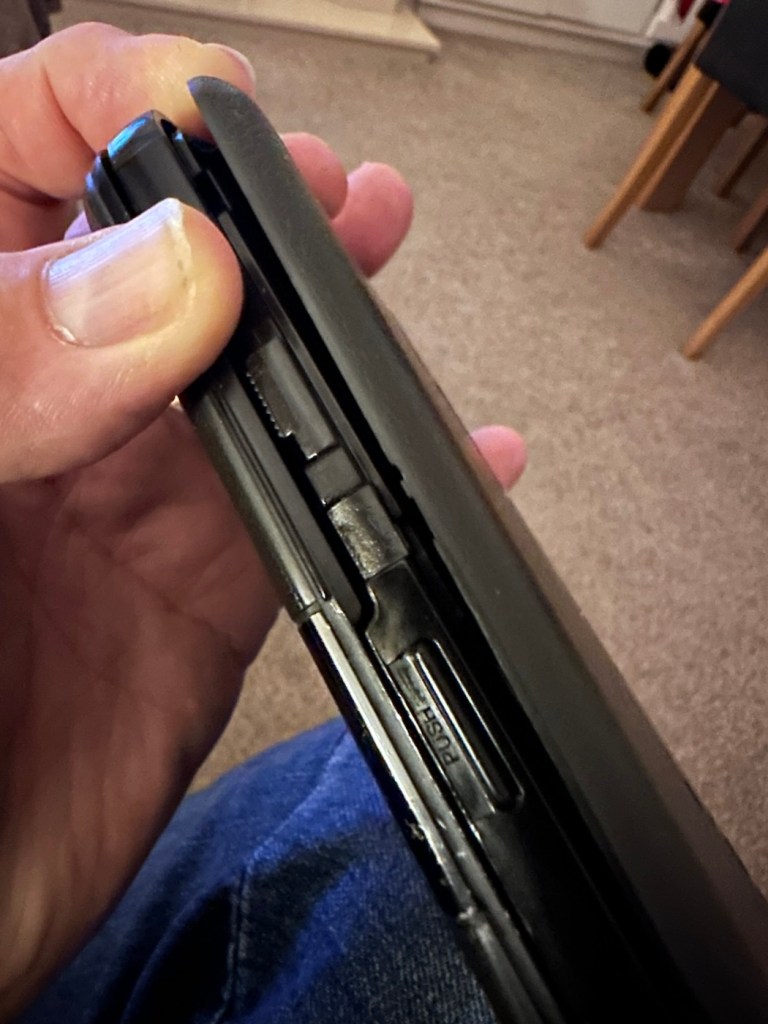
Three screws later and the back is off. All three batteries are still in place, all very dead but fortunately there is no corrosion or battery leakage. All that is visible is some age related tarnishing of the battery enclosure, this however has no effect on the board or electronics and will tidy up with a little brush over with some relevant cleaning solution.

With these little database units you were always supposed to change the two main batteries and get them in place before even considering removal of the single back up battery. This was purely to ensure that saved data was not erased from the memory bank, however as all these batteries are dead, it’s no real issue here. The backup battery is protected with a single screw that needs to be removed to allow access. This unit was able to transmit and receive data using infrared technology. If you look at the picture above with the case off, on the left and the right of the chassis you will see a white diode component, these are the infrared transmitter and receiver parts of the data transfer circuit.

The batteries needed within this unit are CR2025 mini cell batteries, I currently only have CR2032 batteries, they look the same but just what is the difference? Thanks for asking, i will now explain.

  • The letter “C” refers to the batteries chemical compound, “Lithium” or to be absolutely precise “Lithium Manganese Dioxide”.
  • The letter “R” refers to the battery shape, in this case its “Round”.
  • The numbers “20” refer to its diameter in millimetres in this case “20mm”.
  • The numbers “25 or 32” refer to the “Height or Thickness” of the battery in millimetres “2.5 or 3.2”

And there endeth the lesson for today. So, in all aspects the batteries are exactly the same, 3 volts, but there is just a slight variation of 7/10 of a mm in thickness. In some cases this is not an issue where there might be that slight bit of space for you to use an alternative cell, however in the case where tolerances are tight such as in watch mechanisms, that tiny difference in size may not allow you to reassemble the backplate to the watch. I hope that clears up the difference between the two coin cell letter and number allocations.

I can use CR2032 batteries in this unit as there is the space. I have some CR2025 batteries on order, so I will comply with the original standard when they arrive. But for the purpose of testing further, the CR2032 batteries will suffice.

Repair:

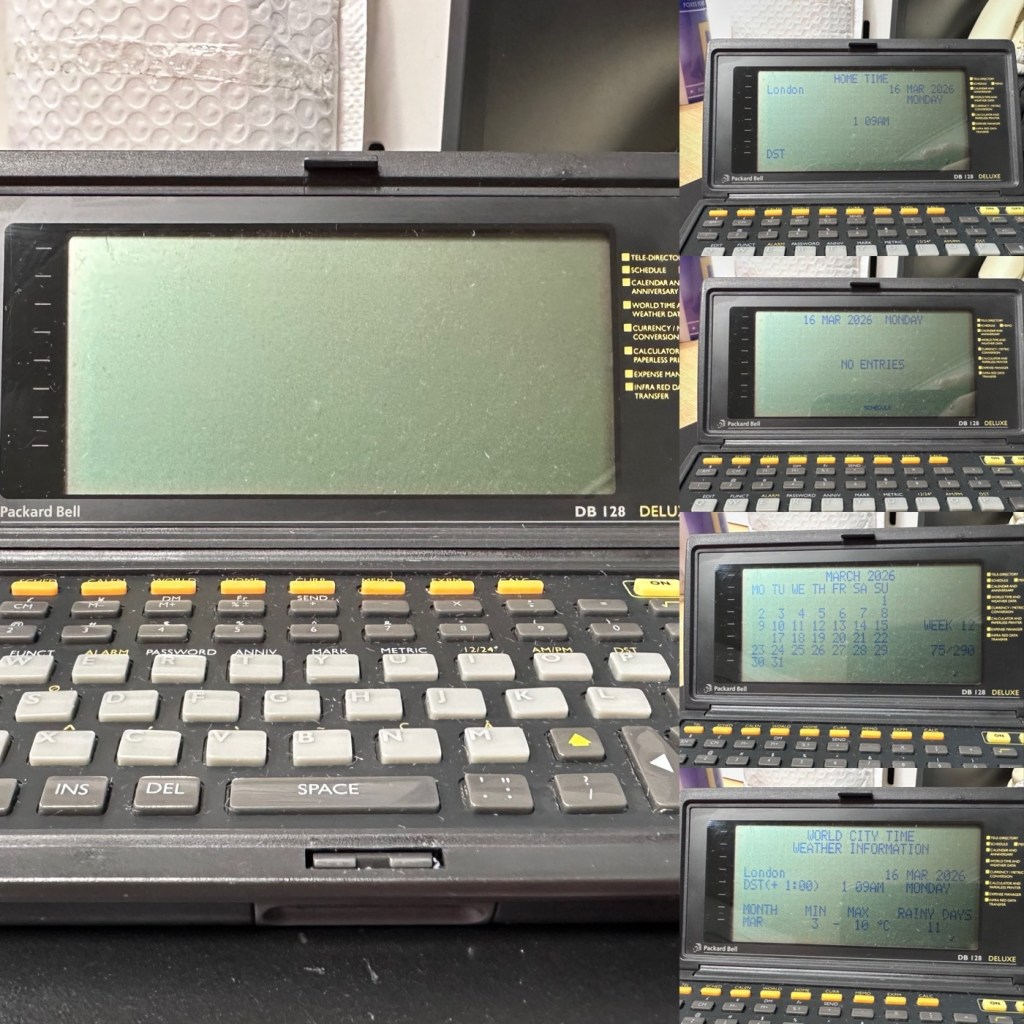
What repair, to be honest it’s been more of a clean, I’ve cleaned the inside circuit board with some IPA and a brush and cleaned all the crevices with a pick and finished off the outer case with a good coat of antiseptic cleaner and polish. I have inserted the three required batteries and switched the unit on.

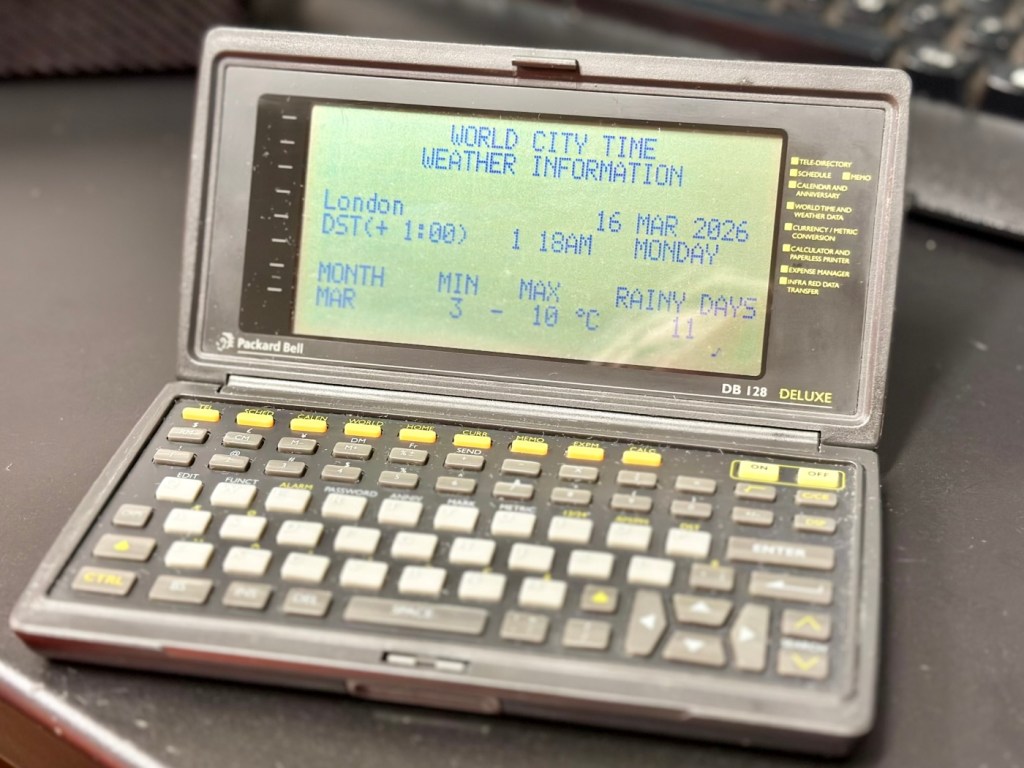
Not a great deal more I can say. It’s clean, in fact it’s very clean, and fully functional.

Result:

It’s 34 years old, it’s been discarded, put aside for disposal, given one last chance in its chequered life and I purchased it for £3:30GBP. It’s now revitalised, cleaned inside and out and been given a new lease of life. One of those very simple clean and repairs that anyone can do. And another item is saved from landfill.

When turned off
When turned on

This will now be added to my ever growing collection of old PDA equipment from the 90s, a collection that is starting to grow at quite a considerable rate. I have a few more little projects similar to this in the pipeline, quite similar to this one but requiring quite a bit more attention. Please keep passing by to keep up to date with these “mini” projects.

Once again, thank you for passing by, it is always very much appreciated.
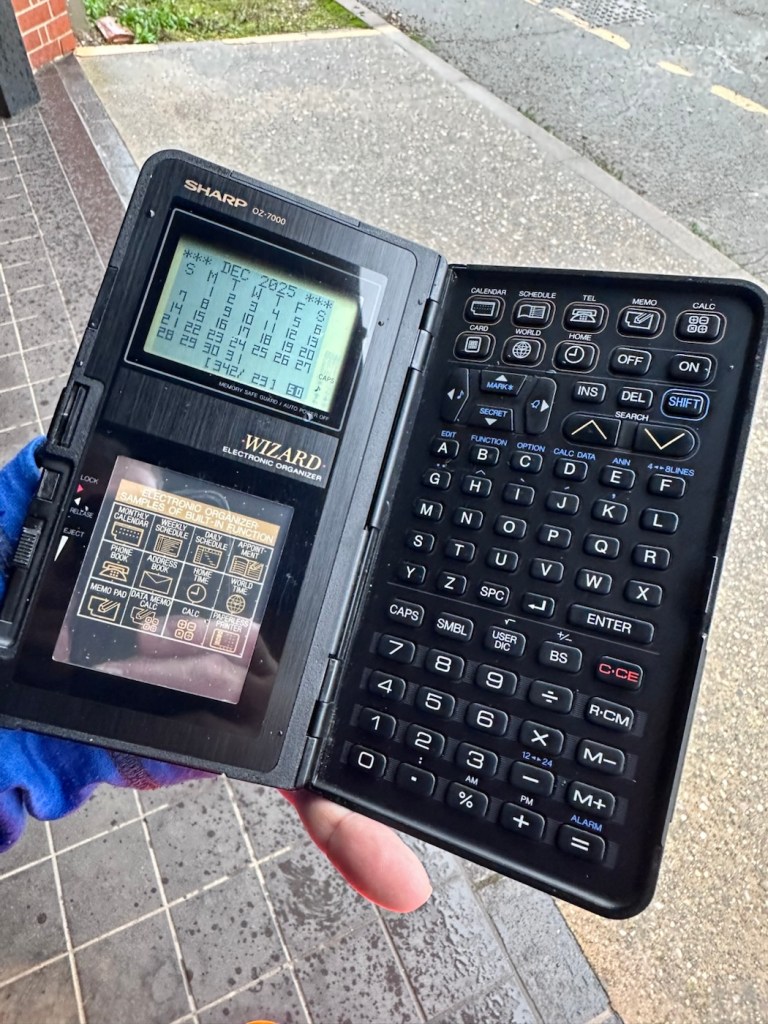
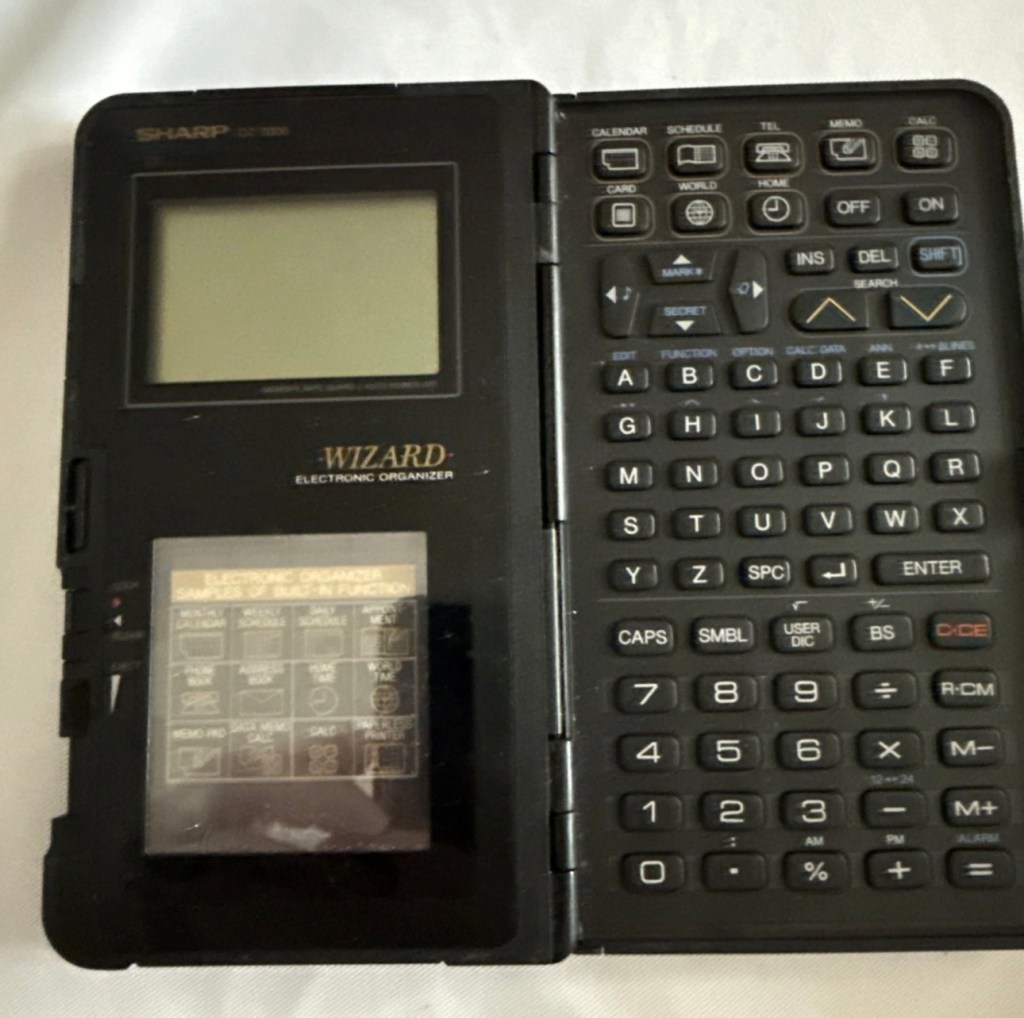
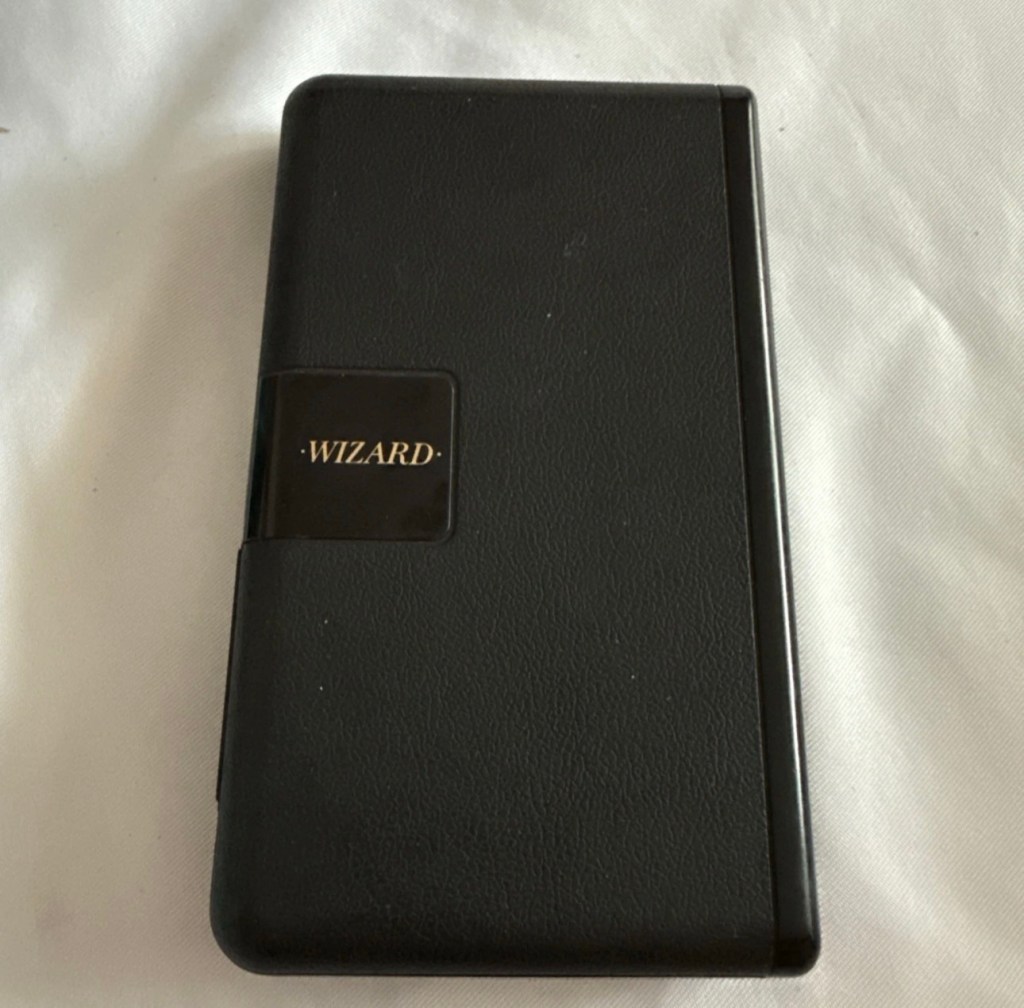
Sharp OZ-7000 Wizard

The Sharp OZ-7000, Amongst one of the first electronic organisers and precursor the PDA. Needs repair. Or does it?

What the listing stated:

Not working. I have replaced the two batteries and cannot get it to work. I have not touched the memory battery. See picture for actual item. Case is a bit sticky unfortunately with age.

EBay

First of all, what is it?

The Sharp Wizard series, introduced by the Sharp Corporation in 1989, was among the first electronic organizers and a precursor to personal digital assistants (PDAs). The debut model, the OZ-7000 (known as the IQ-7000 in Europe), combined organizer functions with an IC Card expansion system, allowing users to install software and memory cards. Over time, Sharp refined the series with larger displays, increased memory, and enhanced features, such as infrared communications port for wireless data transfer, touch-sensitive displays, and clamshell designs.

The out-of-the-box functionality of the OZ-7000/IQ-7000 included a memo pad, a telephone pad, calendar and scheduling with alarms and repeating events, multi-time zone clocks, and a calculator, thus covering all the basic functions found in PDAs since. The keyboard was not QWERTY, although later models, starting with OZ/IQ-8000, changed the orientation of the screen and keyboard layout.

The OZ-7000 was about 6.3 inches (163 mm) tall, 3.7 inches (94 mm) wide closed, 7.25 inches (184 mm) open, and 0.85 inches (21.5 mm) thick closed, making it much larger than later PDAs. It featured a serial port (proprietary connector) to attach to a Windows PC or Macintosh or another OZ-7xxx/OZ-8xxx device, an optional thermal printer port and a cassette tape backup. The OZ-7000/IQ-7000 model featured 32 kilobytes of internal memory and a 96 x 64 dot (8 lines x 16 characters or 4 lines x 12 characters) black and white LCD with controllable contrast but without a back light. A major advertised feature of the model was the IC Cards expansion slot for accessory cards developed by Sharp.

Wikipedia

A bit of a break from the mountain of photographic equipment I have been dealing with lately, I thought I’d take a bit of a detour and have a look at some prehistoric PDA gear, as I have also done in the past, as you will no doubt be aware of, if you have ever read any of my posts on Psion organisers.

From what I can gather, this one is a little beaten up and battle scarred, and quite simply does not work. I’ve paid the princely sum of £8:54GBP after i managed to knock the seller down by a few pounds. I just now have to await its arrival before we can carry out a thorough assessment.

Assessment:

Its here, everything is as it should be apart from the base being a bit loose in one corner where the clip inside has broken, however that’s not an issue and can probably be repaired.

The broken clip

The exterior is a little sticky but again, this is just one of those 1989 rubber enhanced products where the vulcanised rubber coating has started to degrade. A post I previously published shows how I deal with these 80’s degrading rubber issues: Sticky, Rubber camera grips

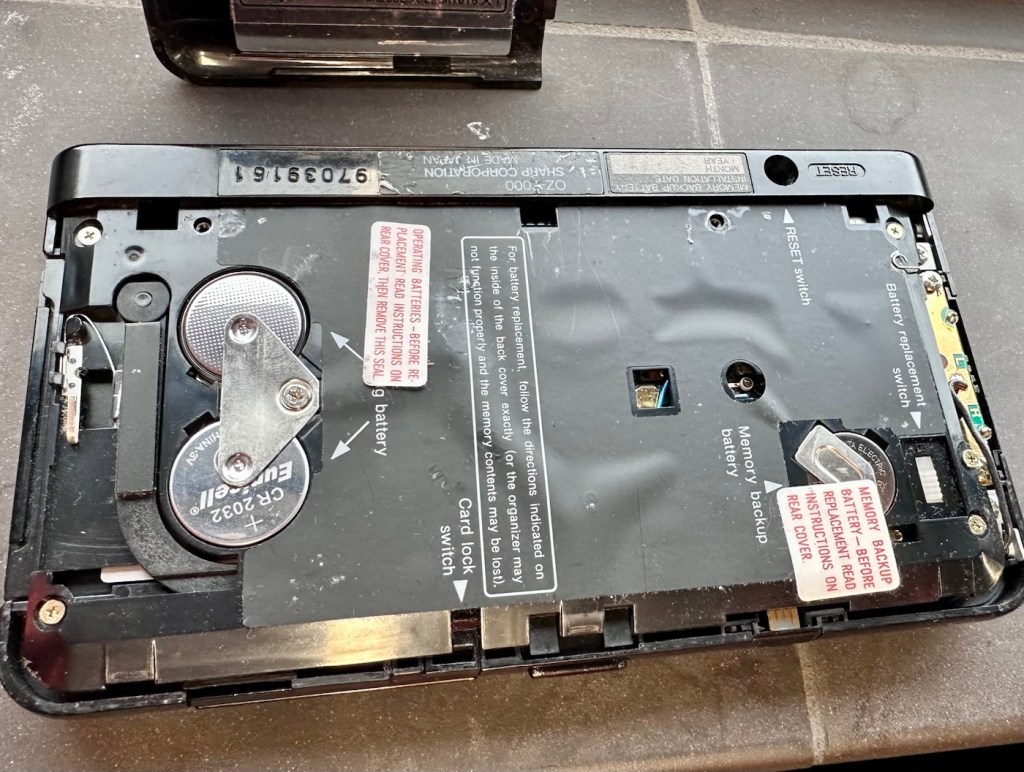
The unit has three batteries, under the rear shell. These are two CR2032 and one C1616 coin cell, with the C1616 being the units memory battery. These batteries will need to be tested as this unit does not start up, the whole unit is dead. The previous owner has stated that they have changed the two main batteries but not the memory battery, testing them will tell.

The three batteries

Beyond that, all catches, buttons and switches seem to be performing as expected, no cracks or major damage to the external shell, or screen area. Naturally there are signs of usage as you would expect on an item that is now 36 years old, light signs of age related wear and tear, nothing of concern that is detrimental to its operation.

Repair:

I’m leaving the broken clip on the rear shell as it is, it’s not visibly exposing anything of the interior and to be honest needs quite a bit of force to show the gap, it’s not a problem and not necessarily requiring a repair. In normal handling it is not even noticeable, so it will remain as it is.

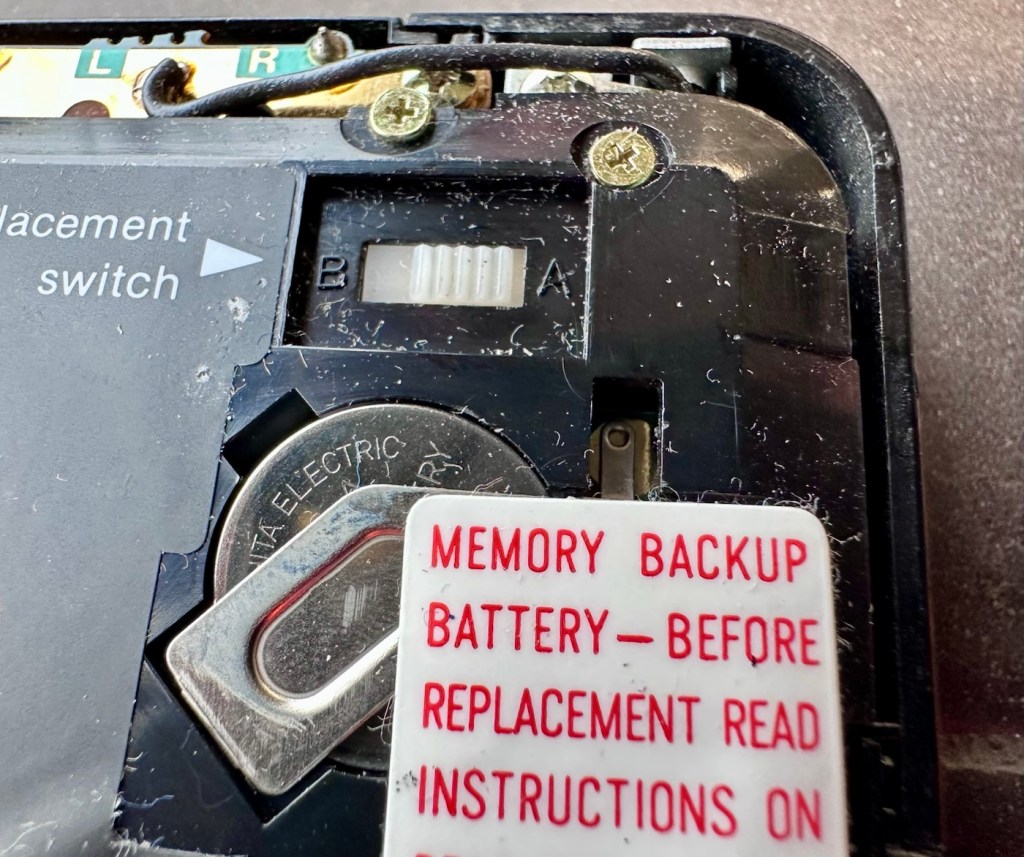
The main fault, and I apologise in advance, as it was not really a fault, was a misunderstanding of the unit’s operation by the previous owner. When you take the back off and change the batteries, you have to operate a switch so as to not interrupt the backup of the system.

Battery backup switch there is a “B” and a “A” setting

There are two modes and these are explained below. This switch is located inside the battery compartment and is used when replacing the main batteries to prevent data loss.

  • B stands for Backup, a setting used during the battery replacement process. The device relies on a small, separate backup battery (often a C1616 coin cell) to maintain memory while the main batteries are removed, provided the switch is in this position.
  • A stands for Active (or simply the normal operational position), which is the standard setting for everyday use once new batteries have been installed. 

To replace the main batteries safely and avoid losing your data, you must follow a specific procedure that involves setting this switch to “B”, changing the main batteries, and then switching it back to “A” after the new batteries are inserted. 
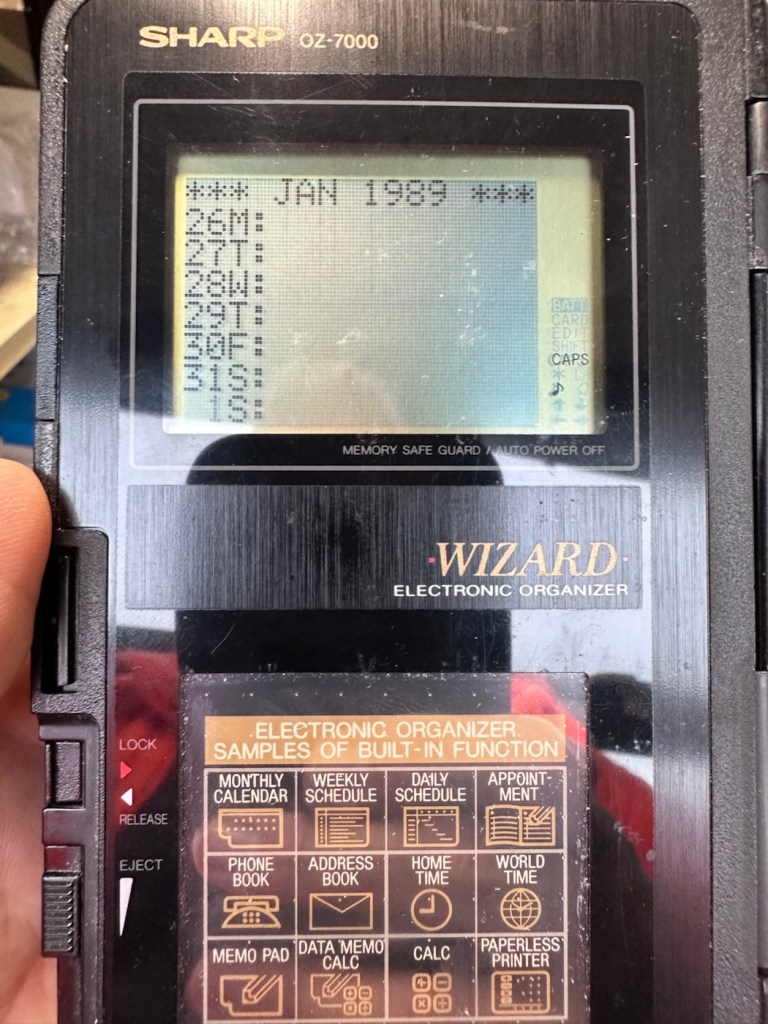
The issue here was that the batteries had been changed and the switch was put into the correct “Backup” mode. However the previous owner had not placed the switch back into the ”Active” mode when the batteries were changed and the back of the shell was put back in place. Hence the unit would not work as in theory the batteries were locked out of use. On opening the shell up, this was the first thing I looked at, and when the switch was put into the correct position the unit sprung into life once the “On” button was pushed.

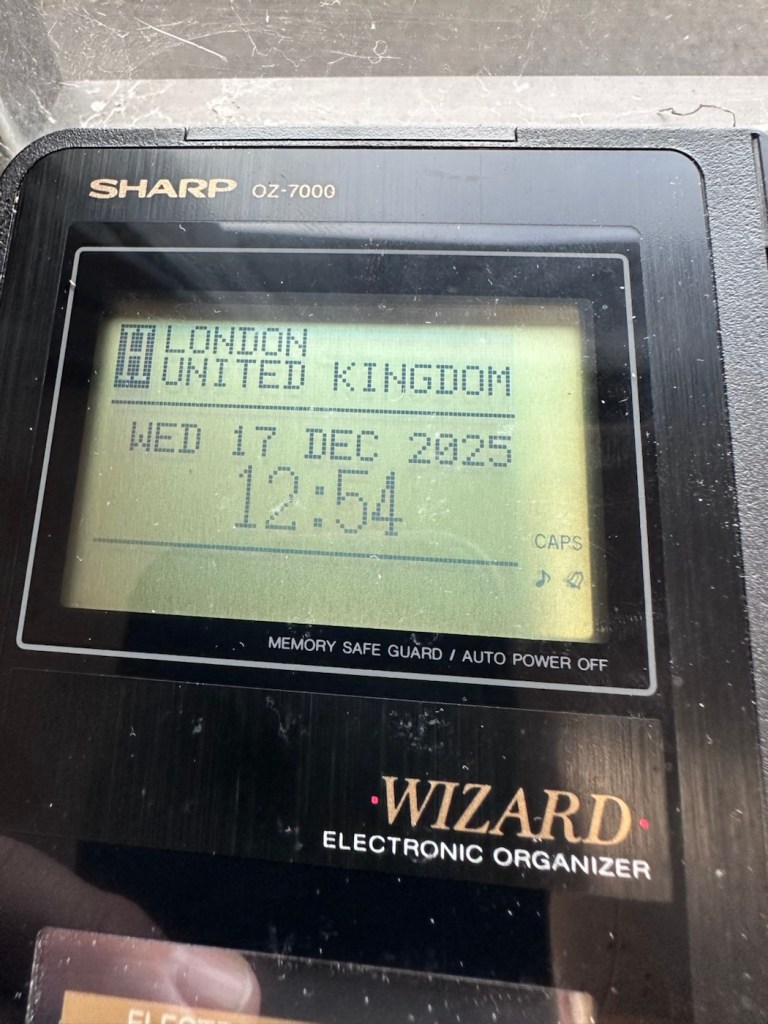
When the switch was set, power applied and the unit reset to 1989

When the unit was turned on it then reset to 1989, I was able to change the times and date, and I was pleasantly surprised to find out that the date range on this unit covered the years 1901-2099. Considering this unit was released 11 years prior to the Y2K bug of 2000, it showed some advanced thinking in the implementation of these units.

One of the issues with this particular unit is that there is no backlight on the display, the display is black and white and the only change that can be made is to the contrast. Back lights eventually arrived with later models. So use of these units was pretty much limited to daylight hours, or whilst under a light source of some kind, that said the display is very good and has a good contrast range.

The unit with an example function card installed
In use in the carpark at work

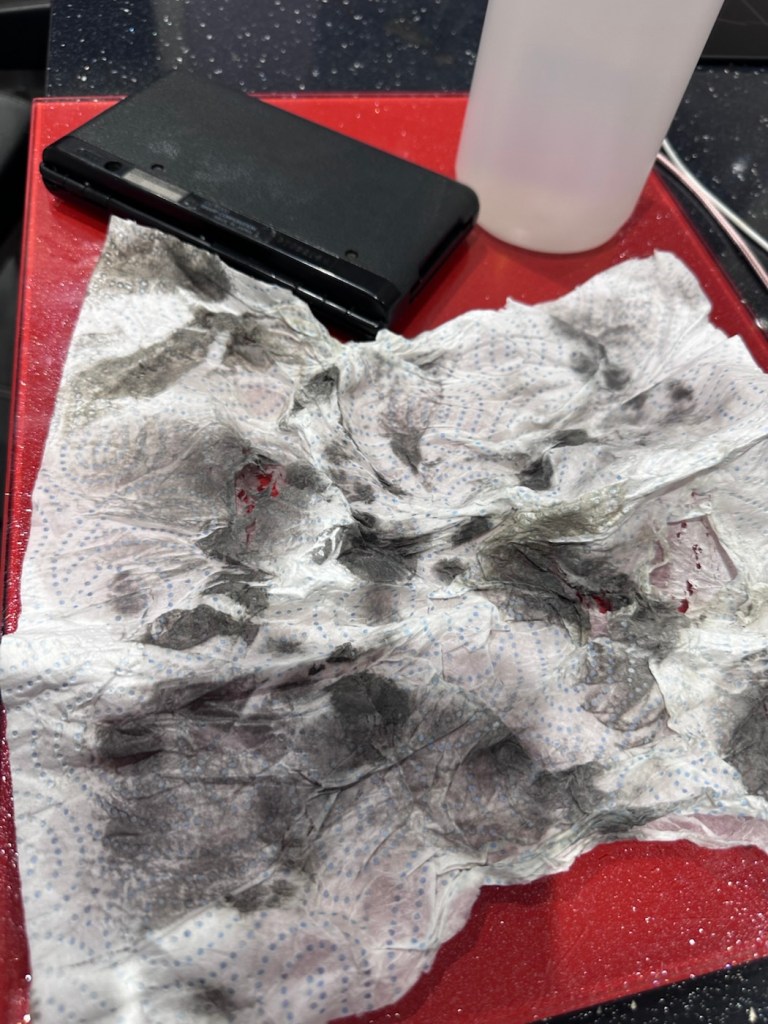
The last thing I have done is clean with some IPA to remove the years of gunk and I think this was quite successful

The IPA certainly lifted some dirt

After this I have finished off with a nice polish with some car cockpit cleaner. It’s finished this repair off just nicely.

Result:

Here we have a nicely presented, clean and fully working example of a nice little bit of personal computing history.

Has come up lovely

So. With these older items, it’s sometimes good to just have an awareness of how these old timers operate. Get an instruction manual, study how it works, it can make the difference between selling it as damaged, when in fact there really was nothing really wrong with it. The seller could have sold this for 3 or 4 times the value that I purchased it for, but I’m not worried about that, as far as I’m concerned I got myself a bargain and to be honest, that doesn’t happen that often.

It’s a win win situation as far as I’m concerned, I win as I now have a lovely example of pre PDA technology, and it’s a small win for the environment as another piece of “Waste” has been saved from landfill.

Thanks for passing. Thanks for being there. Always appreciated 🙏

Formatting the Psion II Datapack

The Psion II range was well ahead of its time when it came to saving data on its machines, however there was an element of strangeness in its design and usability.

You have to realise we are talking early eighties technology and to be totally honest it was the infancy of computing, or hand held computing to be precise. There are three drives on this range of handhelds, they are A:, B: and C:

A: is the internal memory of the unit and it is RAM memory and ranges from 8KB in the CM model, to 16KB in the XP model right through to 32 or 64KB in the LZ/LZ64 models.

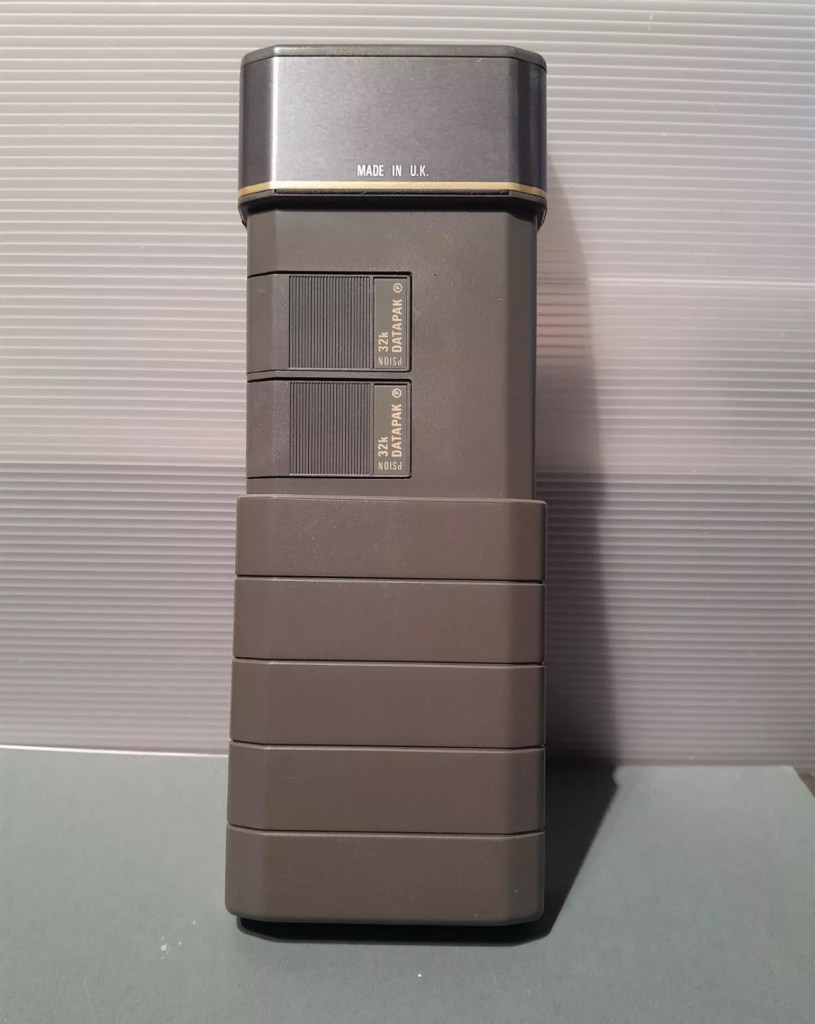
Datapaks on a Psion II unit

B: and C: drives are found on the rear of the unit. Into these slots you can place memory modules that are the equivalent of disk drives you’d find on a computer, however they are pretty much early solid state in design as they have no moving parts. These modules can come in sizes between 8-128Kb in size. B: is always the top slot closer to the screen, C: is the bottom slot closer to the battery compartment.

Types of memory

Rampaks are as it says on the label – Ram based plug in memory modules. When you store something in the units internal memory or on a Rampak, and then you later erase it, it really is erased in its entirety and space on the unit or Rampak is freed up, ready to be used again. Rampaks will have their own small “Coin” type battery as part of the module, this allows the unit to allow the constant input and deletion cycles. They use very little power and are probably the best medium for writing programs.

Datapaks are a different beast. They are known as EPROM (Erasable Programmable read only memory) Erasing a record is comparable to crossing out a piece of work written on paper, it has now been deleted but will always remain on the paper, just crossed out. It’s exactly the same on the Datapak. Hence in time the memory space will dwindle due to the deleted files that remain still occupying dead space. The benefit of the Datapak is that they are more secure and are not affected at all when battery power runs low.

With a Datapak there will come a time when the available memory space remaining is insufficient for what you are trying to achieve. At this point you need to format the drive and this is a particular problem if you don’t have the access to equipment to carry out this task. Here’s why…. They need exposure to Ultraviolet light to erase the memory.

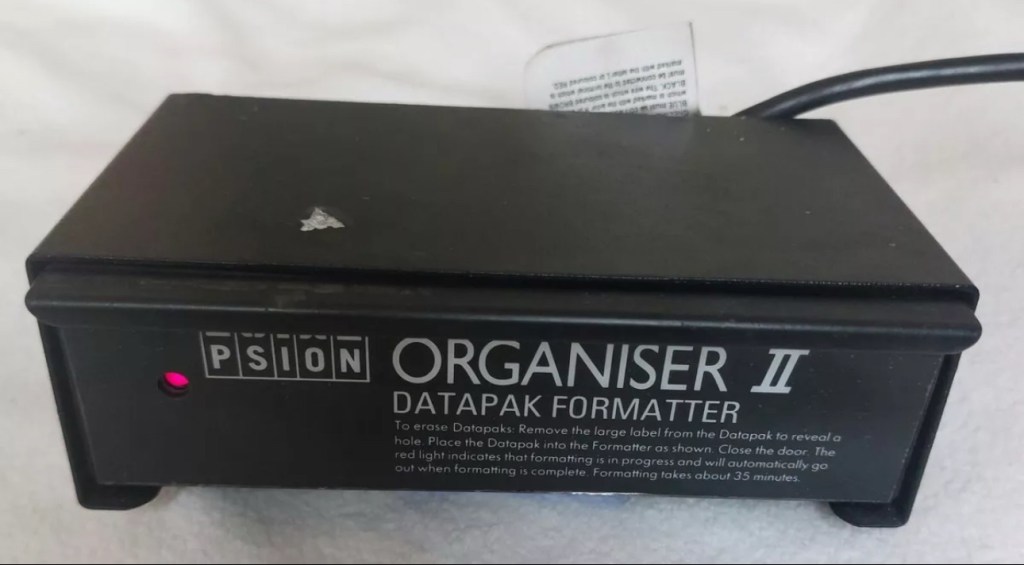
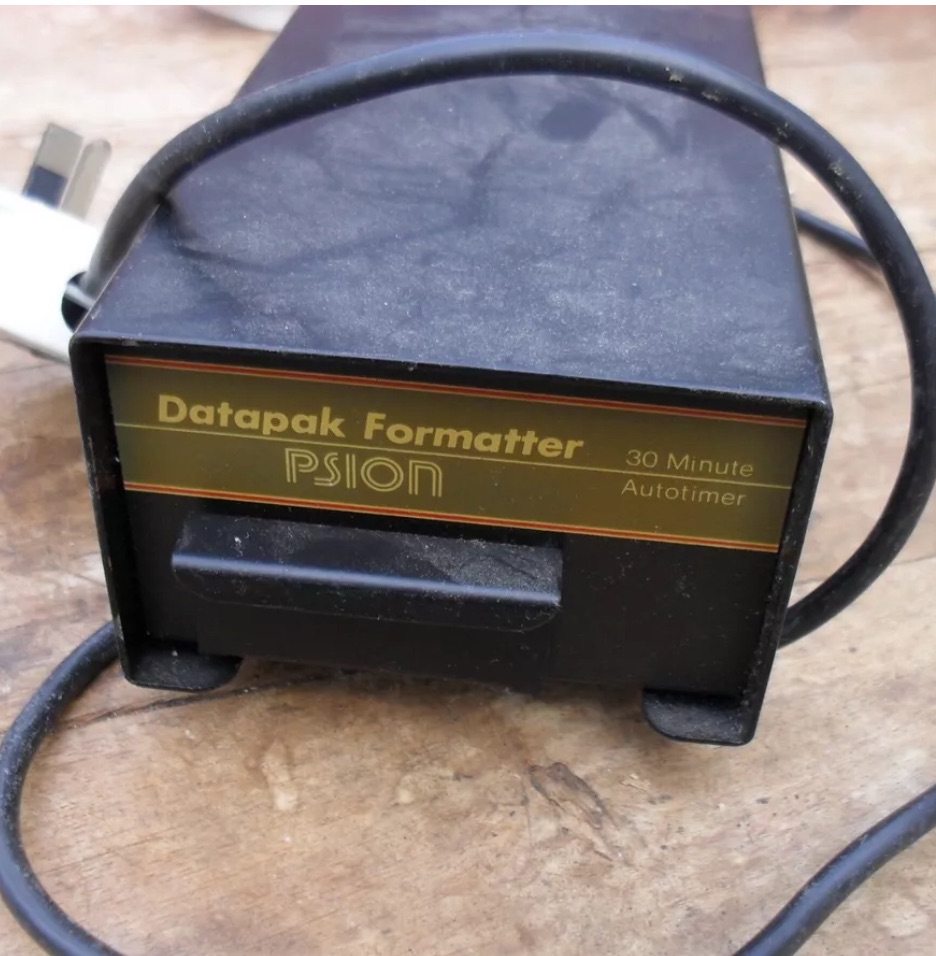
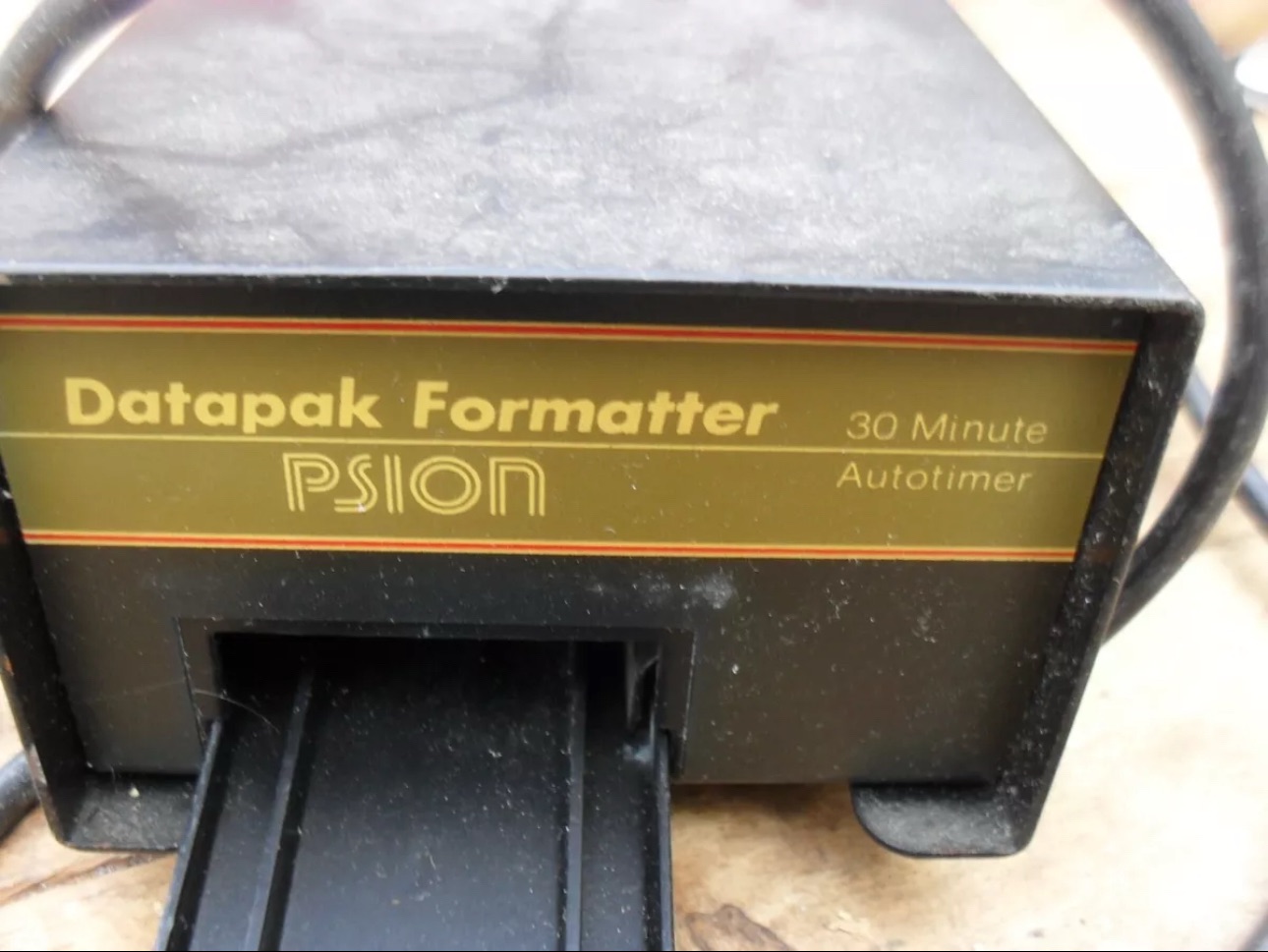
Mk2 version of a Datapak formatter

You need one of these, a Datapak, Ultraviolet formatter. Quite a rare beast to be honest, there’s not many on sale at the moment, specific to the Psion. However there are other systems available for EPROMs used in other branches of electronics. The Datapak has to have its label removed to expose the crystal glass below on the EPROM in preparation for being placed inside the formatter. In theory it is just like an oven that exposes the EPROM for around 30 Minutes, the door is closed prior to formatting to keep the light source from damaging the users vision, as the light is in the UV wavelength spectrum likely to cause some quite serious damage or long term conditions.

Here you can see a Datapak that i have taken the lid off of. On the circuit board you can see a piece of crystal glass with a silicon die below, this is the component that will need approx 30 mins of Ultraviolet exposure to format its contents.

The crystal that the UV light needs focusing on

The formatting process

Erasure of the EPROM begins to occur with wavelengths shorter than 400nm. Exposure to sunlight for one week or to Fluorescent indoor lighting for three years could cause erasure, this is why the Datapak has a label covering the crystal portion of the EPROM. The recommended procedure is to expose the EPROM to a UV light source at a wavelength at or close to 253.7nm that usually achieves the format process within 20-30 minutes, with the lamp at a distance from the glass lens of around 2.5cm.

Then how do I achieve a format of a Datapak without this equipment?

There was always the option of trying a standard UV bulb or torch. However the UV wavelength on these items for public safety is usually in the 395nm wavelength spectrum. There really is very little available to the general public that is as strong as the bulbs required in the 253nm range to complete this task, as they are a serious danger to health if you are exposed to it for any length of time. This then was not an option i was able to pursue.

I now have a few options available to me if i wish to get these Datapaks formatted.

Purchase a cheap Chinese manufactured unit with a European plug. They seem to work and do the job, however you will be lucky if you get a couple of uses from it.
Trawl EBay. As i write there are two working ones including this MK2 version listed at a reasonable asking price that have a lot of people watching them, so I expect the price to rise accordingly as it gets towards the close of the auction.

EBay spares or repair. There is one unit, a Mk1 version that has a buy now price and it seems to have been hanging about in someone’s junk box for a few years and could possibly need repair. This is a tempting option however if the UV light inside is damaged then i have to look for a suitable replacement, and to be honest there are not a lot of compatible low pressure mercury discharge tubes of these sizes available now. You may have to look for suitable alternatives and I’m not sure i want all that messing around. Do i take the risk and go for one that may need repair? A guy called Dave Curran has combined this drive with one of the Chinese low cost options to create this hybrid eraser: Eprom eraser/upgrade

Get someone else to do it. There is this option and a service is available on line that allows you to send your Datapaks off for someone else to format for you. But do you want to entrust data to a third party? For me it’s not really a problem as none of my units have any of my data on them, but it is something to take into consideration. Whilst I’m searching for a suitable unit this may be a route i consider.

So these are my options. I’ve an idea what I’m going to explore, so im just going to take a little time to look into it all.

My decision

EBay spares and repair – seeing that this is a site where i like to purchase and repair items, i have gone for this option and purchased a used and typically untested Mk1 Psion Datapak formatter from EBay. I have had some good dialogue with the seller and i am confident that this unit can be made good with only a small amount of intervention. The UV tube inside is potentially 40yrs old now, i’ve secured it at a very reasonable price as i got in there and was able to complete the deal relatively quickly.

My plan is to get this unit opened, check its mechanical and electrical stability, get it cleaned, reassembled and then Pat tested. Only then can i look at attempting a full format on it for the first time. And for that i will put together another post incorporating the repair of the unit and the formatting of the Datapak.

Here is my restoration of this unit: Psion datapak formatter

Thanks for passing by.

Morse code on a Psion organiser

I did my Morse test back in 2003 just after I passed my City and Guilds 765 RAE exam in Amateur radio. It wasn’t a compulsory requirement as it was in the States at that time, but I chose to go with it. I wasn’t the fastest in the world but I enjoyed using it to be able to partake in my favourite part of the hobby, low power QRP operations.

As morse uses such a small bandwidth, distant operations using very low power below 5 watts are very achievable. Wspr transmissions operate in even smaller power ranges, however that’s a whole different story.

So what’s the Psion organiser got to do with Morse?

When you set out trying to master Morse you look at loads of techniques and ways to make your journey that much easier. There are Morse trainers, there are even Morse decoders and encoders that basically allow you to “Cheat”, but what’s the point of that as you’re not going to learn anything that way.

I used a technique called the visual mode technique that allows you to learn Morse by associating the dots and dashes with the actual shape of the letter and number. It works well when translating to paper, however Morse is a sound mode and it is better to use sound association, that will always work the best. I have this on a book mark to this day, as well as having it as screensaver at work. It worked for me. That’s where the Psion also had a part to play in my education.

Visual mode technique

I have a pre loaded data pack that runs perfectly on this old 1980’s machine. I used a very similar program back in the day, but not this actual one (See pictures above). The program and files are extracted and copied from the Interair Airnav pack and i have uploaded a small video below to show it whilst working.

“Peace”

With this program every digit you press on the keyboard is repeated back to you in Morse code. It’s a fantastic way to keep yourself on the ball. There are a few minor errors but the numbers and letters are pretty much spot on. It’s a great way to learn the shape of a word by sounds, and that’s a big part of Morse code, where you use phonics or the sound and shape of a string of dots and dashes to learn particular words or formations of groups of words. I’m probably making it sound more difficult than it actually is, and I apologise for that as it really doesn’t have to be. Each person finds their favourite way to learn, and this worked just fine for me all the way back in the early 2000’s about 22 years ago.

Have a great day and peace to you all or should that be :

.- -././.-/-.-./. (Check above) 👆