
Just a few pictures taken recently on various cameras I’m testing out. Nothing special, just mooching around and taking snaps.











All around the Leicester / Melton Mowbray area.
Have a great day.

Just a few black and white pictures, taken whilst testing various cameras I’ve been working on recently. Just snaps, don’t get too excited.
Just a few pictures taken recently on various cameras I’m testing out. Nothing special, just mooching around and taking snaps.
All around the Leicester / Melton Mowbray area.
Have a great day.
When the youngsters of the clan, drop surprise repairs on you at family gatherings.
It’s great when one of the youngsters of the clan come up to you at a family gathering and greet you thus, “Oi, uncle Dave, have a look at this for us will you?” and then they just disappear into the crowd as I’m now holding a couple of items I’ve never been exposed to before, in this instance a pair of Playstation 5 Dual sense controllers. (I had to google to find out what they were!)
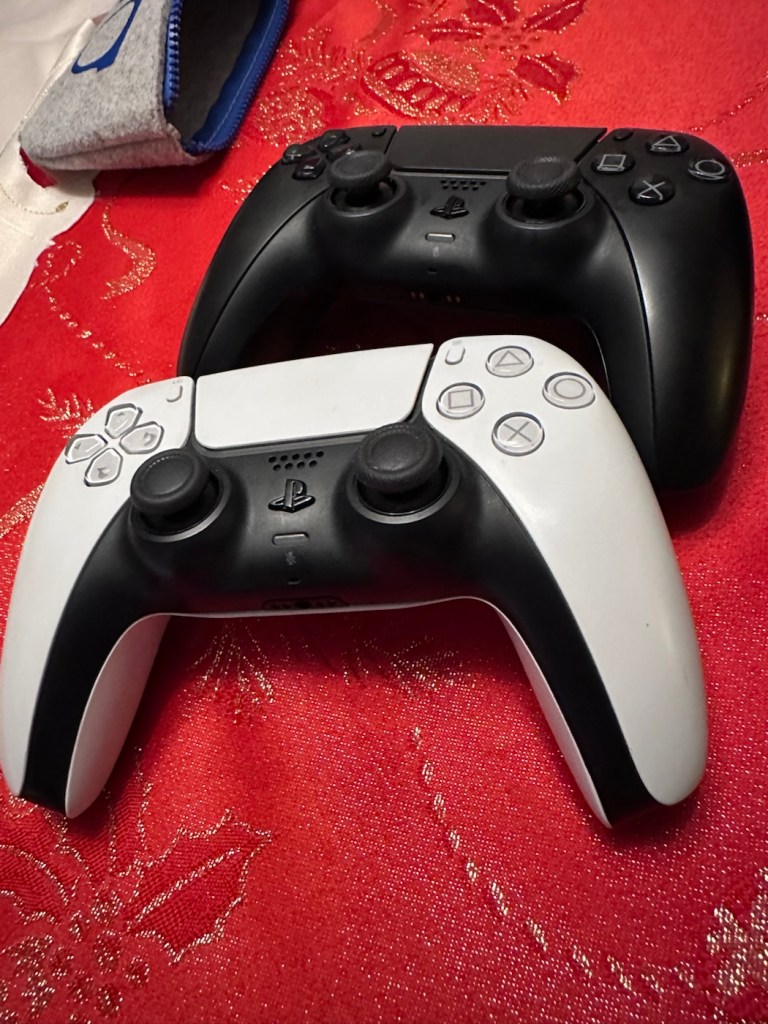
Apparently they don’t work, or are having difficulties, and it’s now down to me to find out what’s wrong.
Now I’m not a gamer in the true sense of the word. I like, and have repaired and own a good few hand held devices that have been featured within these blog pages, but I do not own a console, I never have. However I’m lucky in that I know a few people who do have these consoles, who I can go to and test how they are behaving, but the good thing is that these controllers can also be tested without a games console and just require a computer with a USB port, and I do have one of them, a clever move by the manufacturer me thinks.
First thing I did here was to plug them in to a USB supply to charge the onboard battery. Each one has a 3.7v rechargeable battery that should give between 6-12 hrs of activity depending on how vigorously the unit is being used. When charging it glows on and off orange until it is charged and then the glowing just stops. Both these units took about 2.5 hrs to fully charge, and they seem to both be holding a good charge seeing one of them, the black version has not been used for some time.
Let’s get them connected up to a PC.
A simple good quality USB cable is the communication method between the controller and the PC. Next, you go to the address: https://dualshock-tools.github.io and here is where you will be doing those checks on the controller that sits in your hand. Seeing I don’t really know what’s wrong with the controllers I have been trusted with, I think this is the best place for me to start my investigation as the site does do some good, and thorough testing.
I have two controllers to check so I start by plugging in the Black controller, clicking connect on the screen gets access into the memory of your controller and all the firmware detail and build date is displayed in front of you. Cool!
Just under where this information is displayed we enter the first series of tests, a bank of 8 basic function tests that check all bells and whistles (as such) are operating as they should. This Black controller passed all these tests with flying colours.
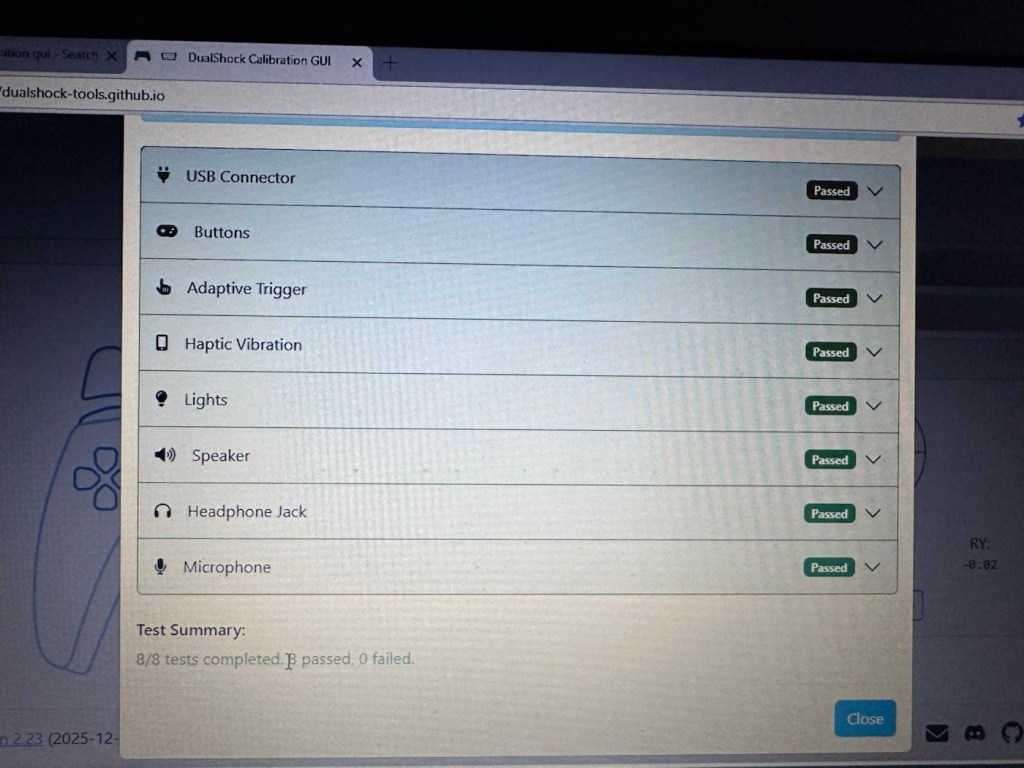
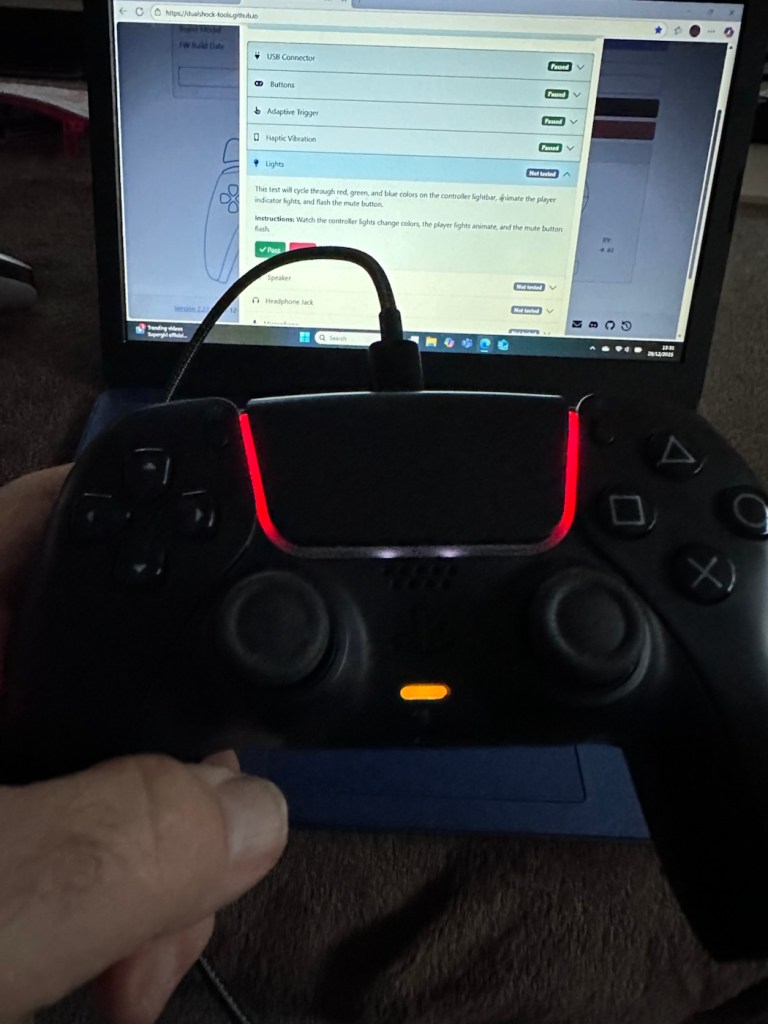
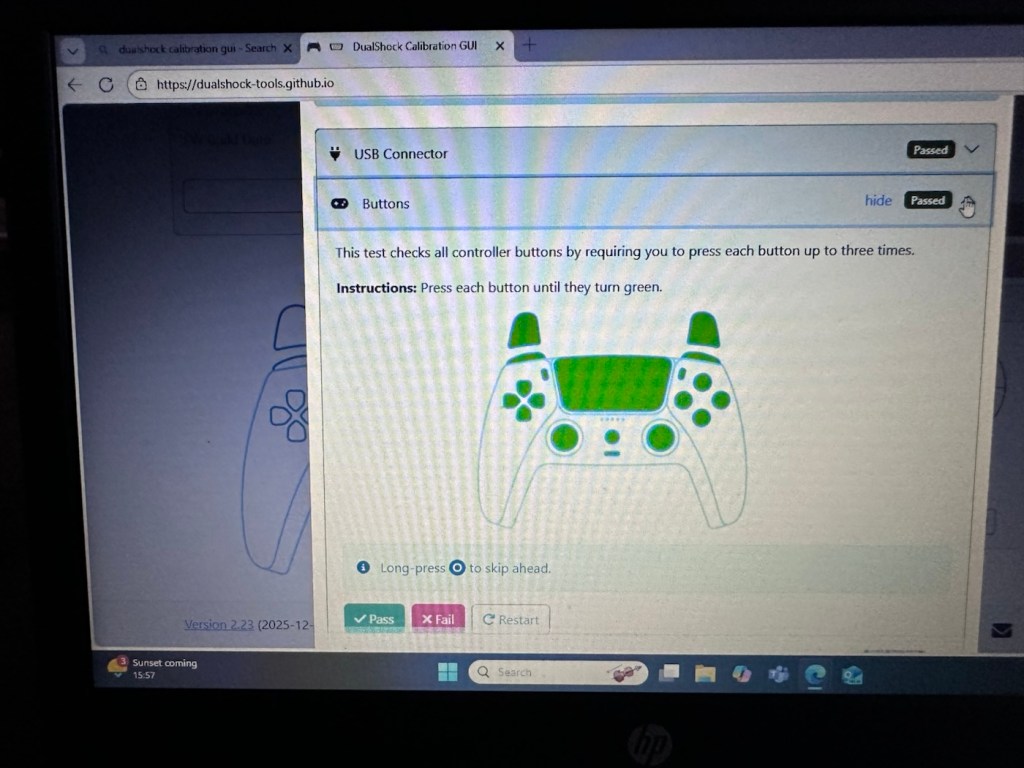
The checks are thus:
And as stated the first controller, the black one has passed all of these tests. Impressive. The next tests are all centred around the two thumb pads, their return to centre position and their all around circular motion and their calibration.
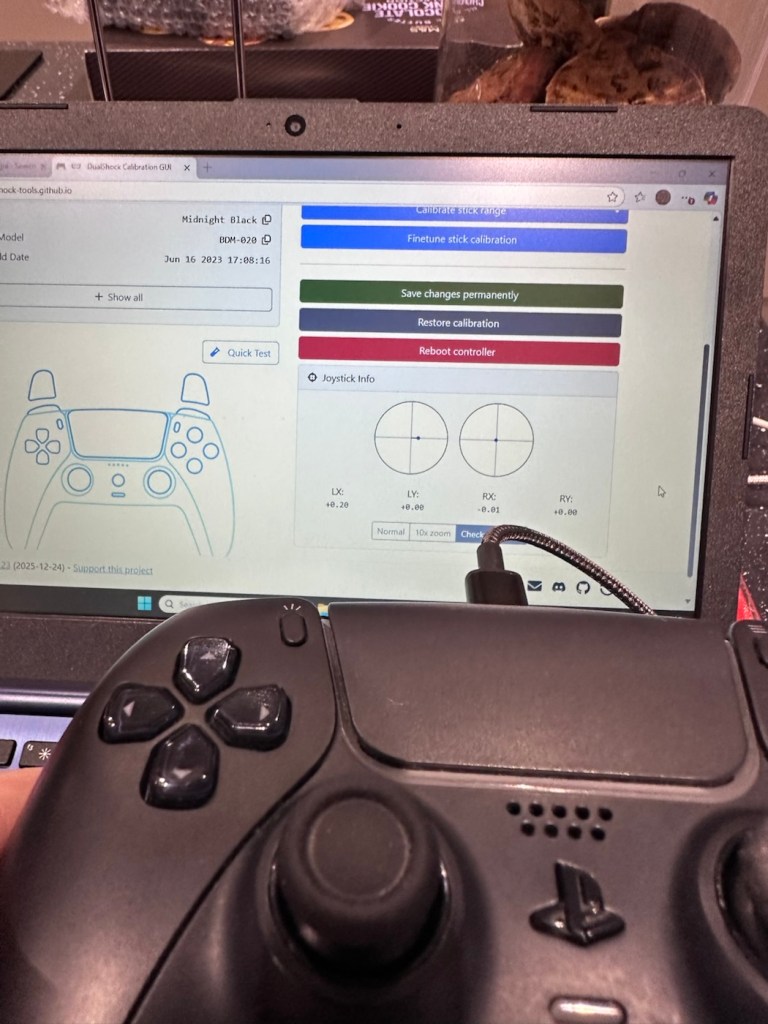
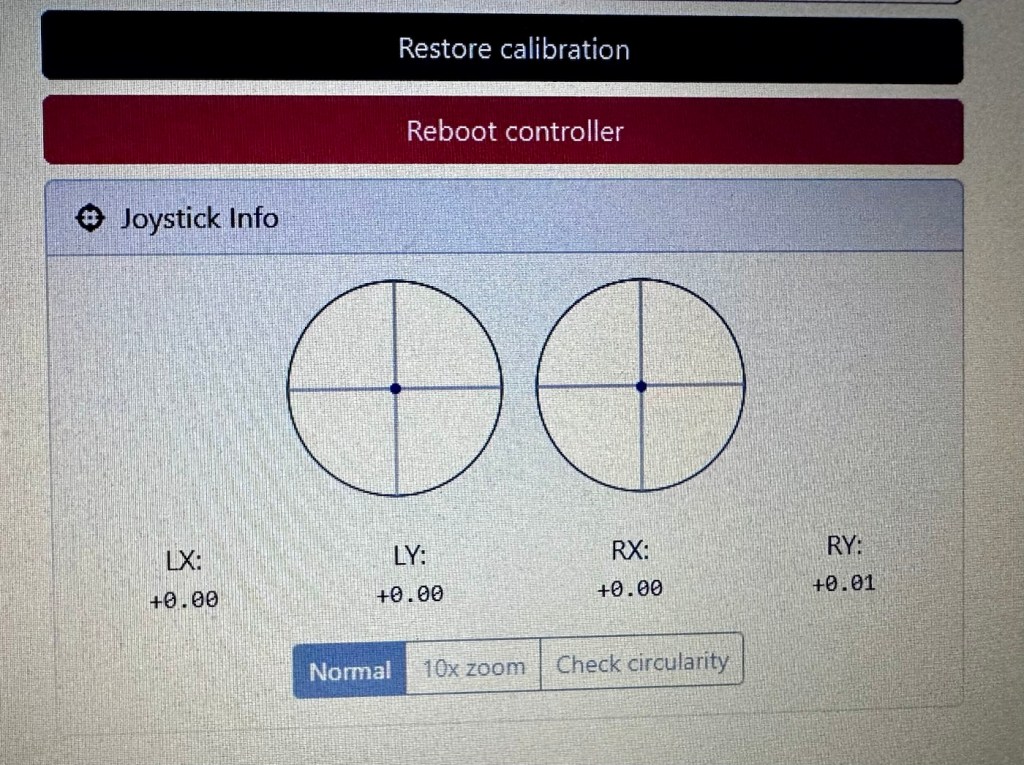
The left pad was showing slightly off centre and I was able to make some minor adjustments via the program interface to correct this issue. The good news was that it is not a constant stick drift, and the mechanism does not require replacement, it is easily adjusted. With settings saved, disconnect the controller, reinstall it and re check the calibration and it should all be good. And it was. With minor adjustments made to this controller I am pleased to say it is working as it should, it is now repaired and will be heading back to its owner.
Now onto the second item, the white controller. I put this controller through the exact same testing protocol as the first one, all was going well until we got to the buttons section where this one failed. The down button on the left hand side of the controller is unresponsive, you can see this in the photos below
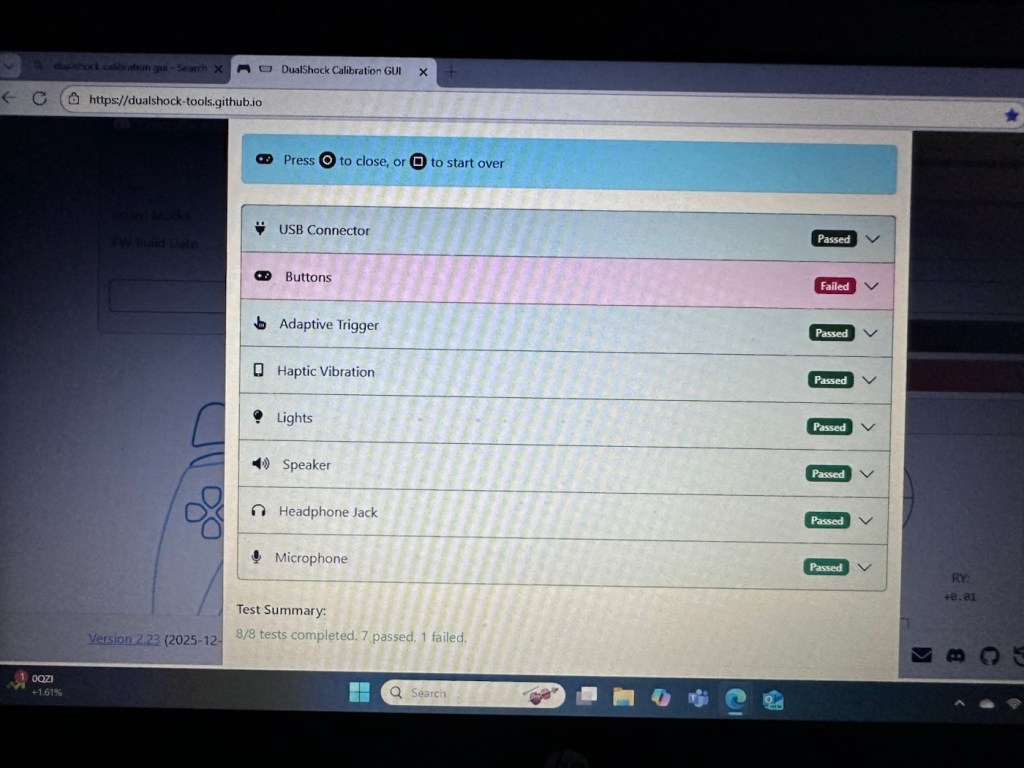
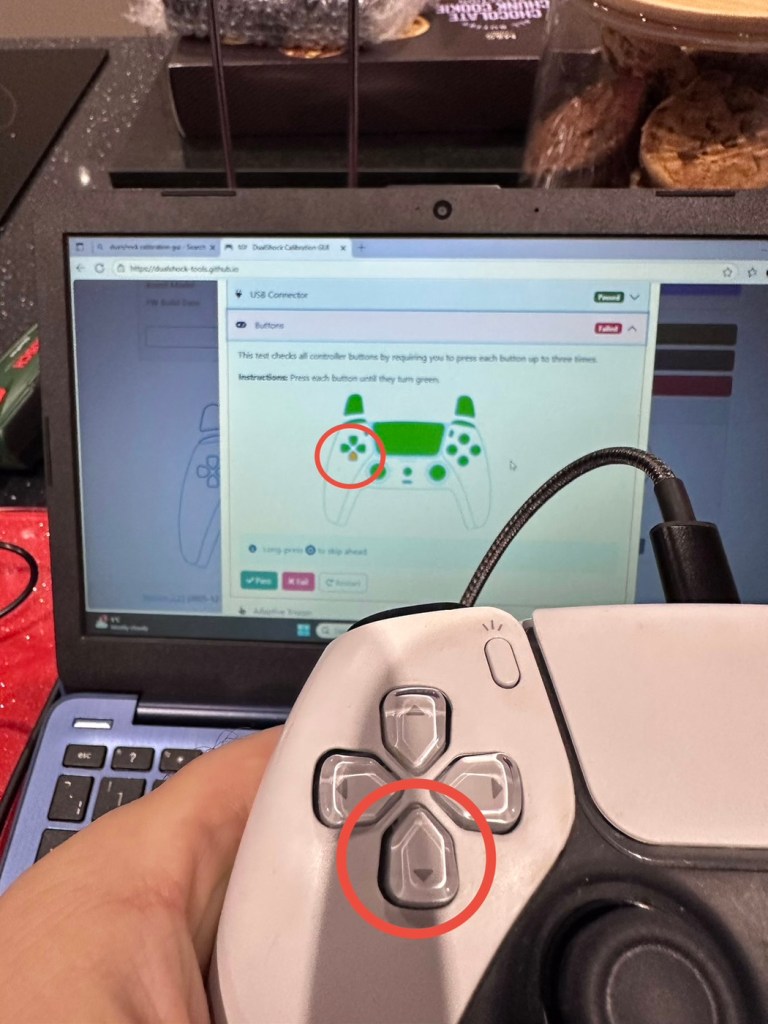
All other tests on this controller were fine. Again there was a little drift on the sticks that I was able to adjust and they are now both as central as they can be, operating well through their whole range. I will go through the repair and retesting of this pad in the section below the YouTube video that I have highlighted below.
A while ago, if your game pad was playing up, there wasn’t really a great deal you could do apart from replace the thumb controllers if you were experiencing issues such as a little stick drift (when a controller is moving on its own accord). A bad case of stick drift would require you to change the controller mechanism. However, some very intelligent people within the gaming community have put together a number of packages to test your game controllers, but the one mentioned in the video below has been a game changer as such, as it also allows adjustments to be made and saved and thus extending the life span of the components within, thus reducing the need to replace and dispose of those components prematurely. Have a look, it explains the testing protocols and checks them against other programs.
It’s a simple enough activity to get inside of the controller, some clips, and four screws get you inside the package, getting beyond this though to the controller buttons where we need to be is a little bit more in depth. So here we go…
I’ve dismantled the controller as I said I would, initially the process requires four screws removing, after you first gently prise off the black decorative plastic surround as in the pictures below.
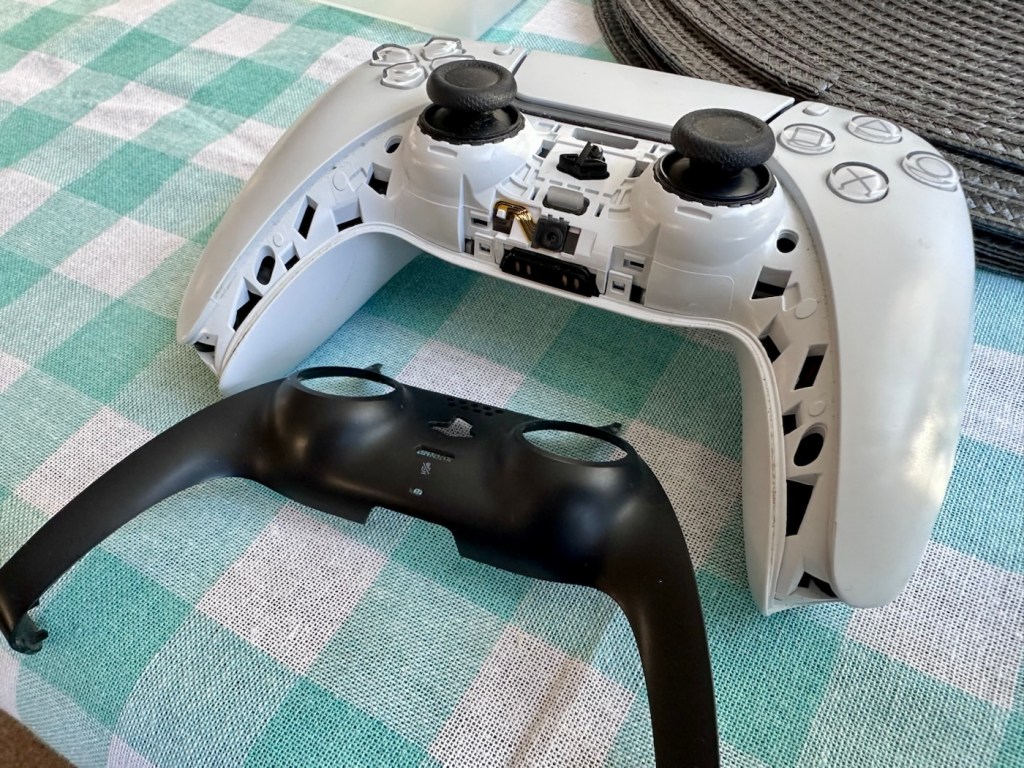
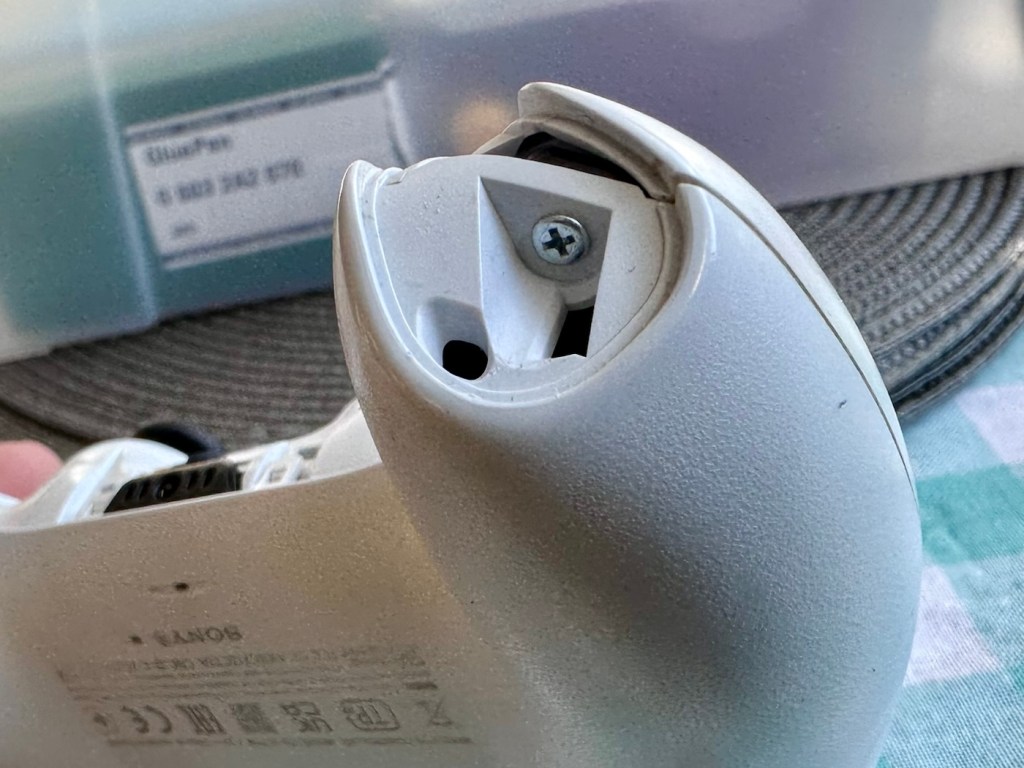
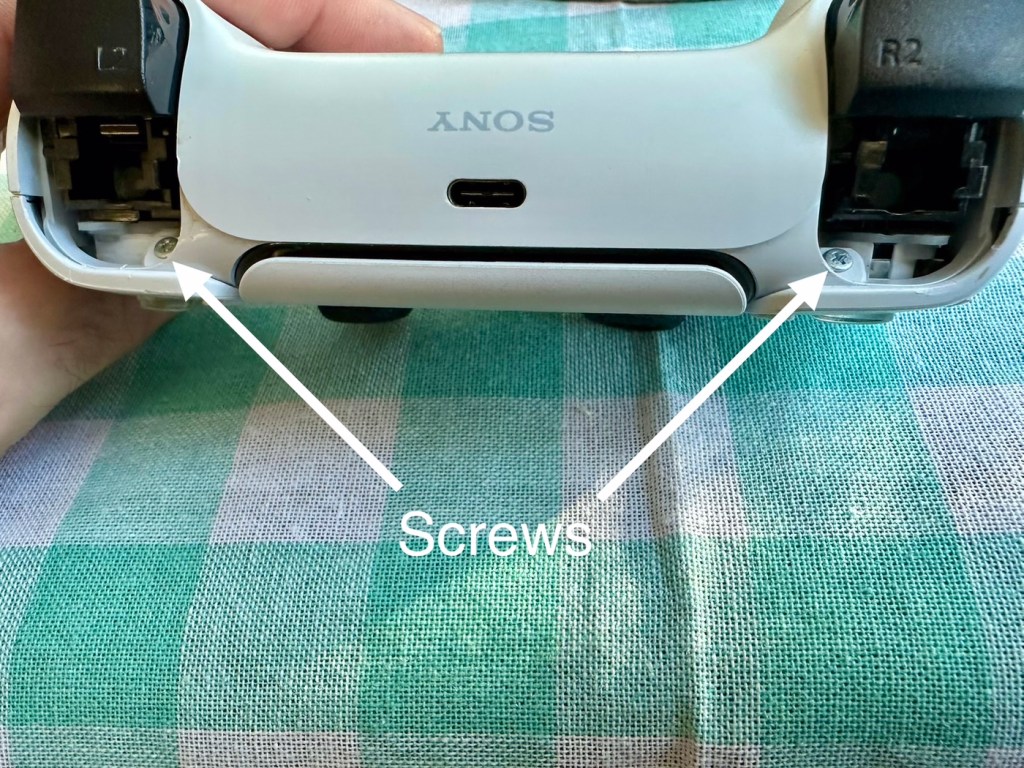
When you remove these screws the next task is to gently prise the two shells apart that then reveal the base of the controller
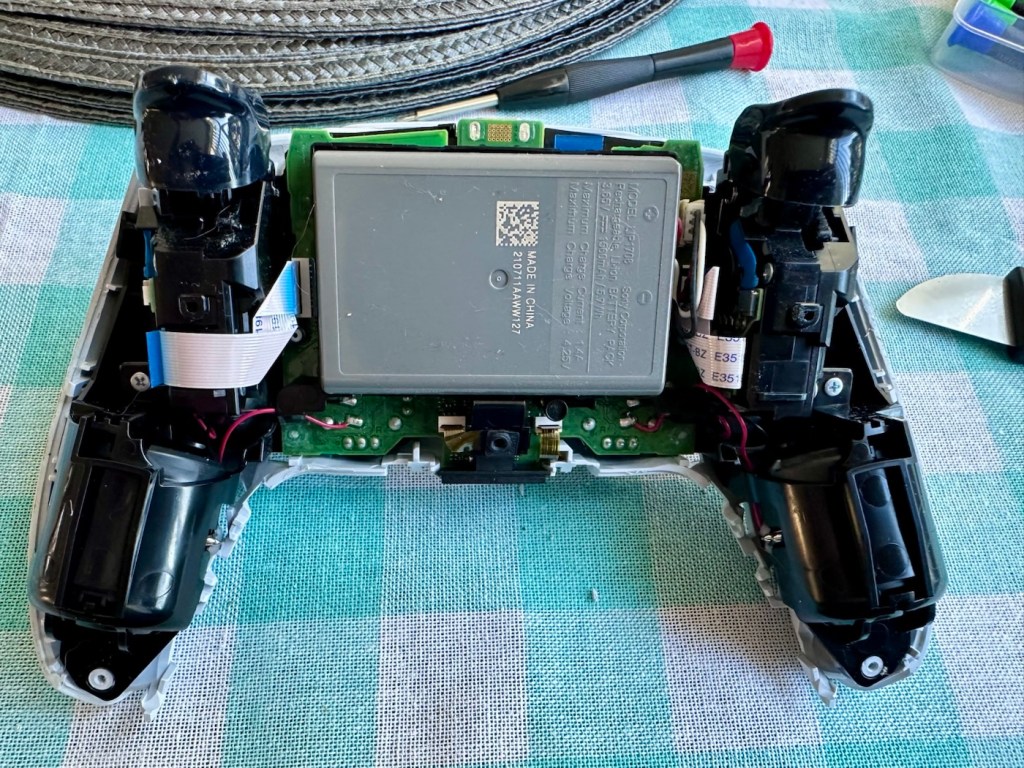
At this point the battery needs to be removed and that is a simple plug disconnection, the battery plate has a single screw in it that needs removing. Before you remove the battery plate there are four ribbon cables that need removing, if you don’t do these then you will probably tear them and need to replace them. Believe me, I have done this in the past and ruined the tiny microphone ribbon at the very front. It’s not expensive to repair, just an unnecessary expense. Don’t rush it. Another 3 screws removed and we can now take off the top cover and get to where we need to be.
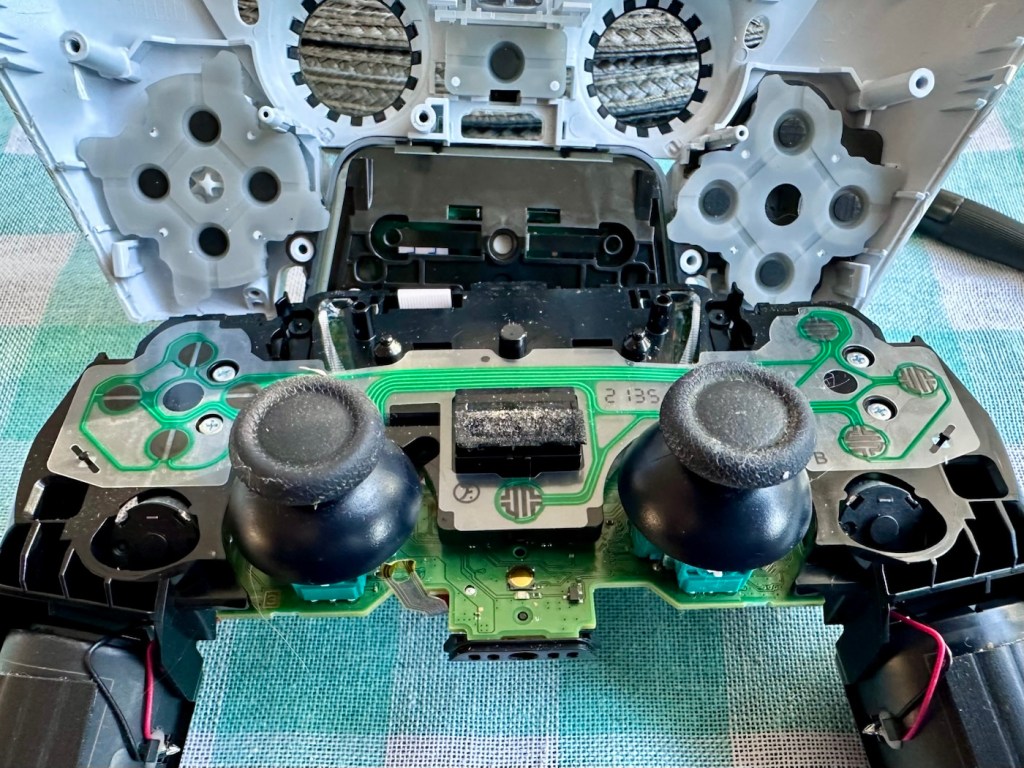
As soon as the top was removed I could see the potential issue with the controller direction pads. The pads are a rubber base with a carbon pad that makes contact with the circuit board below. Sometimes a simple clean of these pads can be sufficient to regain a connection between the two, but in this case it was plain to see that the pads on both sides were both well worn and to be honest they both required replacement.
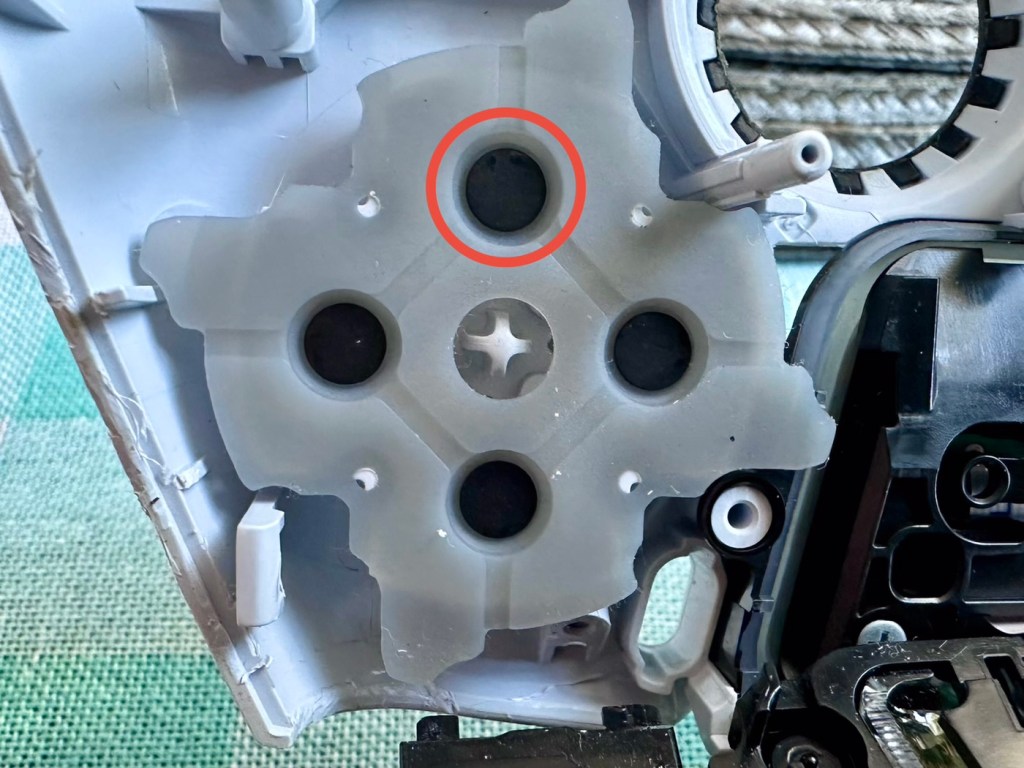
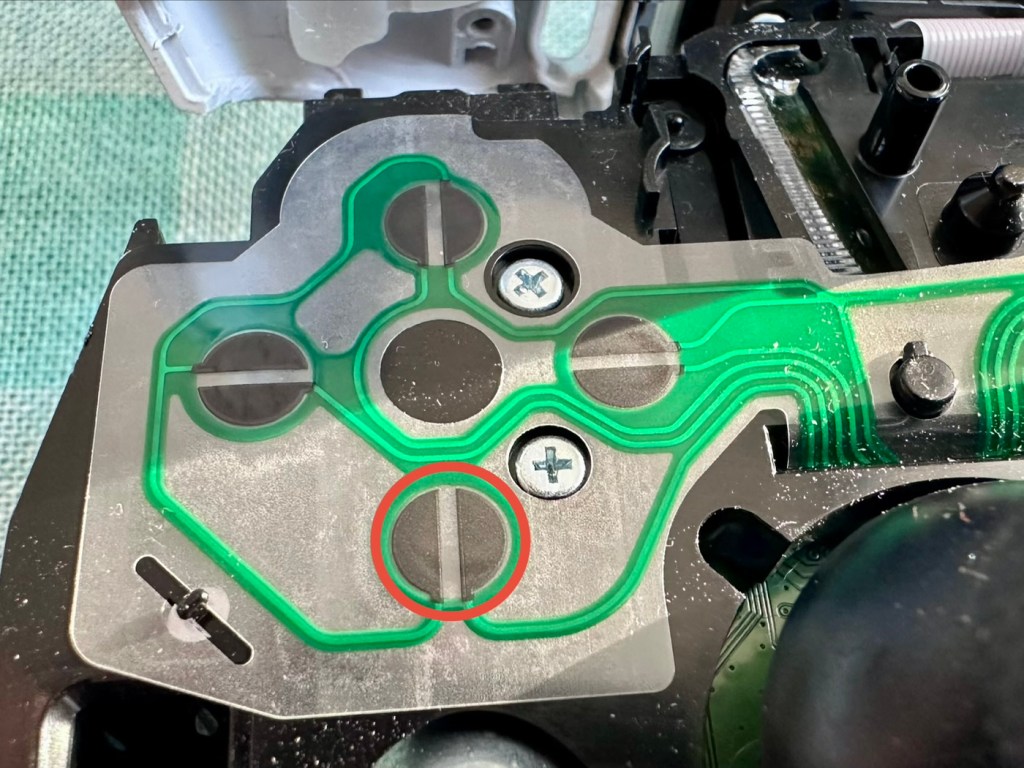
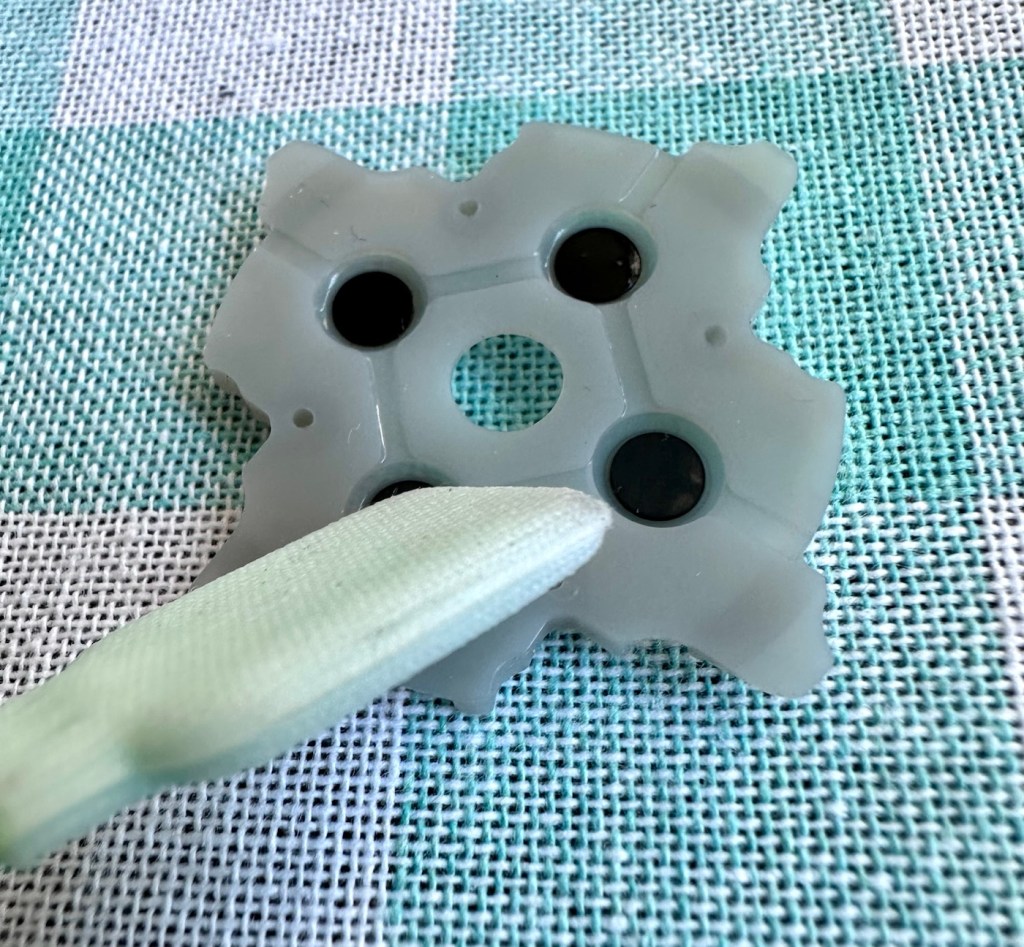
As stated I did give a clean to all contact points with a solution of IPA, reassembled and tested again with no change in performance, the fault remained. I will now need to purchase a new pad assembly and replace the film circuit board below them. Fortunately these are freely available and will cost no more than £6:60GBP to replace. And considering a new controller would cost at least £60:00GBP it’s worth the small investment to restore it.
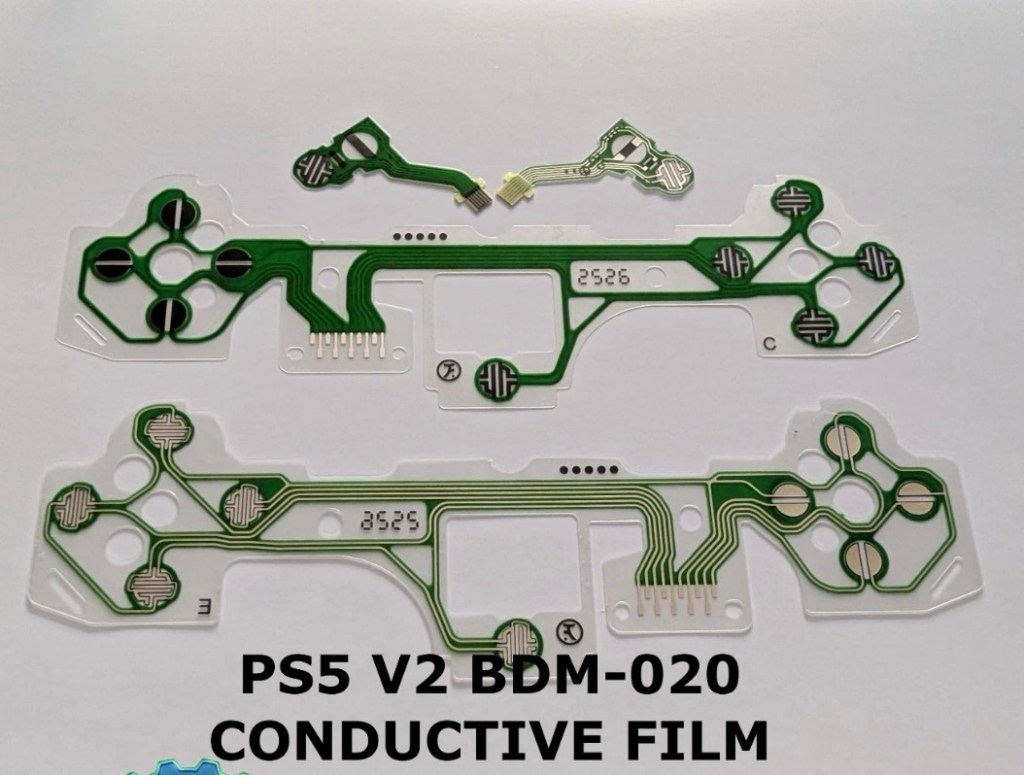
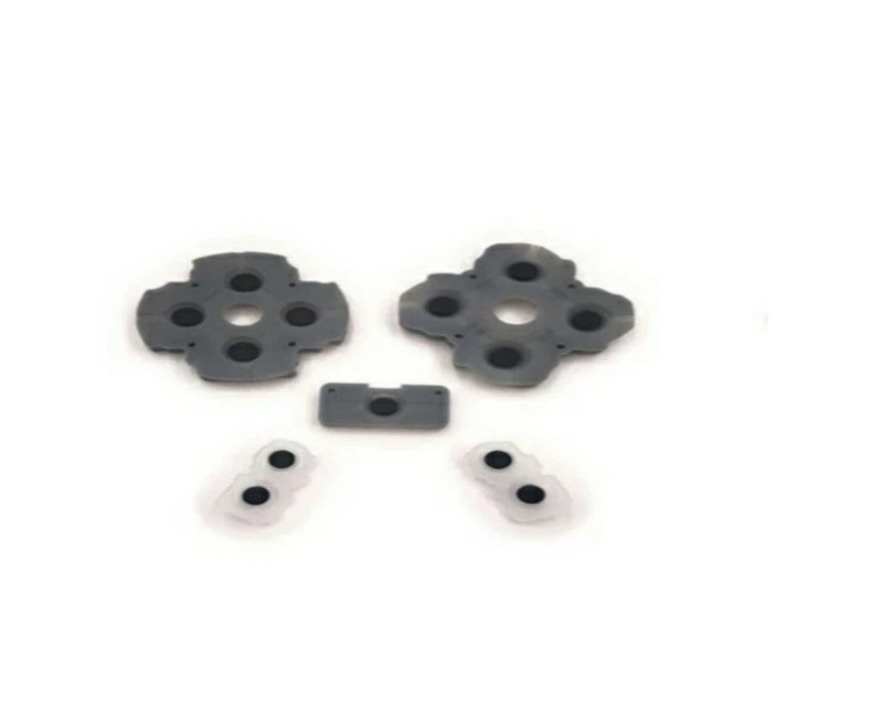
I now just have to wait to receive these items and get them installed.
The items arrived just as in the photos above, and following the previous instructions to dismantle the unit, I have removed the old conductive film sheet and replaced this with the new one. I have also removed the silicone pads with the carbon inserts and these have also been replaced.
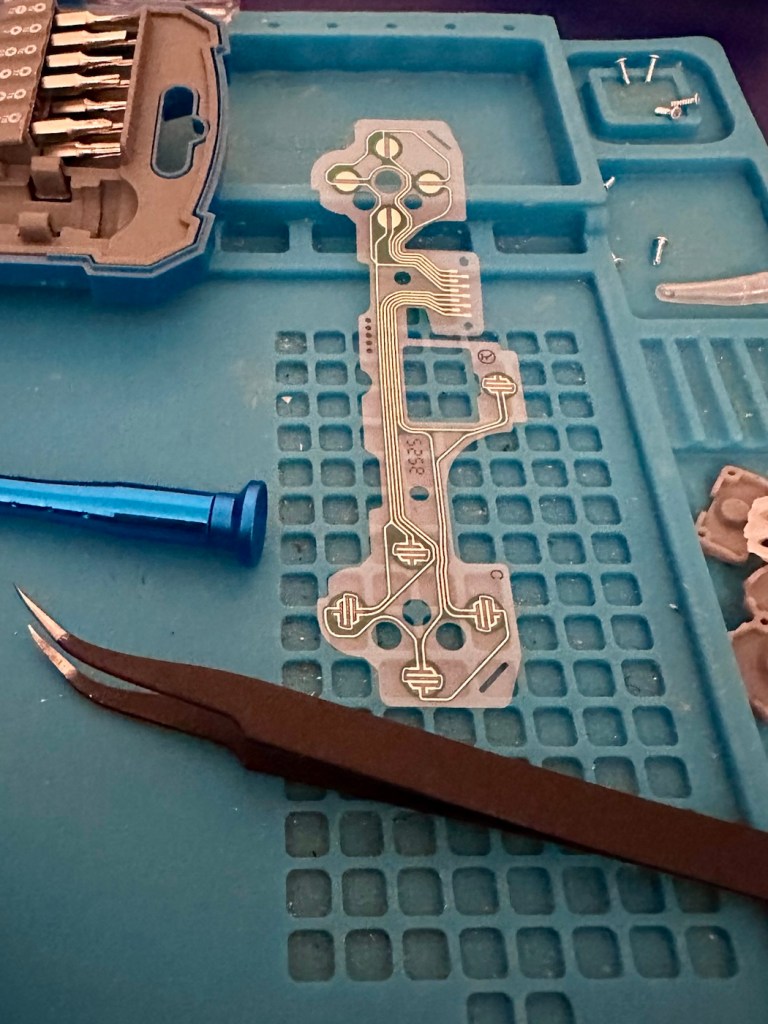
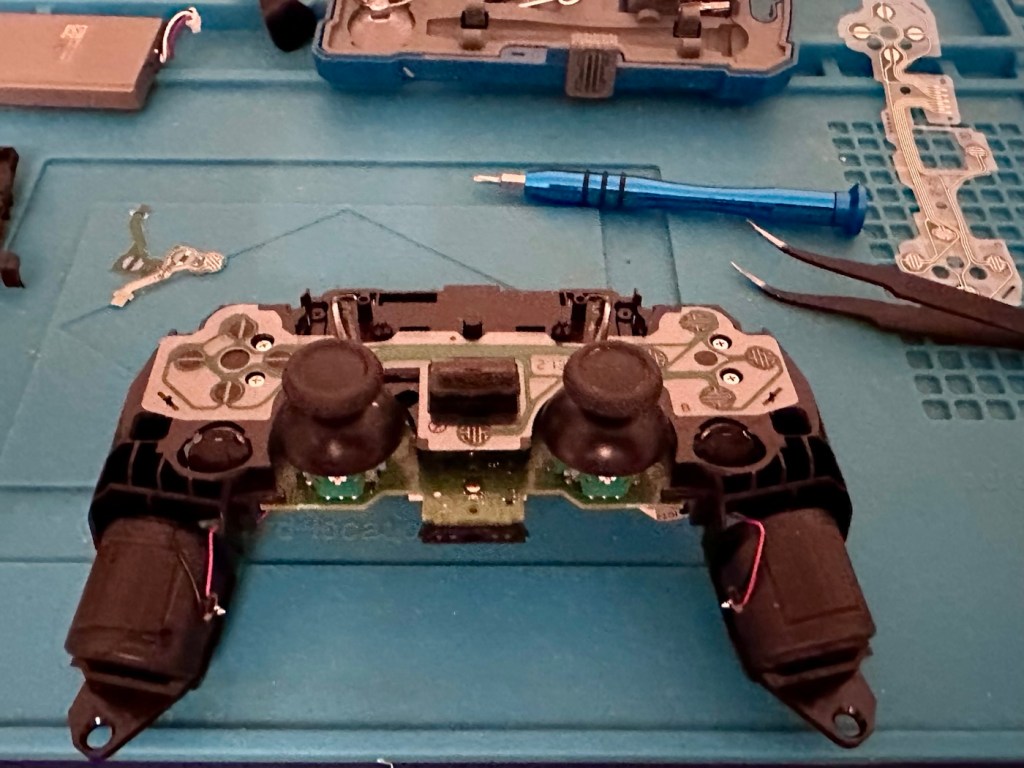
Now all I have to do once I have connected the ribbon cables is to get the outer shell back on the controller. Once this is done, I can log in and start the testing process once again, connect the controller to it and then commence a full test of its functionality.
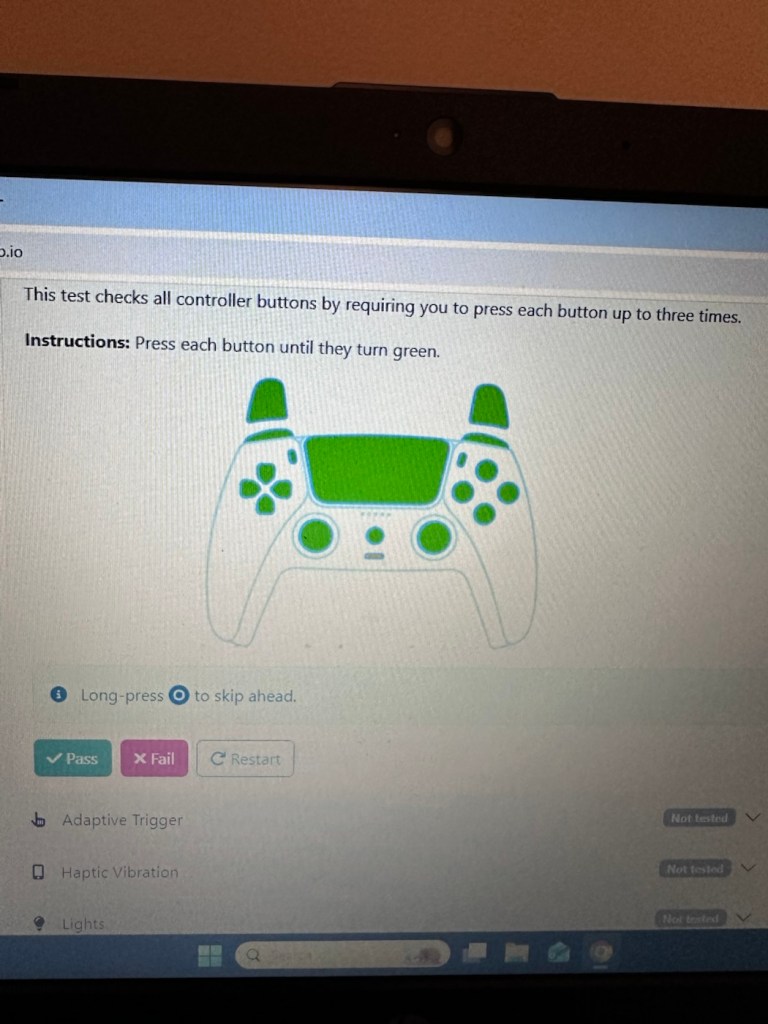
And as you can see in the above photographs, this has been a successful outcome. Where the left hand side lower button had failed, the new conductive film has addressed the issue and this handset now has full functionality and is working as it should be.
Next I’m just going to do a re-calibration, to check that the sticks haven’t drifted in anyway. If we are in a good position, we can then class this repair as successful and then it can then be passed back to my nephew to carry on shooting aliens, and he can then continue his mission to save the world.
Two controllers have now been serviced and are both working well and within tolerance. They are about to be returned their owner so he can get them back into use, killing aliens and saving the world from a zombie apocalypse (or whatever he does with them)
Not having a lot of experience prior to receiving these two controllers, I was a little doubtful about where to start and what to check. However after reading up on them, and their operation, I was able to pick up a lot of advice and information regarding their manufacture and serviceability. I like to think that I’m well clued up on these items now as I can disassemble one in minutes, replace parts and reassemble without having any screws or parts left over ( Always a good sign 👍)
And to round things off I have now been given one of his friends controllers to repair as well, so I must be doing something right!
Thanks for passing by, as always it’s always very much appreciated.
This will be a running repair with regular updates. There is quite a bit going on.
The bargain basement DSLR has arrived (See original blog post here: Canon EOS 5D Mk2) and I’ve been able to give it a quick once over. It’s not had an easy life and has taken some bangs and knocks. Other than that it’s about 16 years old and has had about 69000 actuations, I don’t think it looks too bad personally. I’ve spent a good hour just giving it a good clean up and it was filthy, all knobs and buttons are working fine, the shutter isn’t locked and when a lens is attached, manually it all focuses just fine and the screen looks clean. There is no evidence of damage to the curtain however I can’t test this further until the battery and charger arrives.


To be honest if I can get this working it will be going into my own personal collection. As long as I can get some nice results I’m not that worried about how it looks cosmetically. The body can be touched up or I can add a skin, we’ll see how it goes.


Update: 6/4/24
I’ve now received a couple of bits consisting of two new batteries and a charger as well as a new battery door cover. Once powered up all indications, buttons, sensors are working and TTL indications are displaying as they should.

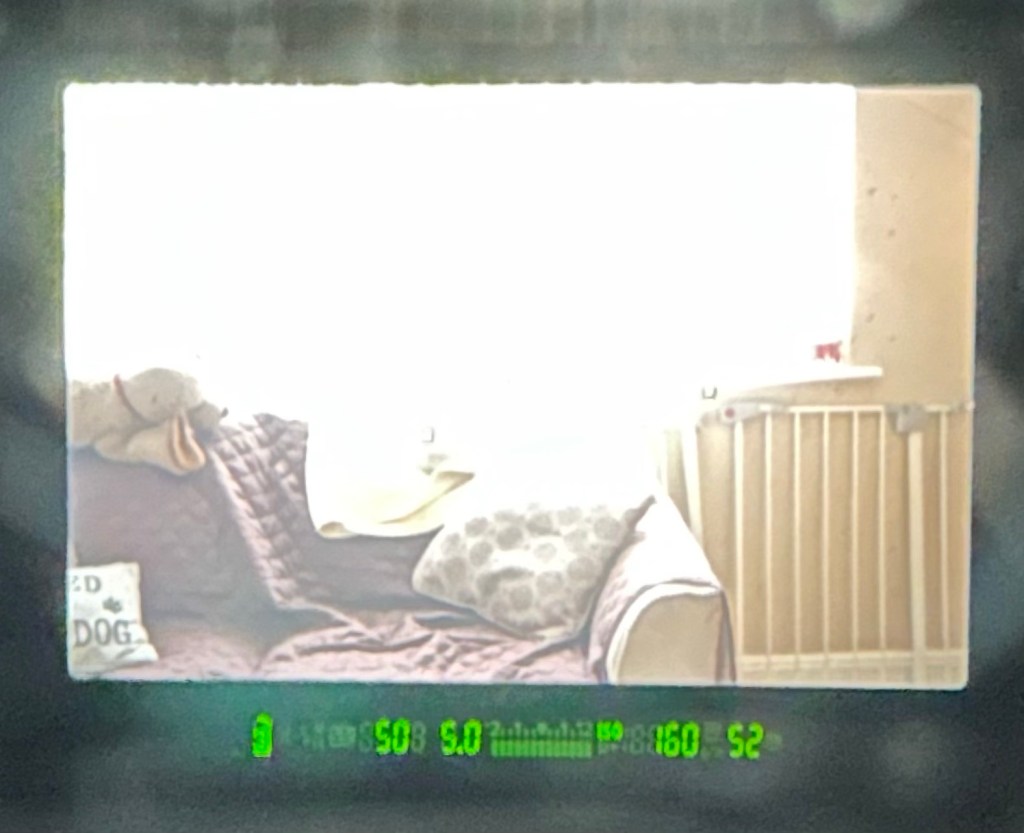


All lenses are working and moving and focusing as they should. The real good news is that the shutter fires at all speeds and is not stuck, and the sensor cleaner appears to be working.
I’m really happy with what I have found so far, I need to get a CF card to check the original issues that were reported with the suspect sensor. If that is the only issue I will get one ordered and install that at a later date. I have cleared all settings and the firmware is up to date. I’ve downloaded a raft of Canon software so I will be able to test this all once I get that CF card that should be here in a few days.
23/4/24
The CF card adapter has arrived from China. I’ve purchased this type as this particular adapter allows an SD card to be utilised in CF form. I have ample SD cards in use all around so this makes sense for me, I have nothing apart from this camera that uses CF cards so for a relatively low outlay this is the best option for me.

Now I have Every thing in place to test the camera. I’m using basic settings and an old test lens so I’m not looking for any spectacular photos as that’s not going to happen here. I just want to see what’s going on.
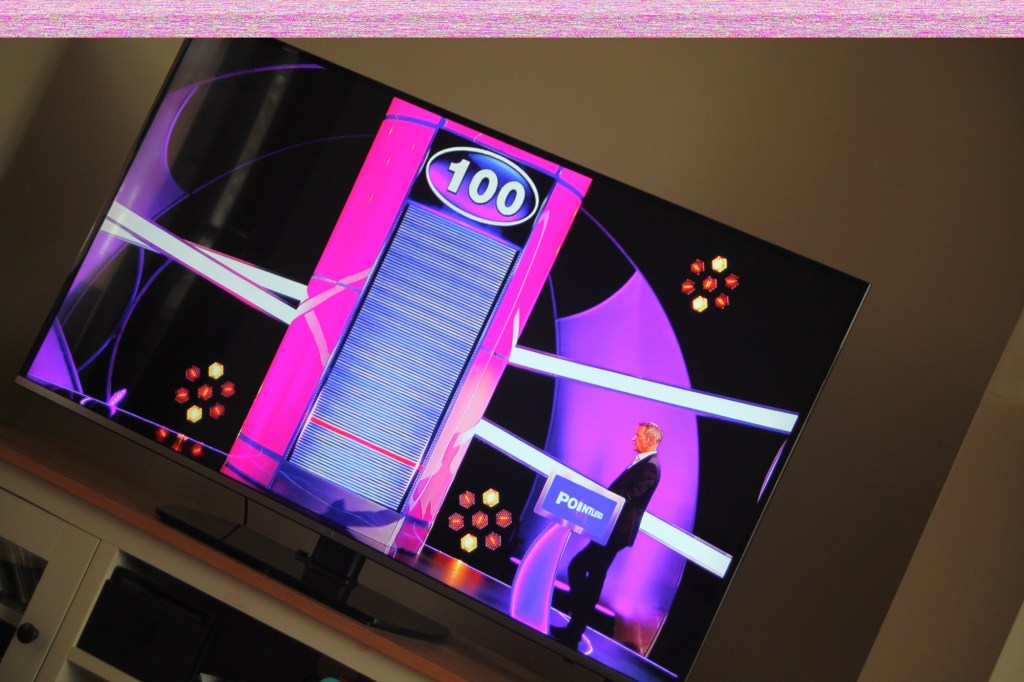
When I’m taking a shot everything lights up ok. Indications are all good, the shutter fires but all I see is a pinkish screen as demonstrated in the small video above. However every now and again I do get a “proper” photo, usually only the one then you have to turn the camera off then on again to get another and that’s not always guaranteed. As you will see in the two photos below you can get one photo and then the next has a pink band appearing from above.

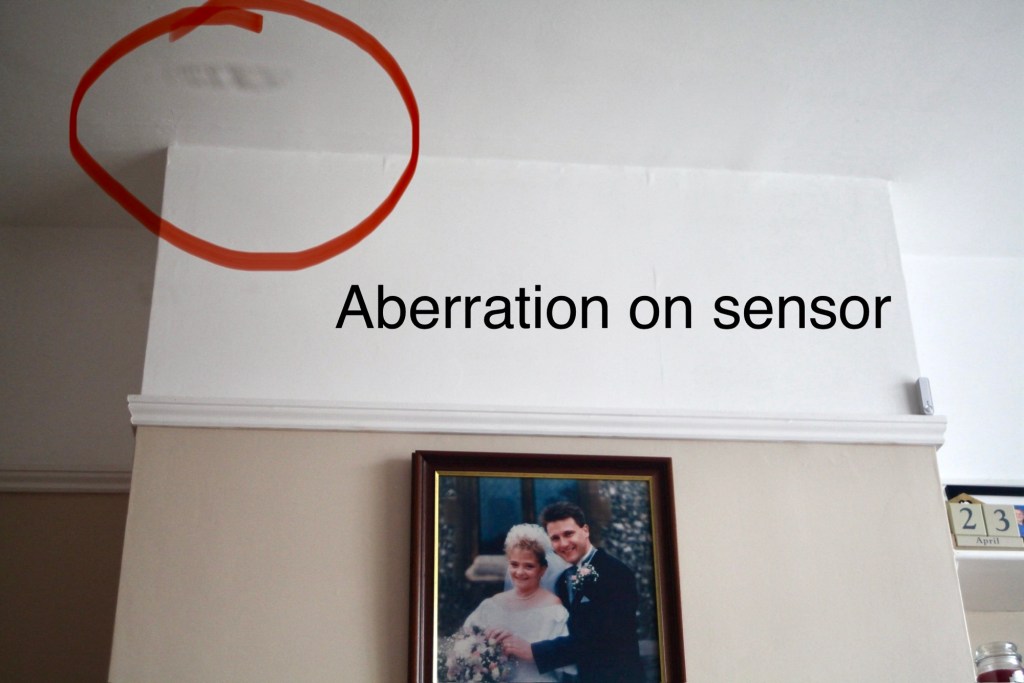
Whilst taking a random photo looking at our ceiling, I became aware of what looked like a water leak by the chimney stack. This gave me some concern but I needn’t have been worried as it appears in other photos and is more than likely an Abberation mark on the sensor. The two pictures below show that mark on the sensor in the same area.

Occasionally the pink line that appears at the top of the photo also takes on a pixelated test card look. The weird thing is that if you put the camera into video mode the image is clear with good sound and no playback issues. Strange 🤷♂️


It really is looking as if the issue is around the sensor that in this camera is a CMOS sensor. But before I make any decisions on what action I’m taking I’m exhausting all the obvious issues if I can. I have looked at several forums on line and there are a multitude of tasks I could try but it all seems to filter down to two in general. A full camera reset and a reinstall of the last issued firmware.
Now I have completed the full reset and on top of this I’m going to install a new CR1616 CMOS cell, as I just don’t know when this was last done.
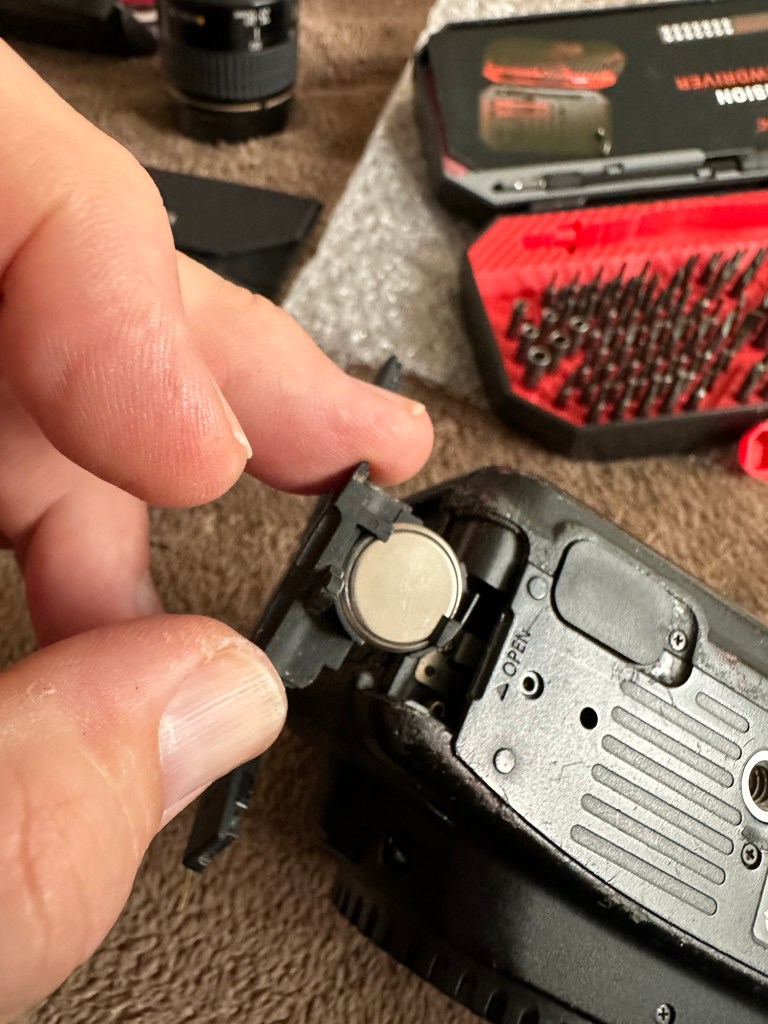
The CMOS deterioration rate is about 3% of the battery value per year, now if this camera was purchased around 2008 when they first came out then it dosen’t take a mathematical genius to work out that the cell could be sufficiently depleted. In fact I don’t know why I haven’t used the multi meter to test it🤦♂️
I’ll get on to that and will report back. It kind of makes sense seeing the sensor on this camera is a Cmos sensor. All tested, battery was at 2.3v, I have now replaced the battery but everything is still the same. I don’t know if updating the firmware will assist in any way, but I’m just following a procedure that most who have been in this position before have also done. it’s just a process of elimination before doing a full tear down of the camera. And if I can do anything to avoid that I certainly will.
I’ve finished all the testing and it is certainly looking like the Cmos sensor needs replacing. I’ve done all I can here, but I’m reluctant to order the new sensor from China as I’m not 100% confident of having the facilities or time to do the work required. Will I gain anything after the outlay? I very much doubt it. I’m going to move this camera on now with all my findings and hopefully I can find someone who will be able to take this project on to a successful completion.
I know parts wise I can make a good profit on the original outlay so maybe that is the route to take.
So I’ve failed on this renovation, but nothing is going to waste, it just needs to go to some who is somewhat more experienced with these type of upgrades than me. Hopefully I can gain some experience along the cheaper more available stock route.
I have learned some interesting things about this camera and it’s operating. So in many ways that’s a win, knowledge is everything.
 Foxes Den
You must be logged in to post a comment.